How to Export a DynamoDB Table to CSV (4 Ways)
DynamoDB has no native "export to CSV" button. Every value comes back wrapped in
DynamoDB's marshalled JSON — {"S": "..."},
{"N": "123"}, {"M": {...}} — and a table can hold nested maps, lists, and
sets with no obvious flat-column representation. So "export DynamoDB to CSV" is
really two problems: get the items out, then flatten the typed JSON into
rows. Neither the console nor the managed export does the second step for you.
This guide starts with the way that does both steps for you, then covers the three AWS-tooling routes and when each one is the right call.
How do I export a DynamoDB table to CSV?
Open the table in DynoTable, filter to the rows
you want, and export the result to CSV in one click — type descriptors
unwrapped and nested values flattened for you
(Method 1). Building it from AWS
tooling instead: scan with the CLI and reshape with jq for a small table
(Method 2), use the managed S3 export for large
tables (Method 3), or write a
short script when you need custom shaping
(Method 4).
- Filtered / shaped CSV (a subset of columns, only some items): a GUI export (Method 1) or a script. The managed S3 export gives you the whole table, unfiltered.
- Small table, ad-hoc, terminal-only: AWS CLI
scan+jq(Method 2). Fine until nested attributes show up. - Large table (GBs+): DynamoDB export to S3 (Method 3), then convert the dump. It runs asynchronously and consumes no read capacity — but it outputs DynamoDB JSON, not CSV.
Method 1: one-click export in DynoTable
DynoTable treats export as part of browsing: run or filter a query, press ⌘⇧E (or the Export button in the tab toolbar), and pick what goes out:
- Formats: CSV (one row per item, with headers — sets serialize as
JSON arrays inside a cell), JSON, and NDJSON. JSON/NDJSON come
unmarshalled (plain
"count": 3) or marshalled DynamoDB-JSON when you need a lossless round-trip that preserves large numbers. - Scopes: the currently loaded rows, just your selection, or the full filter match — every item your query matches, streamed straight from DynamoDB rather than only what's on screen. That last one is the filtered export the managed S3 snapshot can't do.
- Destination: clipboard or file. For one-off grabs, right-click a row and Copy as… puts CSV, JSON, NDJSON, or DynamoDB-JSON straight on the clipboard, no dialog.

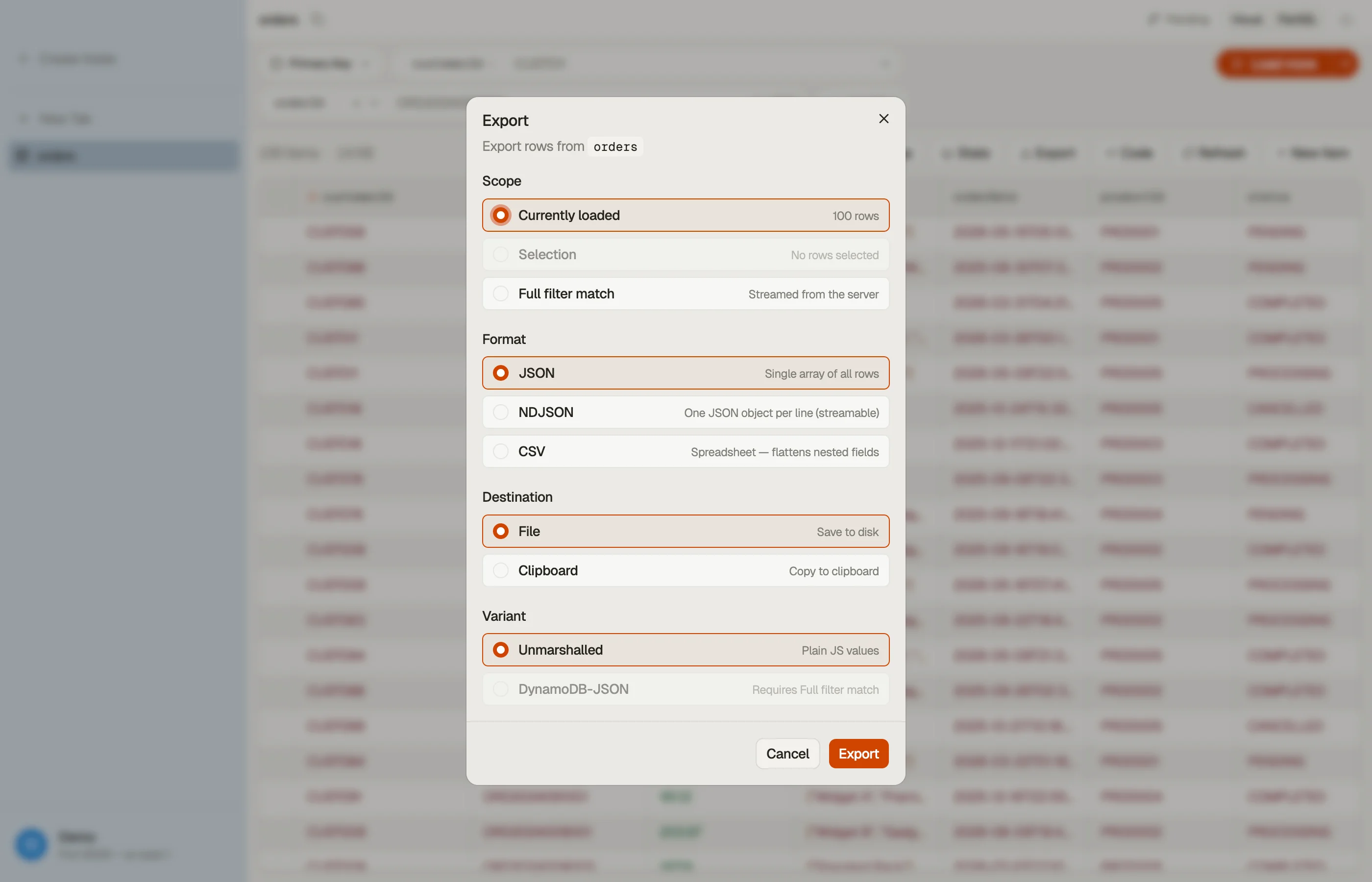

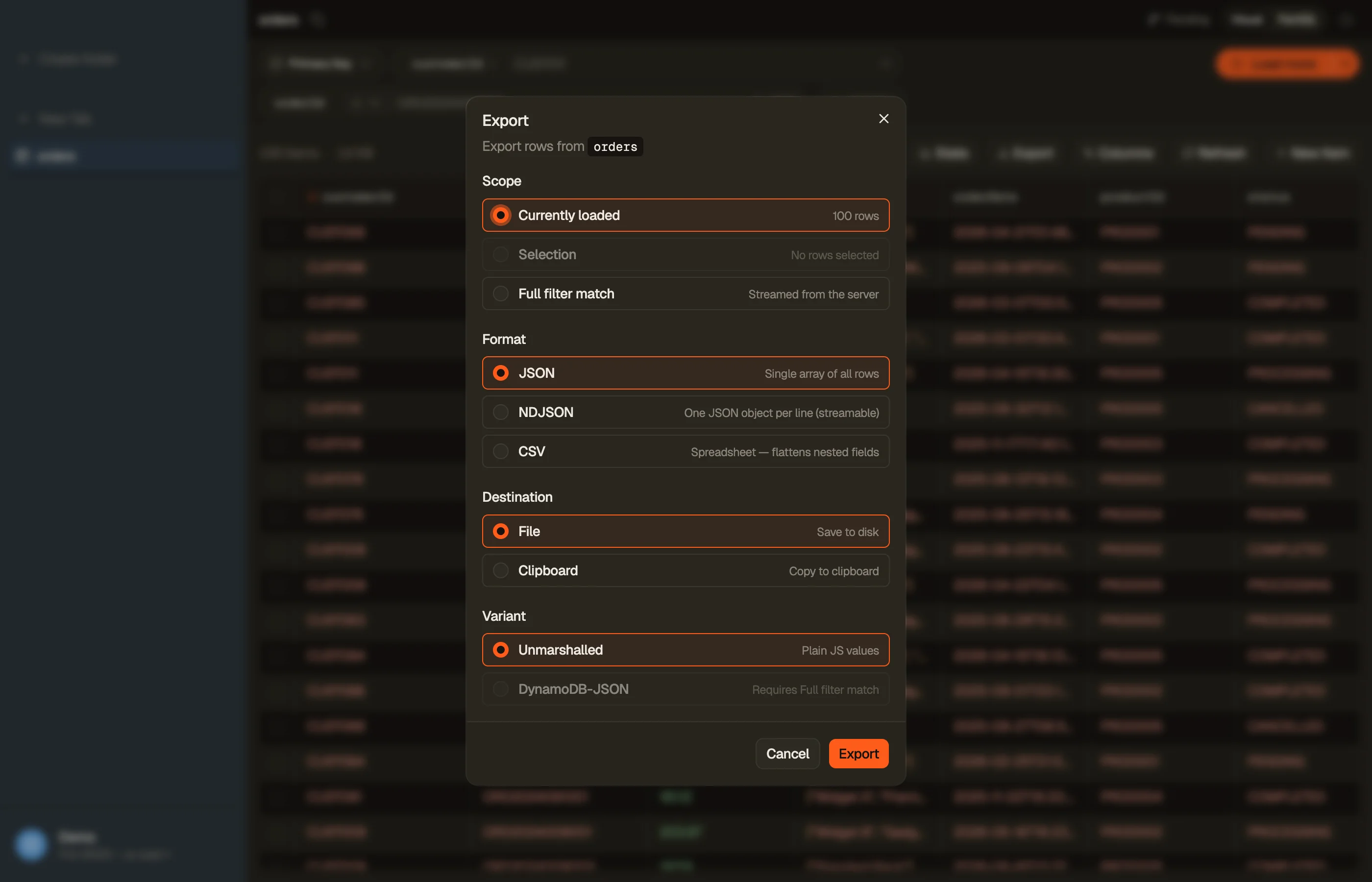
The flattening problems that break the DIY routes below are handled: type descriptors are unwrapped, nested maps and lists are flattened, and renamed columns flow through to the CSV headers. Large exports detach and run in the background — streamed to disk row by row, surviving tab switches and even an app reload — so a multi-gigabyte export never has to fit in memory.
It's a desktop DynamoDB client, the same tool you already use to browse the table; see how it compares to other DynamoDB GUIs. When would you not use it? When the export must run unattended in a pipeline — that's what the script route (Method 4) is for.
Method 2: AWS CLI scan + jq
For a small table you can scan it and reshape the output with jq. A Scan reads
every item in the table and returns it in pages of up to 1 MB; the CLI
follows pagination for you automatically
(AWS docs: Scanning tables).
aws dynamodb scan --table-name MyTable --output json \
  | jq -r '.Items[] | [.id.S, .name.S, .price.N] | @csv' \
> out.csvThe catch is in that jq line: you have to hand-write .id.S, .name.S,
.price.N — reaching past each attribute's type descriptor (S, N, B,
BOOL, M, L, SS, NS, BS) to get the raw value. That's manageable for a
flat table with three string columns. It falls apart the moment you have:
- Nested maps/lists —
{"M": {...}}or{"L": [...]}have no single column to flatten into;@csvchokes, or you JSON-encode the cell by hand. - Sets —
{"SS": ["a","b"]}is an array, not a scalar. - Sparse attributes — DynamoDB is schemaless, so item A may have a
priceand item B may not. Your fixed column list silently drops or misaligns columns.
There is also no --output csv at all — the CLI's output formats are json,
yaml, text, table, and off, none of which understand DynamoDB types. So you
still need jq (or a script) to strip the type tags. That's the core reason "export
DynamoDB table to CSV via AWS CLI" is never a one-liner past the trivial case.
To export an entire larger table this way without it taking all day, parallelise the
scan with --segment / --total-segments
(AWS docs: Parallel scan —
DynamoDB "assigns items to segments by applying a hash function to each item's
partition key", so segments can be uneven), and read
pagination so you don't stop at the first 1 MB page.
Method 3: DynamoDB export to S3 (large tables)
For tables of any real size, the managed export to Amazon S3 is the right tool.
It exports a snapshot from any point in your point-in-time recovery (PITR)
window — so PITR must be enabled on the table first, or the export fails with
PointInTimeRecoveryUnavailableException —
runs asynchronously,
and consumes no read capacity units, so it has zero impact on your table's
throughput or availability (AWS docs:
"Exports are asynchronous, they don't consume read capacity units (RCUs) and have no
impact on table performance and availability"; "You need to enable PITR on your table
to use the export functionality"). This is also what the console's Exports to S3
action triggers under the hood: the console is just a front end for the same API,
so it carries the same PITR requirement and the same JSON output.
aws dynamodb export-table-to-point-in-time \
  --table-arn arn:aws:dynamodb:us-east-1:123456789012:table/MyTable \
  --s3-bucket my-export-bucket \
--export-format DYNAMODB_JSONThe one gotcha: the S3 export does not output CSV. It writes DynamoDB JSON
or Amazon Ion only, as gzipped files in
JSON-lines format (one item per line), plus manifest
files (AWS docs: export output format —
data files are written as .json.gz, "the format is JSON lines", alongside
manifest-summary.json / manifest-files.json). You still need a conversion step
afterward:
- Athena / Glue read the exported DynamoDB JSON directly — point a table at the
S3 prefix, then write CSV from a
SELECT(this is the usual "export DynamoDB to S3 then to CSV" pipeline). AWS notes that "many AWS services, such as Athena and AWS Glue, will parse this format automatically" (export output format). - Roll your own — decompress the
.gzfiles, parse each JSON line, and flatten it (same flattening problem as every other method).
It's also a full-table snapshot: there's no server-side filter to export only some items. If you need a subset, you either filter after the fact in Athena, or you use a GUI (Method 1) / script instead.
Method 4: a quick script (boto3 / Node)
When the export must run unattended — a nightly job, a CI step — a small
script beats everything above. The win is that the AWS SDKs
unmarshall the typed JSON for you: boto3's resource interface and the JS SDK's
DynamoDBDocumentClient return plain {"price": 2000} instead of
{"price": {"N": "2000"}} (boto3's resource interface makes "the data typing
implicit", per the
AWS Python guide;
the JS DocumentClient "converts annotated response data to native JavaScript types",
per @aws-sdk/lib-dynamodb).
import boto3, csv

table = boto3.resource("dynamodb").Table("MyTable")
rows, resp = [], table.scan()
rows += resp["Items"]
while "LastEvaluatedKey" in resp:                  # paginate to the end
    resp = table.scan(ExclusiveStartKey=resp["LastEvaluatedKey"])
    rows += resp["Items"]

with open("out.csv", "w", newline="") as f:
    w = csv.DictWriter(f, fieldnames=["id", "name", "price"])
    w.writeheader()
    for r in rows:
w.writerow({k: r.get(k) for k in w.fieldnames})You still own two decisions the SDK can't make for you: how to flatten nested
maps/lists into columns (JSON-encode the cell? dot-path the keys?), and what to do
with sparse attributes (here a missing key becomes an empty cell via r.get(k)).
And don't drop the LastEvaluatedKey loop — a single scan() call returns only the
first 1 MB page, so without it you silently export part of the table.
Same caveat as Method 2: a full-table scan here still consumes read capacity and
competes with live traffic. For a big table, prefer
Method 3 and reshape the dump.
Gotchas: DynamoDB JSON vs flat CSV
Whichever method you pick, the same handful of mismatches between DynamoDB's data model and a flat CSV will bite you:
- Type descriptors. Raw API / CLI / S3-export output wraps every value
(
{"S": "..."},{"N": "123"}). You either unwrap it via an SDK or strip the descriptor yourself. The full set isS,N,B,BOOL,NULL,M,L,SS,NS,BS— see DynamoDB data types. - Nested maps and lists (
M,L) can nest up to 32 levels deep (AWS docs: data types — list and map "can be nested within each other, to represent complex data structures up to 32 levels deep") and have no natural single-column form. Decide up front: JSON-encode the cell, or explode nested keys into dot-pathed columns (address.city). - Sets (
SS/NS/BS) are unordered collections, not scalars — AWS warns "the order of the values within a set is not preserved" (data types) — so flatten to a delimited string and don't rely on element order. - Sparse attributes. DynamoDB is schemaless, so two items can have different attributes. There is no fixed column set; union the keys across all items or columns will misalign. This is a direct consequence of single-table design, where one table holds several entity shapes.
- Pagination.
Scan(andQuery) return at most 1 MB per call. If you don't loop onLastEvaluatedKeyyou'll silently export only the first page. See pagination. - Number precision. DynamoDB numbers carry up to 38 digits of precision and travel as strings (AWS docs: data types: "Numbers can have up to 38 digits of precision"; "All numbers are sent across the network to DynamoDB as strings"); spreadsheet software may coerce long numbers or IDs into floats and lose digits. Keep them as text.
FAQ
What's the fastest way to export a DynamoDB table to CSV? A GUI that does the flattening for you: in DynoTable, filter the table, press ⌘⇧E, pick CSV, and choose a scope — from the selected rows up to every item the filter matches, streamed from DynamoDB. Type descriptors and nested values are handled automatically.
How do I export a DynamoDB table to CSV with the AWS CLI?
Scan the table and reshape the output with jq (Method 2): aws dynamodb scan →
jq to strip each value's type descriptor → @csv. There's no DynamoDB-aware
--output csv, so you always do the type-stripping yourself, and it breaks on nested
maps, lists, and sets.
Can I export a DynamoDB table directly to CSV from AWS?
Not in one step. The console and the managed S3 export both produce DynamoDB JSON or
Amazon Ion, never CSV. You always need a conversion step — CLI + jq, a script,
Athena/Glue over the S3 dump, or a GUI that does the flattening for you.
How do I export an entire DynamoDB table without affecting production?
Use the export to S3 feature (Method 3). It runs asynchronously and consumes
no read capacity units, so it doesn't compete with live traffic — unlike a
Scan, which is metered against your table's throughput
(AWS docs).
It requires PITR to be enabled and exports the full table, not a filtered subset.
How do I export DynamoDB to S3 as CSV?
The managed export only writes DynamoDB JSON / Ion to S3, so "to CSV" is a second
hop: register the export prefix as an Athena (or Glue) table and write CSV from a
SELECT. There's no --export-format CSV.
How do I export DynamoDB to Excel?
Export to CSV first (any method above), then open the CSV in Excel — keeping long
numeric IDs as text so they aren't coerced to floats. There's no direct .xlsx
export from DynamoDB; DynoTable saves the current view straight to a
spreadsheet-ready CSV.
Why does my exported JSON have {"S": ...} and {"N": ...} everywhere?
That's DynamoDB's marshalled wire format — each value is tagged with a type
descriptor. Unmarshall it with an SDK, the
DynamoDB JSON converter, or a GUI before writing
CSV. The wire format is the same whether the data came from the API, the CLI, or the
S3 export.
Browse, filter, and export your own tables to CSV with DynoTable, or unwrap a sample of DynamoDB JSON in the JSON converter first.