DynoTable in five minutes
DynoTable is a desktop workbench for AWS DynamoDB — built for engineers who view and edit Dynamo data every day. It's fast and keyboard-first. Your table reads and writes go only to your AWS account.
The local index stays on your device unless you choose to publish it through Team Workspace.

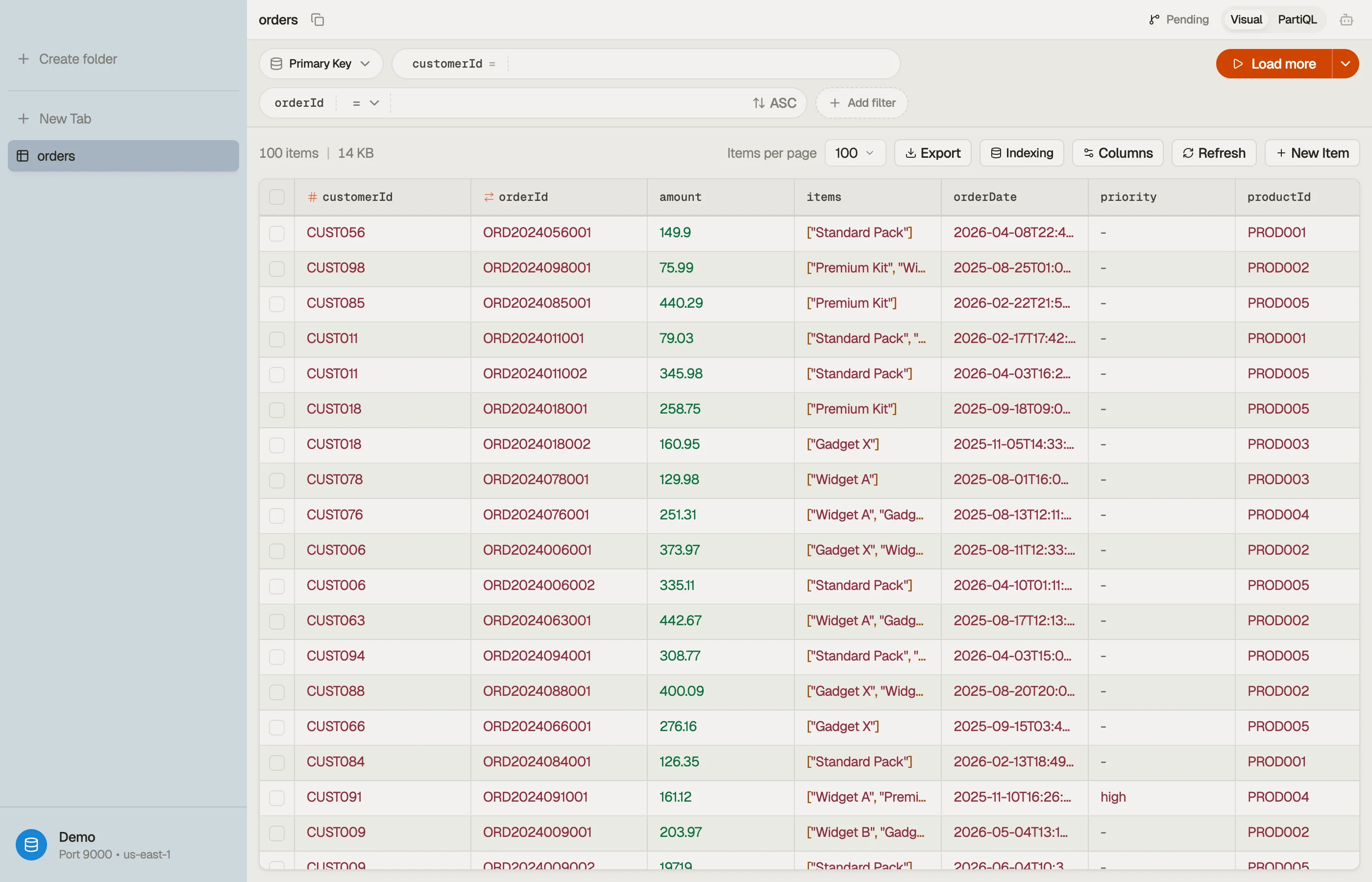

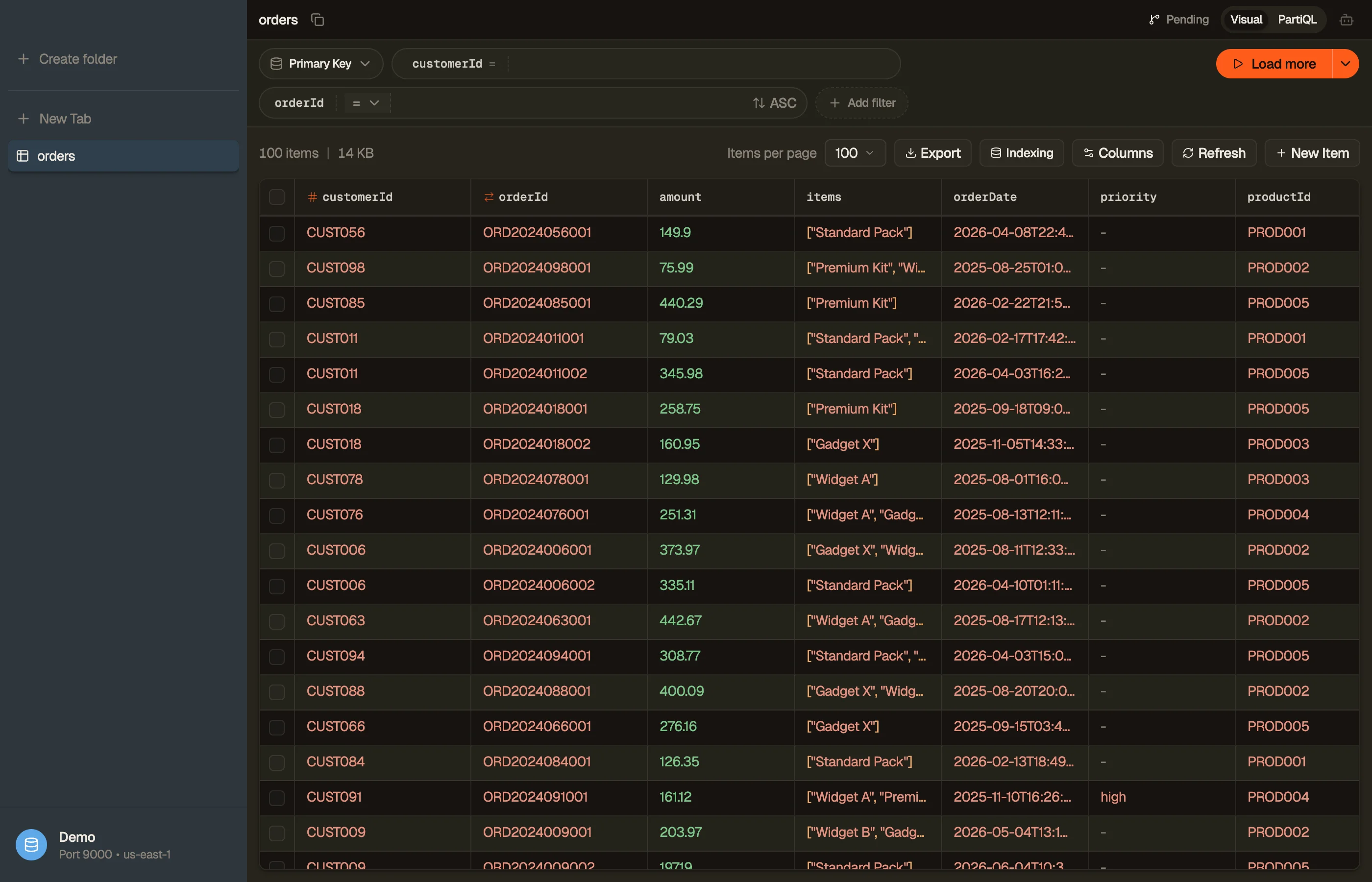
The shape of the app
DynoTable is a single window with three regions. There are no floating panels and no modal-on-modal stacks — everything has one place to live.
- Sidebar — your open tabs and saved folders, with the active Profile pinned at the bottom.
- Tab content — one open table, Smart Table, Workbench query, item, or AI chat per tab; a table tab runs in Visual or PartiQL mode.
- Tabs — open tables browser-style; reopen the last closed one with ⌘⇧T.
Core concepts
- Profile — a named AWS credential set with one default region. One profile, many tables; use a second profile for another region.
- Tab — one open table view. Filters, selection and view mode are per-tab.
- Query Pattern — the index you're querying:
PRIMARY, or a named GSI/LSI. - Operation — a cheap
querywhen a hash-key filter is set, otherwise ascan.
What to try first
- Open a table with ⌘K and set a partition-key filter so the tab runs a
Query, not a tableScan. - Switch profiles with ⌘P — Prod and Dev keep separate tabs and saved queries.
- Open a Workbench tab (⌘⌥B) for JOIN /
GROUP BYwithin DynamoDB's access-pattern rules. - Stage an edit with ⌘S, review the diff, then commit — never surprise-write production.
Free (signed-in, no active license) still browses tables and builds the local index; running Workbench queries, staging writes, and the AI agent need an active trial or paid plan. See Activation & licensing.
The feature map
DynoTable groups its features the way this manual is organized. Use the map below as the sidebar index — each entry links to a full page.
Getting Started
- Install & activate — Download, install, and activate DynoTable on macOS, Windows or Linux — the deeplink activation flow, your 2-machine licence, and background token refresh.
- Connect an AWS account — Connect DynoTable to AWS — profiles, regions, IAM Identity Center (SSO), MFA-protected assume-role, and the profile switcher. Credentials stay on your machine.
Working with Data
- Tables & tabs — Browse DynamoDB in DynoTable — multi-tab workspaces, Visual and PartiQL tab modes, the virtualized grid, page size, columns, and per-row Quick View.
- Editing items — Edit DynamoDB items in DynoTable — the JSON item editor, Plain vs DynamoDB-JSON modes, the Document form view, the read-only Flow graph view, schema validation, and saving via staging.
- Staging & commit — Stage DynoTable edits, creates, and deletes as per-attribute diffs, commit them in transactional batches, resolve conflicts with optimistic locking, and revert a staged write from the local write history.
- Export — Export DynamoDB data from DynoTable to CSV, JSON, or NDJSON — from one row to the full result set, with renamed columns and background exports — or export the query itself as runnable code in 13 SDKs and languages.
- Import — Import CSV, JSON, or NDJSON files into an existing DynamoDB table — with a preview, whole-file validation before anything is written, and background writes.
- Table overview and indexing — Read a DynamoDB table's keys, secondary indexes, and item-count and size estimates in DynoTable's Table settings dialog, index the table for autocomplete, and export a TypeScript or Zod schema.
- Create and manage tables — Create and delete DynamoDB tables from DynoTable, add or drop a global secondary index, and set TTL, capacity mode, and deletion protection.
Querying
- Filters & query patterns — How DynoTable's visual filter pills map to a DynamoDB query vs scan — choosing the index to read through, and building key and scan conditions.
- PartiQL — Write PartiQL against a single DynamoDB table in DynoTable — SELECT, INSERT, UPDATE, and DELETE with templates, inline diagnostics, and streamed results.
- SQL Workbench — Run real JOIN, GROUP BY, and aggregate queries across DynamoDB tables with DynoTable's SQL Workbench — SQL within DynamoDB's access-pattern rules.
- Smart Tables — Smart Tables in DynoTable — saved multi-table joined views built on a visual ER canvas, with Configure and Data modes and per-column renaming.
- Vector search — Search a DynamoDB table by meaning — create a vector index, bind an embedding model to it, and search with a sentence, a raw vector, or Find similar.
AI
- AI chat — The DynoTable AI chat reads your DynamoDB schema, writes PartiQL and Workbench SQL, and stages edits for review — on your own AWS Bedrock credentials.
- AI tools — What the DynoTable AI agent can do — read schema and data, compute exact aggregates, stage writes for review, export — and how each action is gated.
- MCP server — Connect Claude Code, Cursor, or Codex to DynoTable's local MCP server — how to enable it, the per-connection consent and scopes, and the security model.
Teams
- Team Workspace — Team Workspace shares AI context and table indexes across your DynoTable team, stored in an S3 bucket in your own AWS account, never on our servers.
Account & Licensing
- Activate DynoTable — Activate DynoTable — the one-click dynotable://activate deeplink, the paste-token fallback, and what the Trialing, Active, and Read-only states allow.
- Devices — DynoTable's two-machine license limit — how the Device ID works, when the oldest machine is freed automatically, and how to deactivate one yourself.
Reference
- Keyboard shortcuts — Every DynoTable keyboard shortcut, grouped by task — navigation, tabs, querying, the item editor, and selection. On Windows and Linux, ⌘ becomes Ctrl.
- Settings — A map of DynoTable's settings — the global Account, Appearance, and Privacy sections, plus the per-profile connection, AI, permissions, and knowledge rail.
- Troubleshooting — Fixes for common DynoTable problems — credentials and SSO, empty tables, stale results, read-only writes, AI not configured — plus how the app updates.
- Glossary — Plain-English definitions of the DynamoDB and DynoTable terms used across these docs — partition key, sort key, GSI, scan, PartiQL, staging area.