Install & activate
DynoTable ships for macOS, Windows and Linux. Grab the latest build from the download page — it auto-detects your platform.
Download & install
macOS
DynoTable is a notarized macOS app for Apple Silicon (arm64). Unzip the download and drag DynoTable to Applications, then launch it from there.
Windows
Run the .exe installer. DynoTable installs per-user and opens automatically when
it finishes.
Linux
Download the package for your distribution:
.deb— Debian / Ubuntu (sudo apt install ./dynotable_*.deb).rpm— Fedora / RHEL (sudo dnf install ./dynotable-*.rpm).AppImage— Arch and any other distro (chmod +x DynoTable-*.AppImagethen run it)
First launch
On first launch DynoTable opens with no profiles. Your next step is to connect an AWS account — until then there's nothing to query. While you install, the free query builder on this site composes DynamoDB Query and Scan requests in your browser — no desktop app required.
Typical path after install: Sign in → activate this machine → Settings →
Profiles → Add Profile (shared ~/.aws profile, SSO, or access keys) →
Test Connection → ⌘K open a table. Apple Silicon macOS builds
are notarized; Windows is per-user; Linux .deb and .rpm packages update
through your package manager, and the .AppImage is a manual re-download.
Activate your machine
DynoTable activates over a deeplink: you sign in in the browser, and your AWS credentials never leave your machine or reach this site:
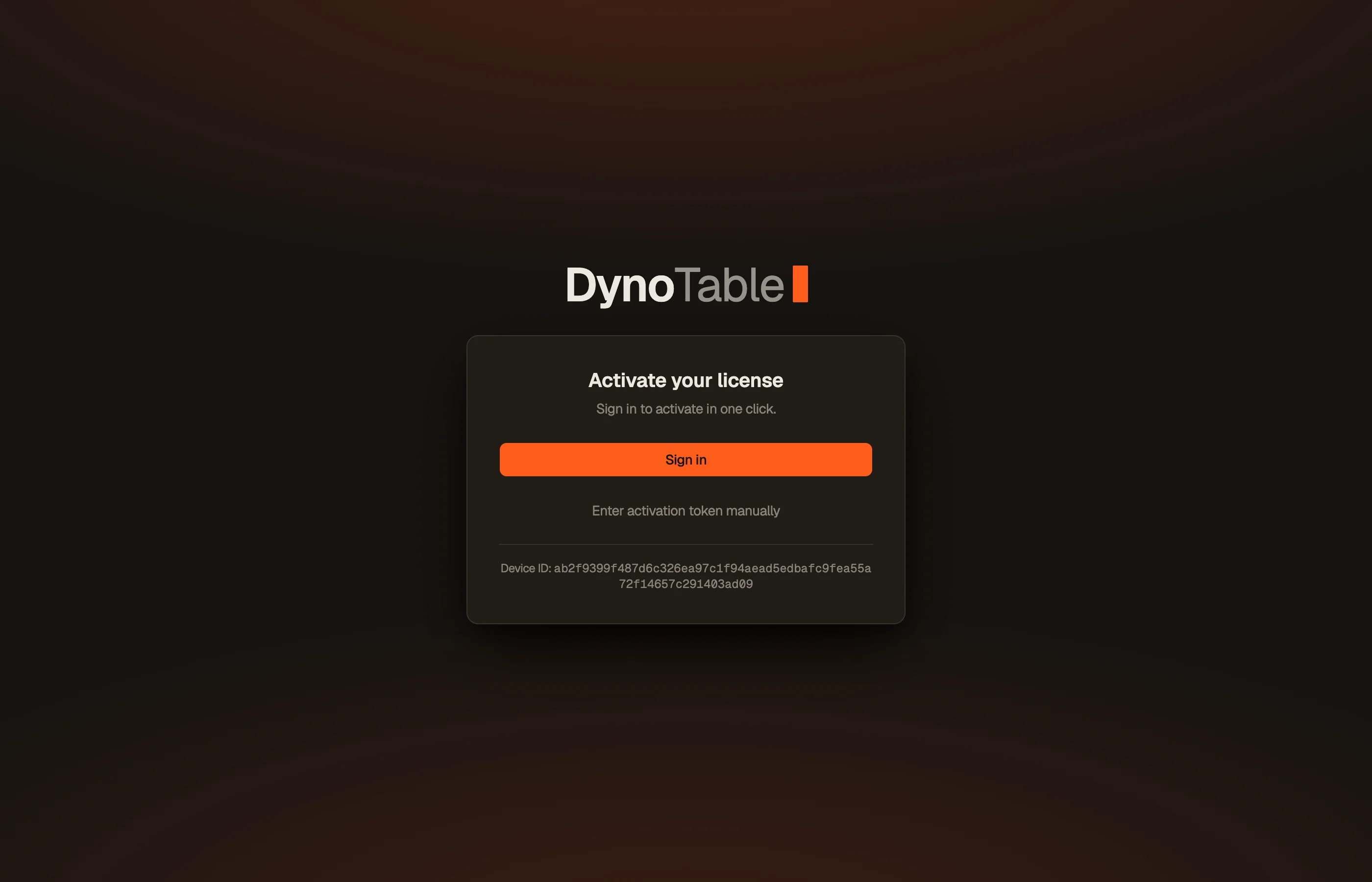
- In DynoTable choose Sign in. It opens this site in your browser with your machine details filled in.
- Sign in (or start your trial).
- Click Activate this machine. DynoTable reopens automatically with the licence installed. If it doesn't, use Open DynoTable — or copy the token shown and paste it into DynoTable via Enter activation token manually.


Your licence covers 2 machines at once. Activating a third automatically deactivates the oldest — manage them any time from Account → Devices. See Devices for the full picture.
Updates
- macOS & Windows update themselves: DynoTable downloads new builds in the background and shows an Update ready — restart to update indicator in the sidebar.
- Linux has no in-app updater.
.deband.rpminstalls update through your package manager; the.AppImageis a manual re-download from the download page.
For how that works and what to do when an update is required, see Troubleshooting.
Renewing
The app refreshes its licence token in the background every few hours. A failed or offline refresh is silent and keeps your current state — DynoTable only drops to read-only once the stored token actually expires. See Activation & licensing for the licensing states.