MCP server
The Model Context Protocol (MCP) is an open standard that lets AI agents talk to external tools and data sources. DynoTable can act as an MCP server — so an agent running in your terminal or editor (Claude Code, Cursor, Codex, and others) can work with your DynamoDB tables directly, instead of you copying schemas and results back and forth into a chat.
When connected, the agent gets a projection of the built-in assistant's gated toolkit — reading your schema, running queries and single-item reads, staging changes for review, opening views, and exporting — over a local, loopback-only HTTP endpoint. Read-only queries use the same index and key condition as the in-app visual filter; preview equivalent SDK code with the query builder before wiring a client. A few app-local tools stay in the app and are not exposed. The agent discovers your tables, queries them, and proposes edits without ever holding your AWS credentials.
It is off by default. Turning it on, and every individual connection, is explicitly under your control — see Security below.
Enable the server
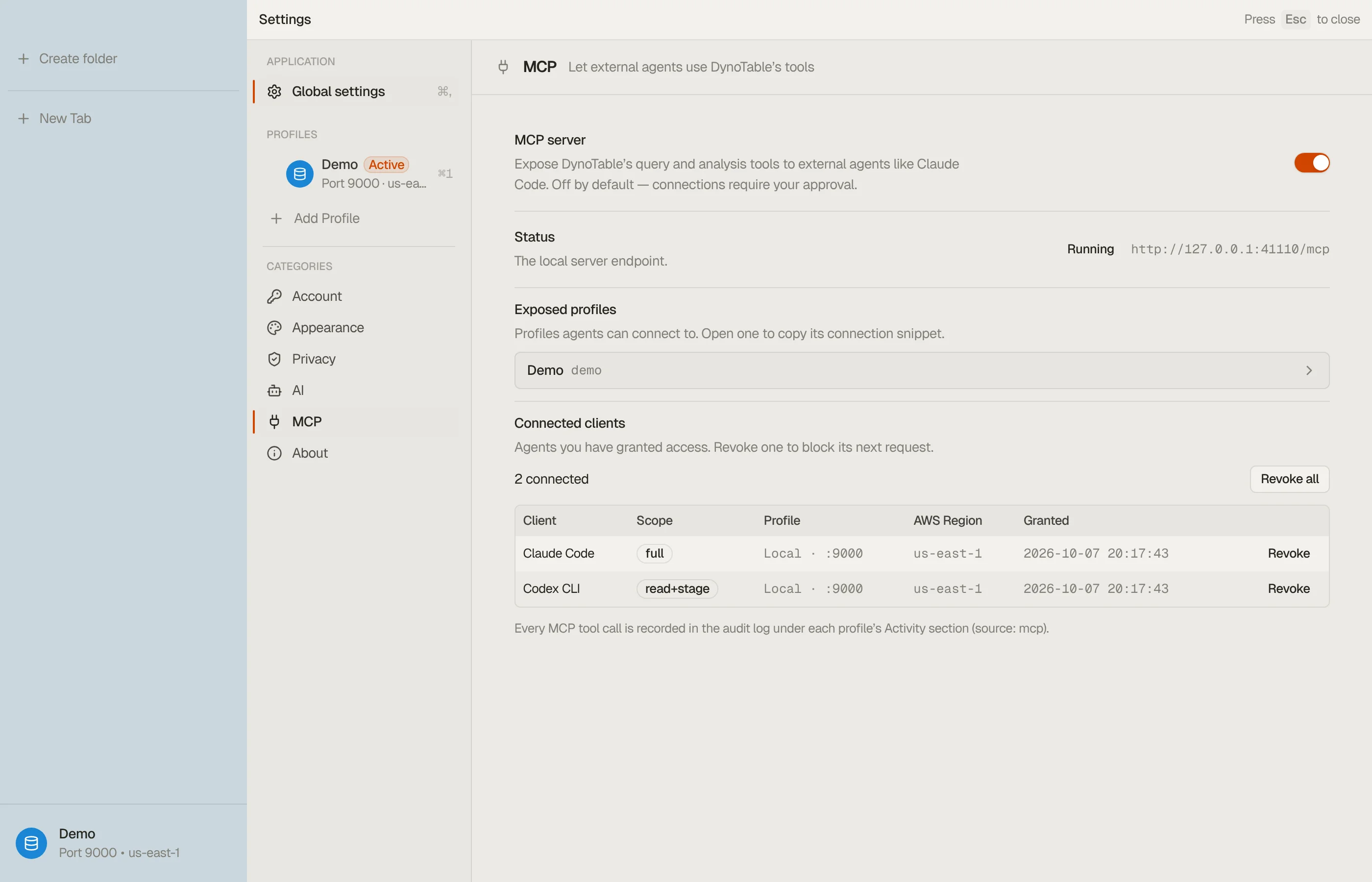
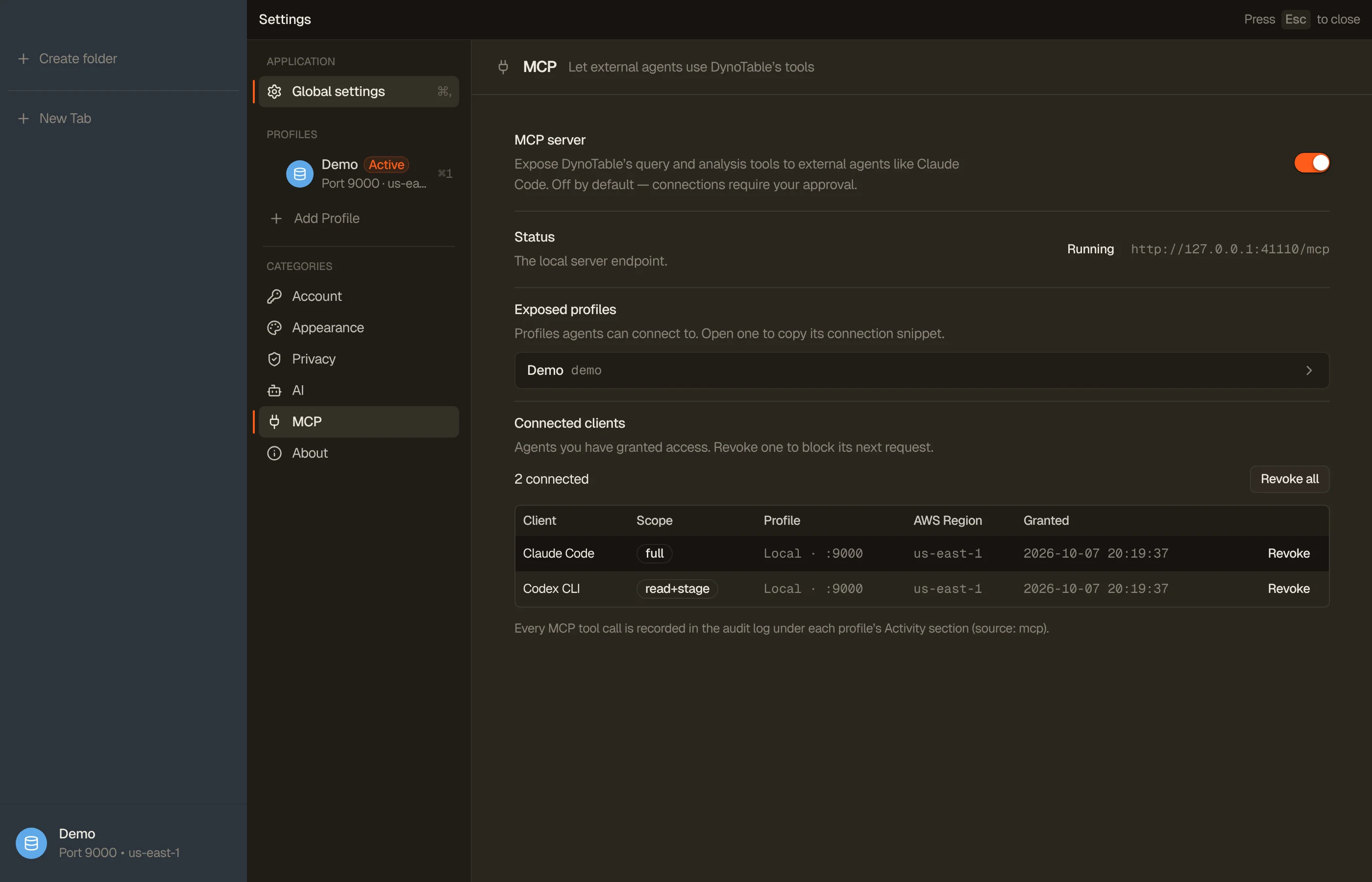
Open Settings → MCP and turn it on. DynoTable starts a server bound to
127.0.0.1 (loopback only — never reachable from another machine) and shows the
connect command for it.


Expose profiles
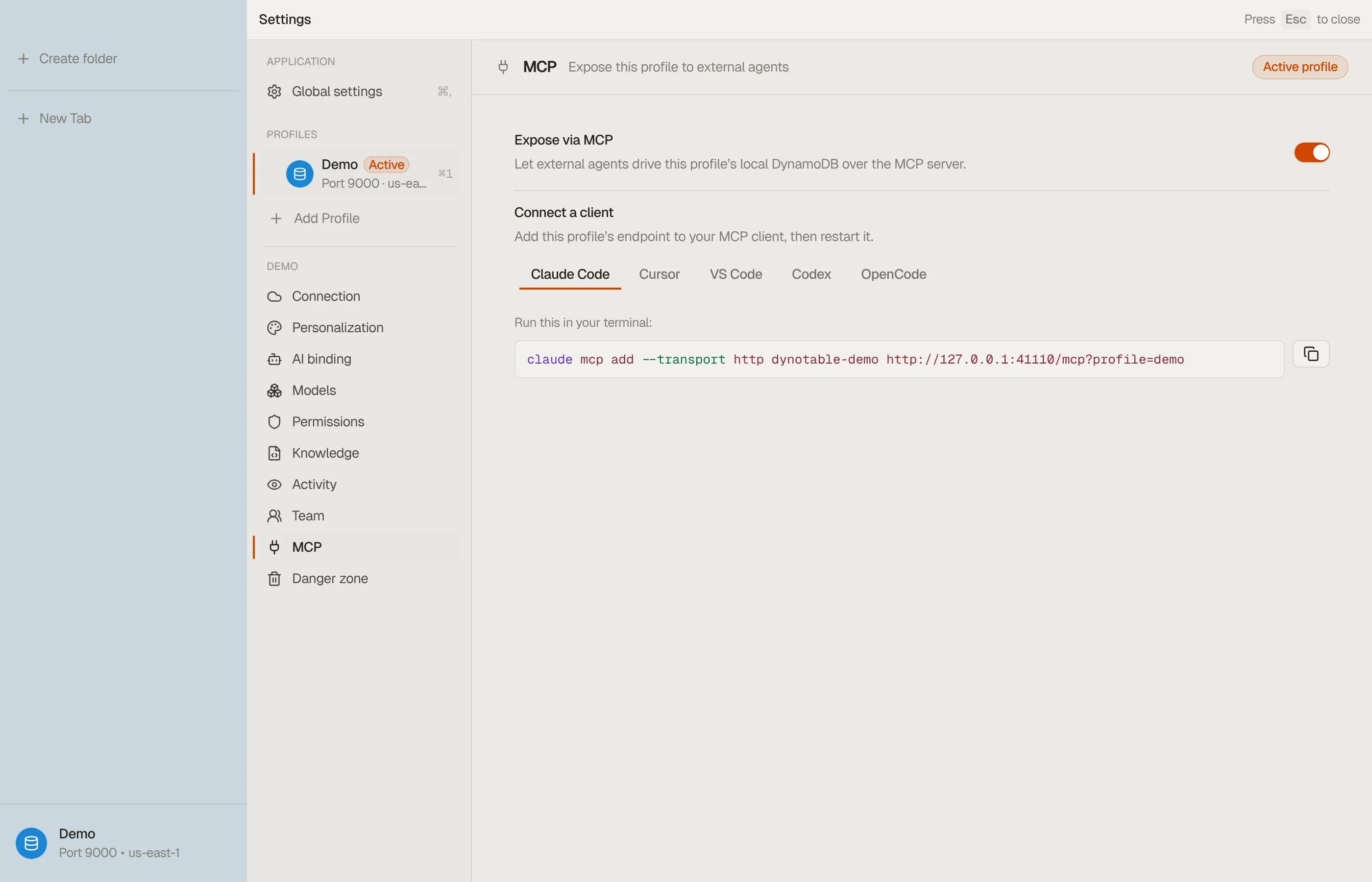
The server is on, but no agent can connect until you expose a profile. Open a
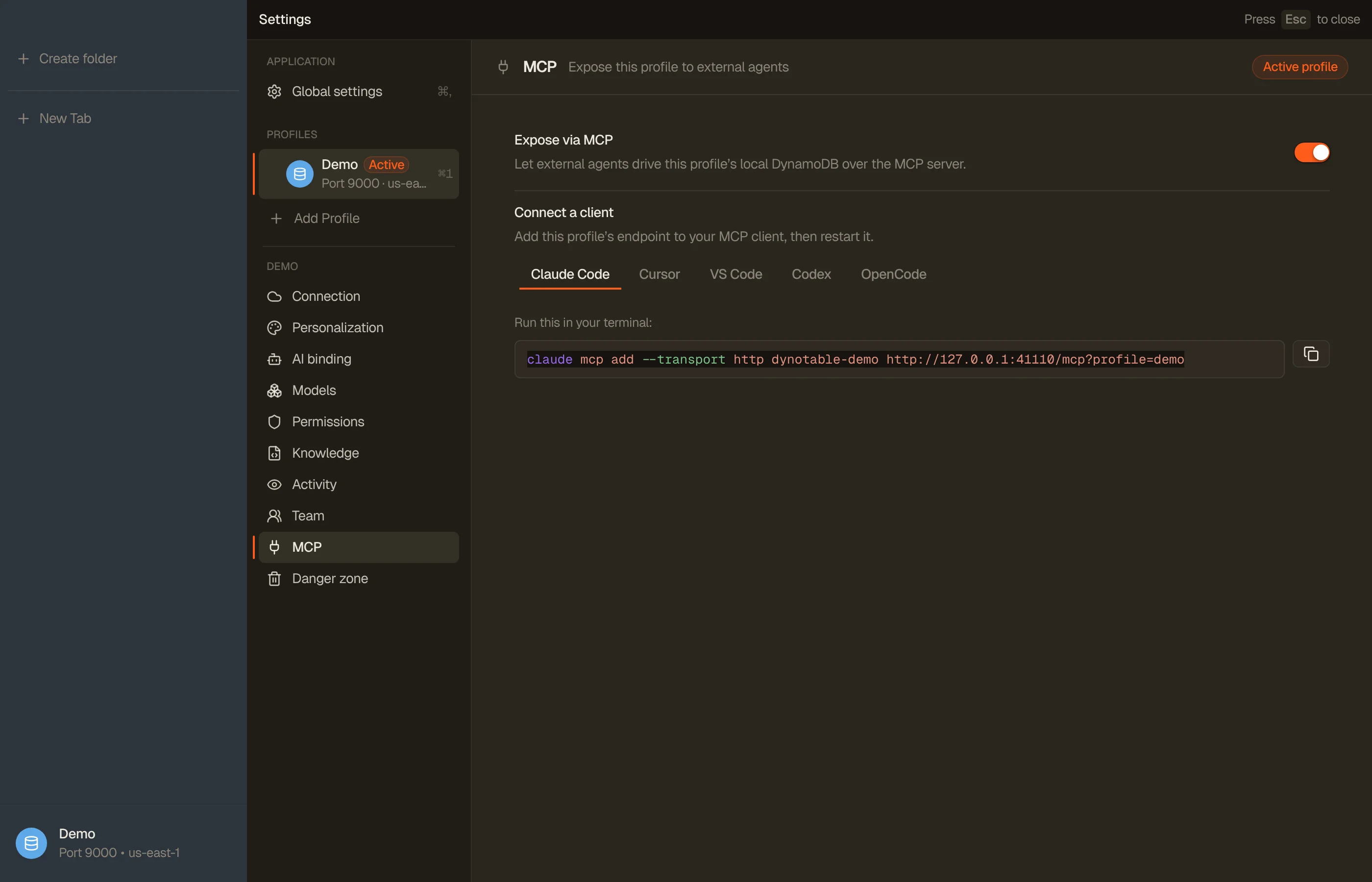
profile's MCP section in Settings and turn on Expose via MCP. Each exposed
profile gets its own connect command — so you can wire up one connection per
profile (e.g. a dynotable-dev and a dynotable-prod), each hard-isolated to
that profile's credentials and region. A connection only ever sees the data of the
profile it's bound to.
Both AWS-backed and local (DynamoDB-Local) profiles can be exposed. Exposing a local profile lets an agent drive your local seeded tables over MCP — handy for development. (Two local profiles on the same port share the same local database, so they see the same tables.)


Connect a client
DynoTable speaks MCP over streamable HTTP, so any MCP-capable agent can
connect. Each exposed profile shows its own connect command in its MCP section
— copy it from there. The command points at http://127.0.0.1:<port>/mcp?profile=<slug>:
the ?profile=<slug> tells DynoTable which profile you want and pre-selects it in
the approval prompt (it's only a hint — you still confirm). Using the profile slug
in the server name (e.g. dynotable-prod) keeps two profiles' connections distinct.
The examples below use prod as the slug; substitute your profile's slug and the
real port from Settings.
Run this in your project — it's the exact command shown in the profile's MCP section:
claude mcp add --transport http dynotable-prod "http://127.0.0.1:<port>/mcp?profile=prod"Add the server to .cursor/mcp.json (project) or ~/.cursor/mcp.json (global):
{
  "mcpServers": {
    "dynotable-prod": {
      "url": "http://127.0.0.1:<port>/mcp?profile=prod"
    }
  }
}
Add it to .vscode/mcp.json (Copilot agent mode):
{
  "servers": {
    "dynotable-prod": {
      "type": "http",
      "url": "http://127.0.0.1:<port>/mcp?profile=prod"
    }
  }
}
Add it to ~/.codex/config.toml:
[mcp_servers.dynotable-prod]
url = "http://127.0.0.1:<port>/mcp?profile=prod"
Add it under mcp in opencode.json:
{
  "mcp": {
    "dynotable-prod": {
      "type": "remote",
      "url": "http://127.0.0.1:<port>/mcp?profile=prod",
      "enabled": true
    }
  }
}
To connect a second profile, repeat with that profile's command (its own slug). After connecting, restart or reload the client so it picks up the new server.
Approve the connection
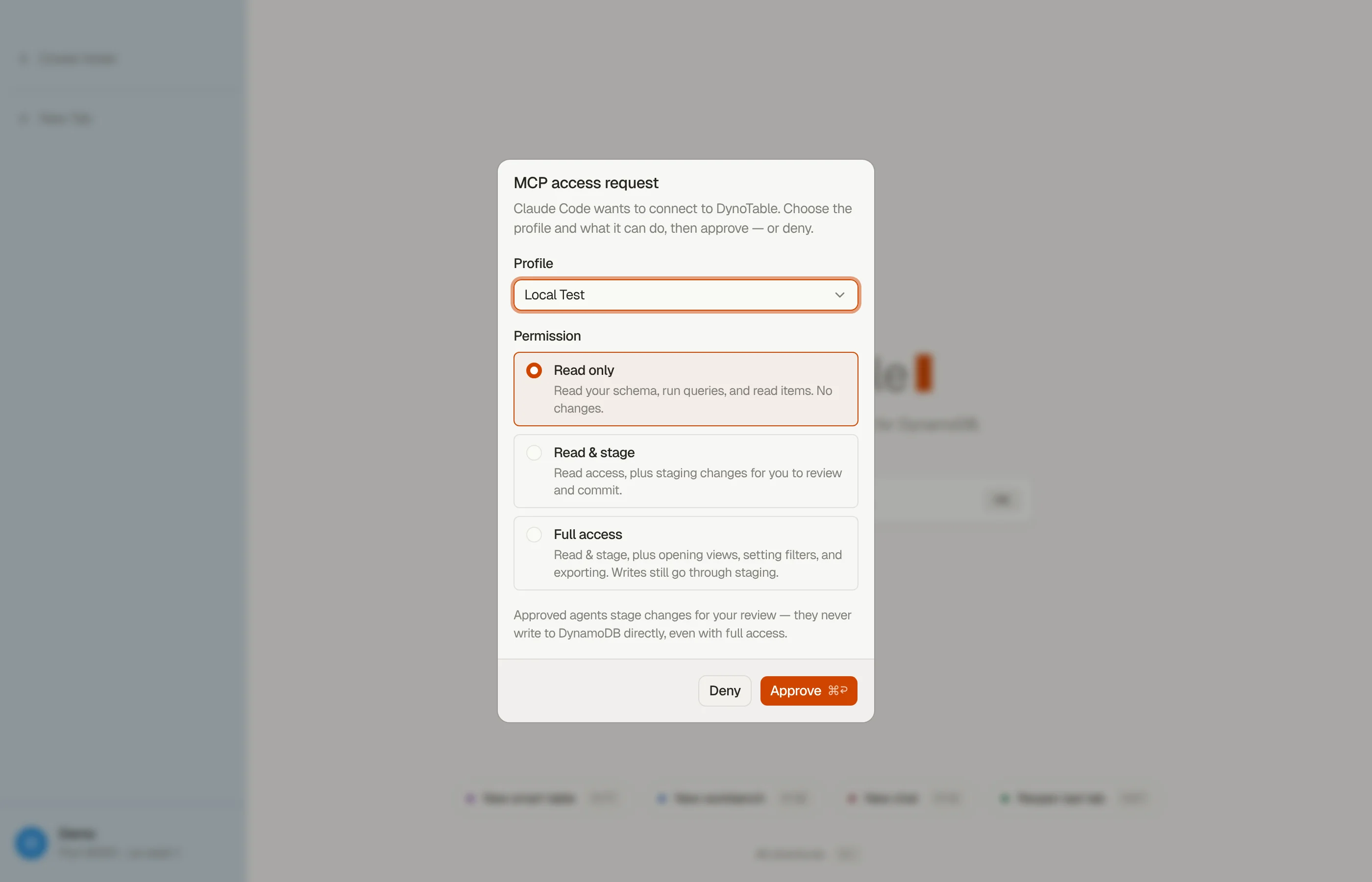
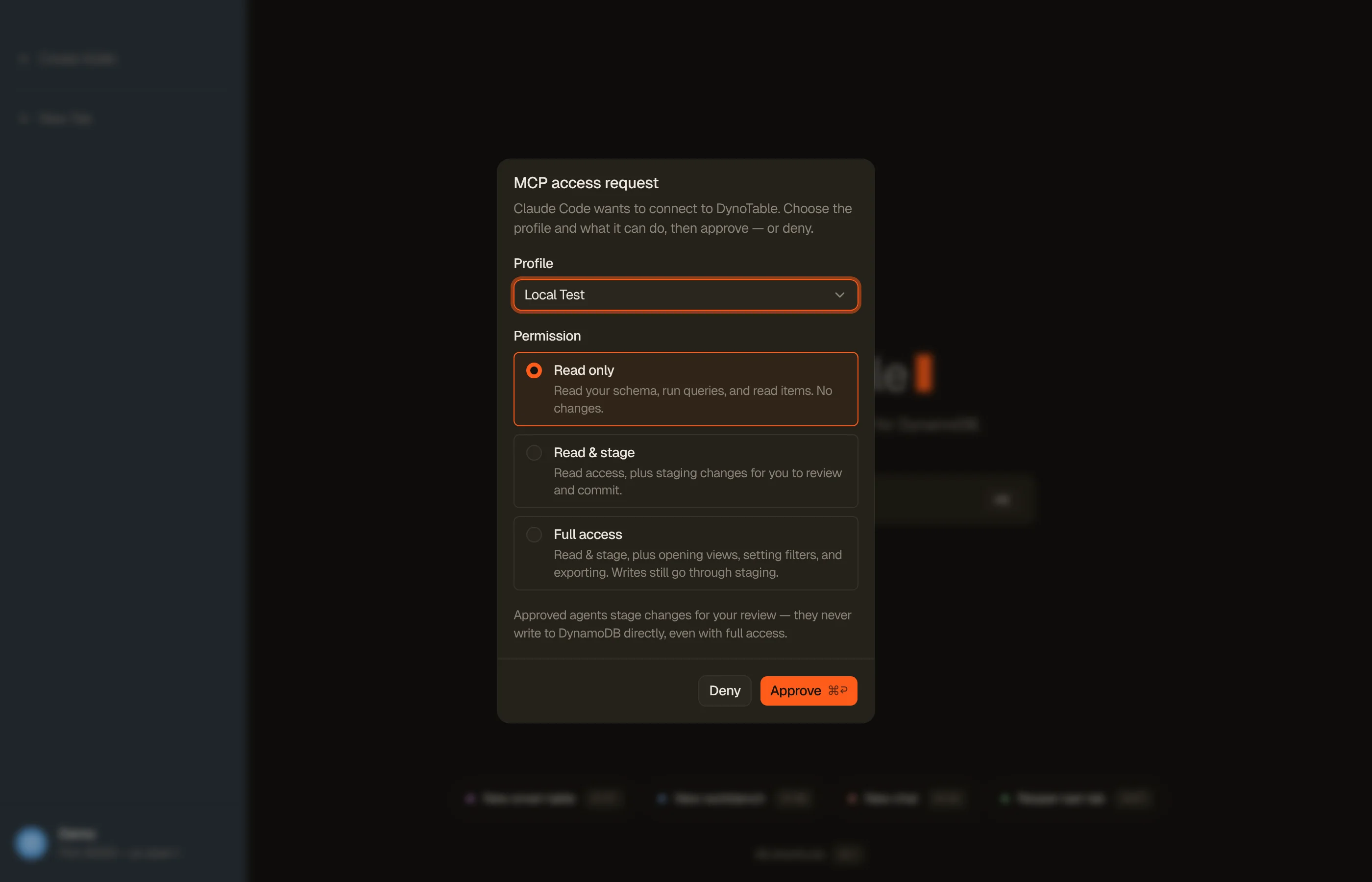
The first time a client connects, DynoTable shows a consent prompt inside the
app. It names the connecting client, lets you pick which profile the connection
binds (pre-selected from the ?profile= hint, limited to your exposed profiles),
and asks you to grant a scope — or deny. Nothing is exposed until you approve.


Scopes
A scope decides which tools the connection can see and use. They are cumulative — each tier includes the ones before it:
- Read only — read your schema, run queries, and read items. No changes.
- Read & stage — everything in Read only, plus staging changes for you to review and commit (the agent never writes to DynamoDB directly — it routes through staging).
- Full access — everything above, plus opening views, setting filters, and exporting results. Writes still go through staging — even at Full access the agent can't write to DynamoDB directly.
Scopes follow your license. Signed out, the server refuses connections; on the free read-only plan every connection is clamped to Read only and the Workbench and Smart Table tools are hidden, whatever scope you approved.
The connection binds the profile you approve in the prompt — its credentials and region are pinned for the life of the connection, so it reads (and stages writes to) exactly that profile's data. The client name in the prompt is self-reported by the connecting agent, so the profile and scope you approve are the real gate, not the name.
If the approved profile uses MFA, the agent is asked for the one-time code directly in its own session — no need to switch back to DynoTable. (Profiles that sign in through SSO still complete that sign-in in DynoTable.)
Manage connections
Every approved client is listed in Settings → MCP. Revoke any of them at any time — a revoked client is cut off on its next request. Un-exposing a profile immediately revokes its connections too. Turning the server off stops everything.
Security
- Loopback only. The server binds
127.0.0.1; nothing off your machine can reach it. - Off by default, approval per connection. No agent gets access until you enable the server and approve its connection at a scope you choose.
- Credentials stay local. Connections use your existing AWS profiles on this machine (Connect to AWS); credentials are never sent to the agent.
- One profile per connection. Each connection is pinned to the single profile you approved — it can never reach another profile's tables or credentials.
- Writes go through review. Even at Full access, changes are staged for you to commit — the agent can't write to DynamoDB on its own.
- Revocable. Revoke a client or turn the server off whenever you want.