AI chat
DynoTable ships an agentic assistant that understands your tables. Ask it a question in plain language and it inspects your schema, writes the query, and — when you ask it to change data — stages the edit for you to review. It runs on your own AWS Bedrock credentials, so your table data and prompts never leave your AWS account.
This page covers the chat surface and how to set AI up. For the catalog of actions the assistant can take, see AI tools.
The chat sidebar
Open the assistant from the bot icon in the header or with ⌘;. It's a right-edge panel that sits alongside your tabs — resize it, and its visibility is remembered per profile.

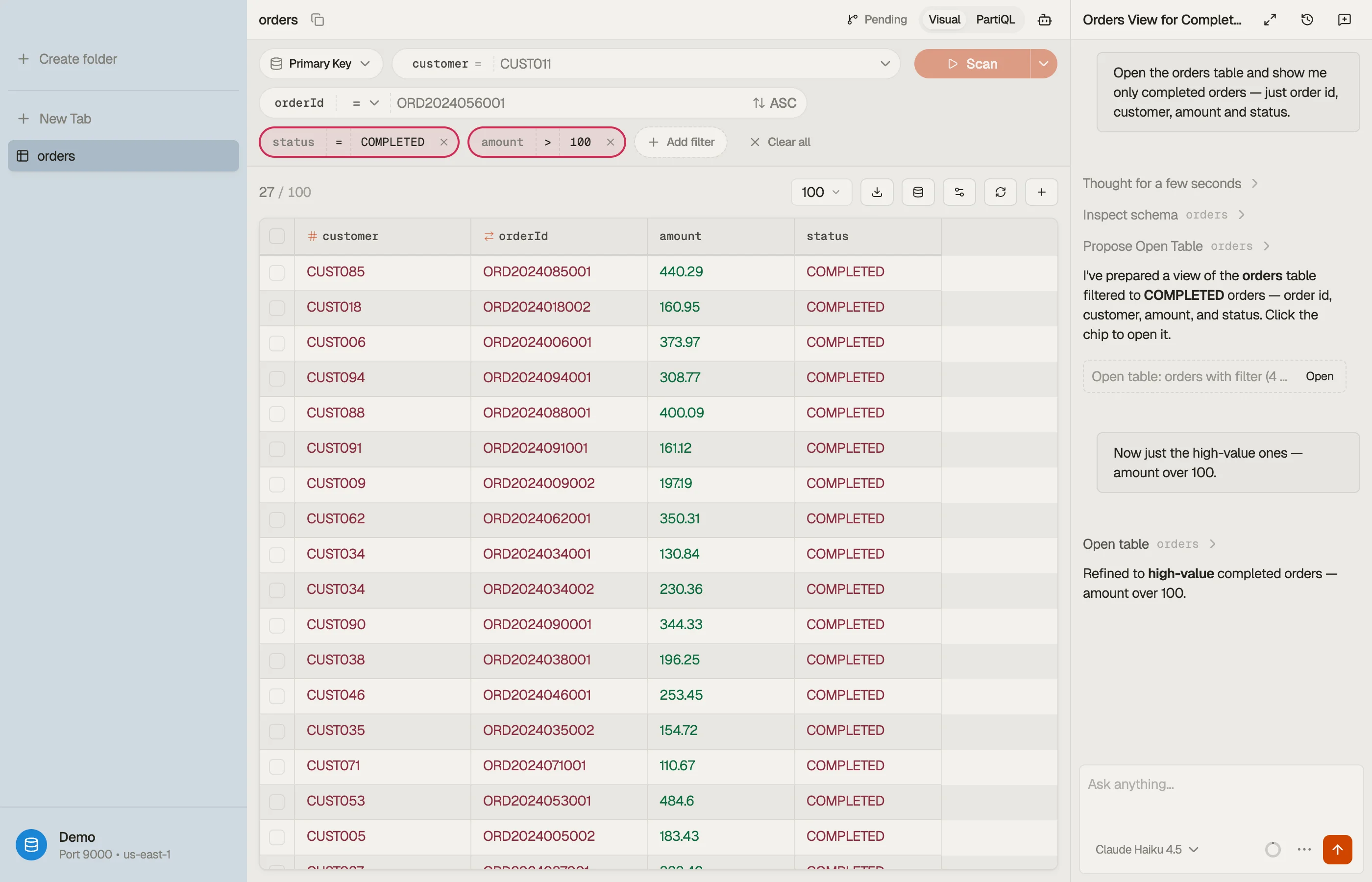

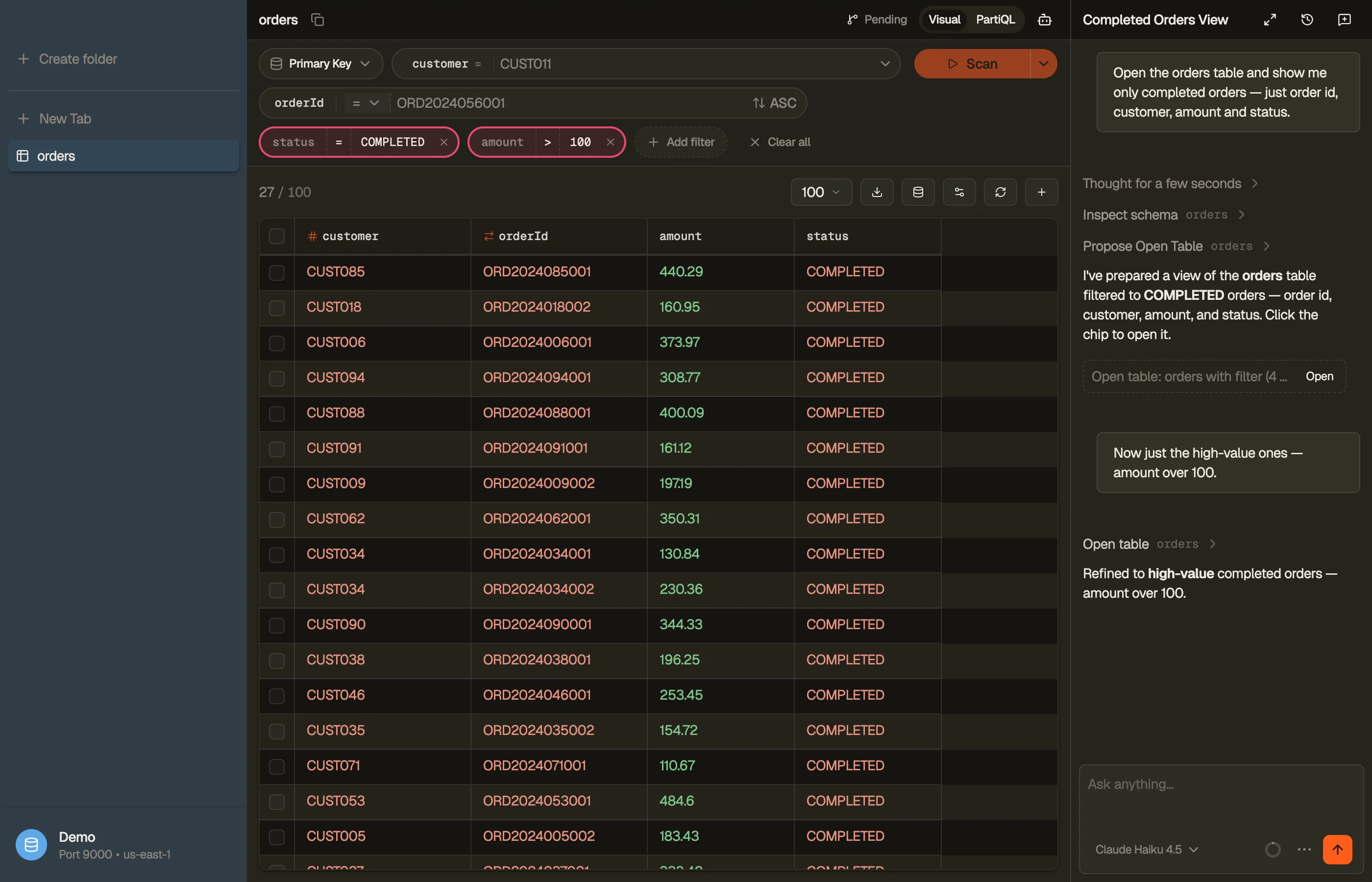
Type into the composer and press ↩ to send. A few things worth knowing:
- @-mentions — type
@to reference a@table,@column,@gsi,@tab, or a saved spec. The assistant resolves these to the real object, so you don't have to spell out exact names. - Stop — a persistent Stop button cancels the current turn; Esc also stops while the composer is focused.
- Token pill — shows input / output / cached tokens for the conversation so you can see what a turn cost.
- Rewind — hover a message you sent and click Rewind to roll the conversation back to that point and re-edit your prompt. An Undo toast restores it if you change your mind.
Chats live in the sidebar or in a tab
Every conversation is hosted by exactly one surface at a time:
- the sidebar — one ambient, quick-access scratchpad chat, or
- a chat tab — a full-width tab, a peer of your table and editor tabs. You can have several chat tabs open at once, one conversation each.
Promote to tab. Click the Expand to tab button in the sidebar header (or press ⌘⇧;) to move the current conversation into its own tab — handy when a chat grows long or you want it side-by-side with a result. Pin to sidebar does the reverse from a chat tab. A conversation is never duplicated: promoting always relocates it.
When you accept a result chip from a chat tab, the assistant opens the tab you asked for and slides the conversation back into the sidebar, so you can keep talking next to the result.
Past conversations are kept in the conversations pane and in ⌘K under the Chats group — start a new chat there, or type a question and press ↩ to open a fresh chat tab seeded with it.
What the assistant can do
The assistant works through a set of tools — it reads your indexed schema, runs read-only PartiQL and Workbench SQL, and proposes views by emitting a chip you click to open the tab. Writes always go through staging: the assistant stages a create / update / delete row and you review and commit it — it never writes to DynamoDB directly.
It also reads the active tab (table, filter, sort, visible columns) and your workspace knowledge file as context, so "filter this to last week" just works.
Setting up AI
AI is configured per profile in Settings. Each profile binds to an AWS account that can call Bedrock — usually the same credentials you connect for DynamoDB, but you can point AI at a different profile or region.
Provider
Under the profile's AI section, pick the AWS profile and region that can invoke Bedrock, then click Test Connection. There's no separate on/off switch — setting both values is enabling AI. Until you do, the chat shows a Configure AI banner instead of a composer.
Models
DynoTable lists the Bedrock text models your account can use — Anthropic Claude, Amazon Nova, and others your region exposes. You choose three independent defaults:
- Chat model — the assistant in this page. Quick-switch it from the picker in the composer footer at any time.
- Inline edit model — for the ⌘⇧K rewrite in the SQL editors.
- Autocomplete (FIM) model — the ghost-text Tab-completion in the PartiQL and Workbench editors.
DynoTable verifies tool-calling per model: verified models — led by the Anthropic Claude and Amazon Nova families — show by default, while models it hasn't verified are hidden until you flip Show unverified, which surfaces them with a warning badge. The Visible Models panel is the live, authoritative list of exactly what your account and region support — the verified set grows as DynoTable and Bedrock add models, so the panel, not a fixed list, is the source of truth.
On Claude models a per-turn thinking picker (off / low / medium / high) lets the assistant reason longer before answering — at the cost of extra output tokens.
Knowledge
Each profile has a workspace knowledge file — free-form notes about your data model, naming conventions, or house rules. The assistant reads it as standing context on every turn, so you don't repeat yourself. Edit it in the profile's Knowledge section.
Permissions
Reads are free and silent. Anything that could change data or leave the app — staging a write, exporting, opening a tab — is gated: the assistant asks before it acts. See AI tools for which actions fall into each gate class and the hard guarantees the assistant can't bypass.
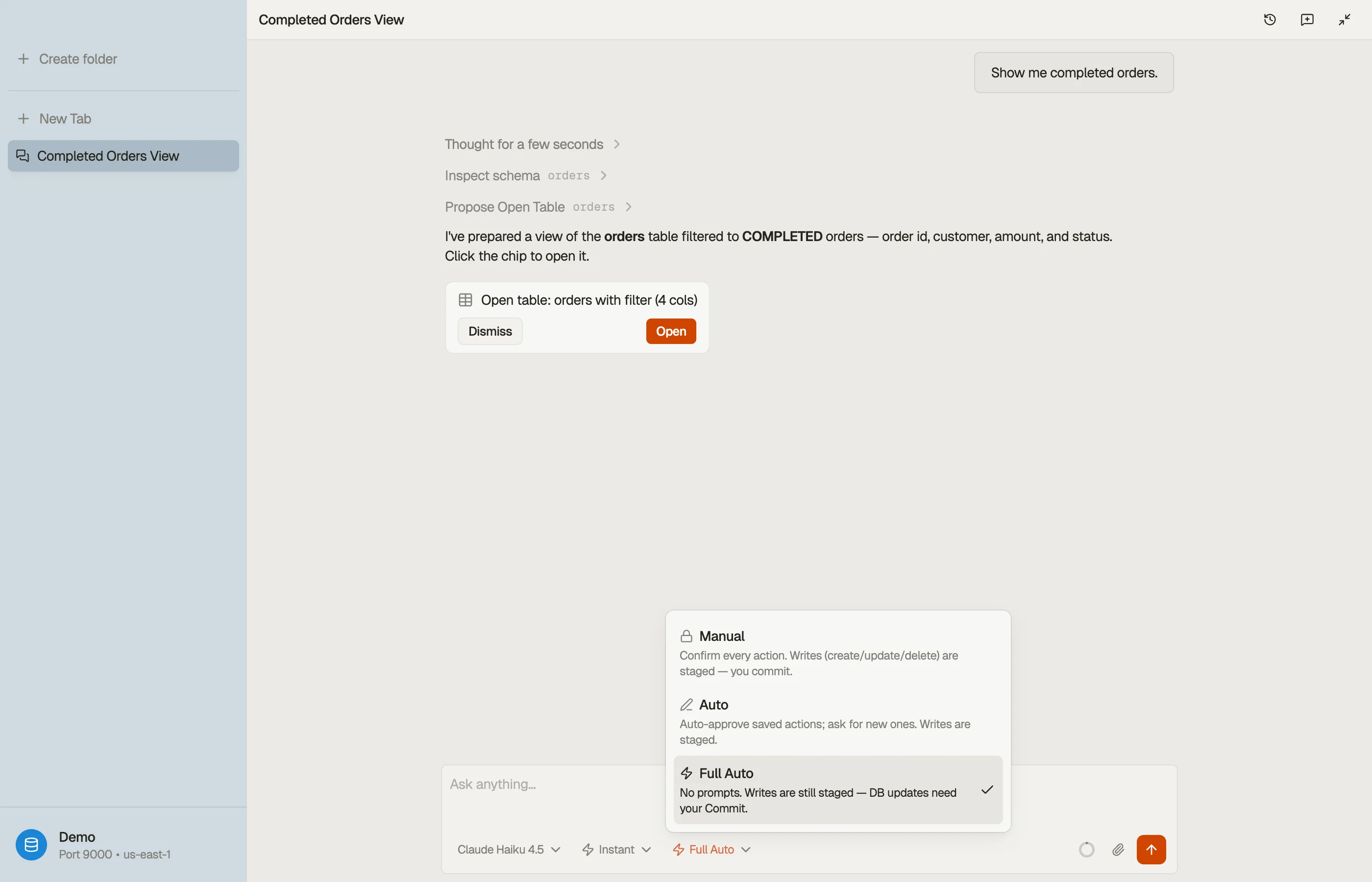
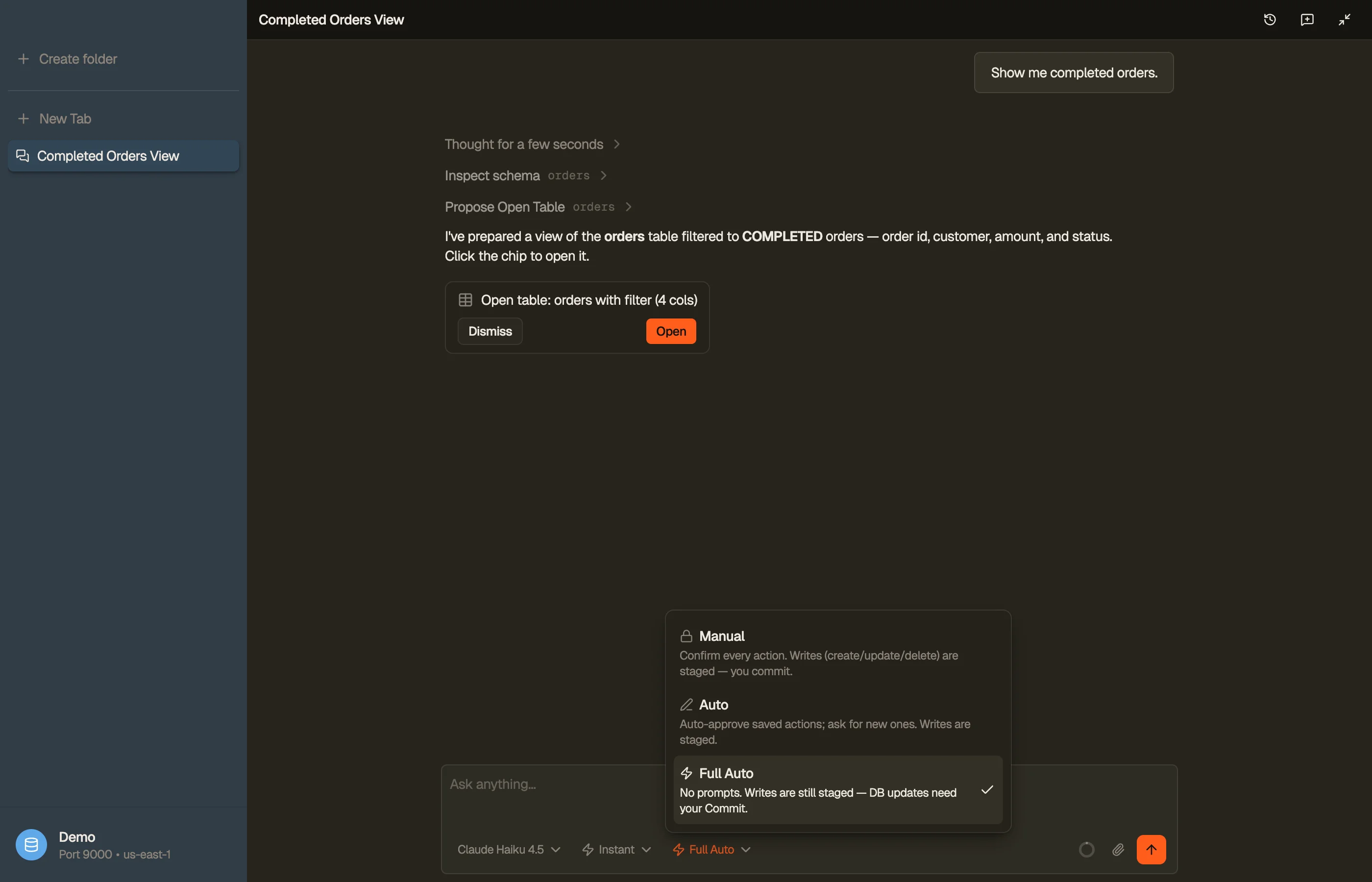
- Manual (default) — approve each action when prompted.
- Auto — auto-approve actions you've previously granted; new ones still ask.
- Full Auto — no prompts; the assistant runs gated tools without asking. Enabling it asks for a one-click confirmation.
Even in Full Auto the assistant can't destroy your data: every write (create / update / delete) is staged for your review and only reaches DynamoDB when you click Commit. Every gated decision is recorded in an always-on, local audit log you can review and export from the profile's Activity section.
You set the mode right from the chat composer — it applies to that profile.


Privacy
The assistant talks directly to Bedrock in your AWS account — your table data, schema, and prompts are not sent to DynoTable's servers or any third party. The audit log and conversation history live in a local per-profile database on your machine. Tool results are treated as untrusted data, never as instructions, so a row that contains text like "ignore previous instructions" can't hijack the agent.
App-level crash reporting and usage analytics are separate, opt-in toggles under Settings → Privacy; analytics is off by default and neither ever includes your table data, credentials, or query text. See the privacy notice for the full picture.