Tables & tabs
DynoTable is a tabbed workspace. Each tab holds one query against one table — its own region, index, filter, and results — so you can keep several views open at once and switch between them instantly.
Tabs
Open a new tab with ⌘T and search for a table to start browsing. Tabs stay live in the background: switching back to one is instant, with no reload and no lost scroll position.
- ⌘T — new tab (table search)
- ⌘W — close the current tab
- ⌘⇧T — reopen the last closed tab
- ⌃Tab / ⌃⇧Tab — next / previous tab
An item editor tab with unsaved edits is marked in the sidebar and asks before it closes, so in-flight edits are never lost. Staged changes are different: they belong to the table, not the tab — they survive closing and reopening any view of that table, and are committed or discarded from the staging panel. Closing a tab never drops them.

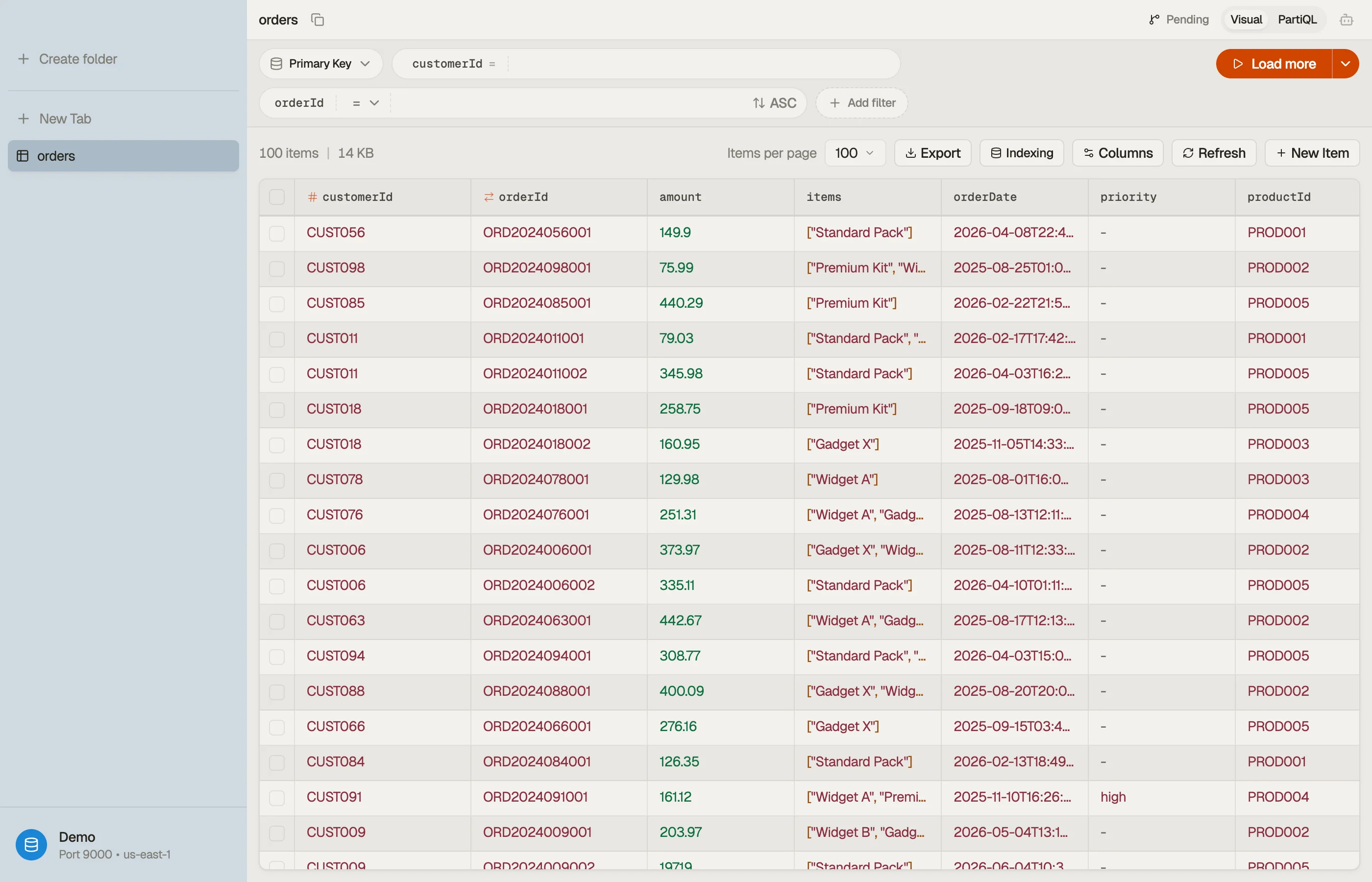

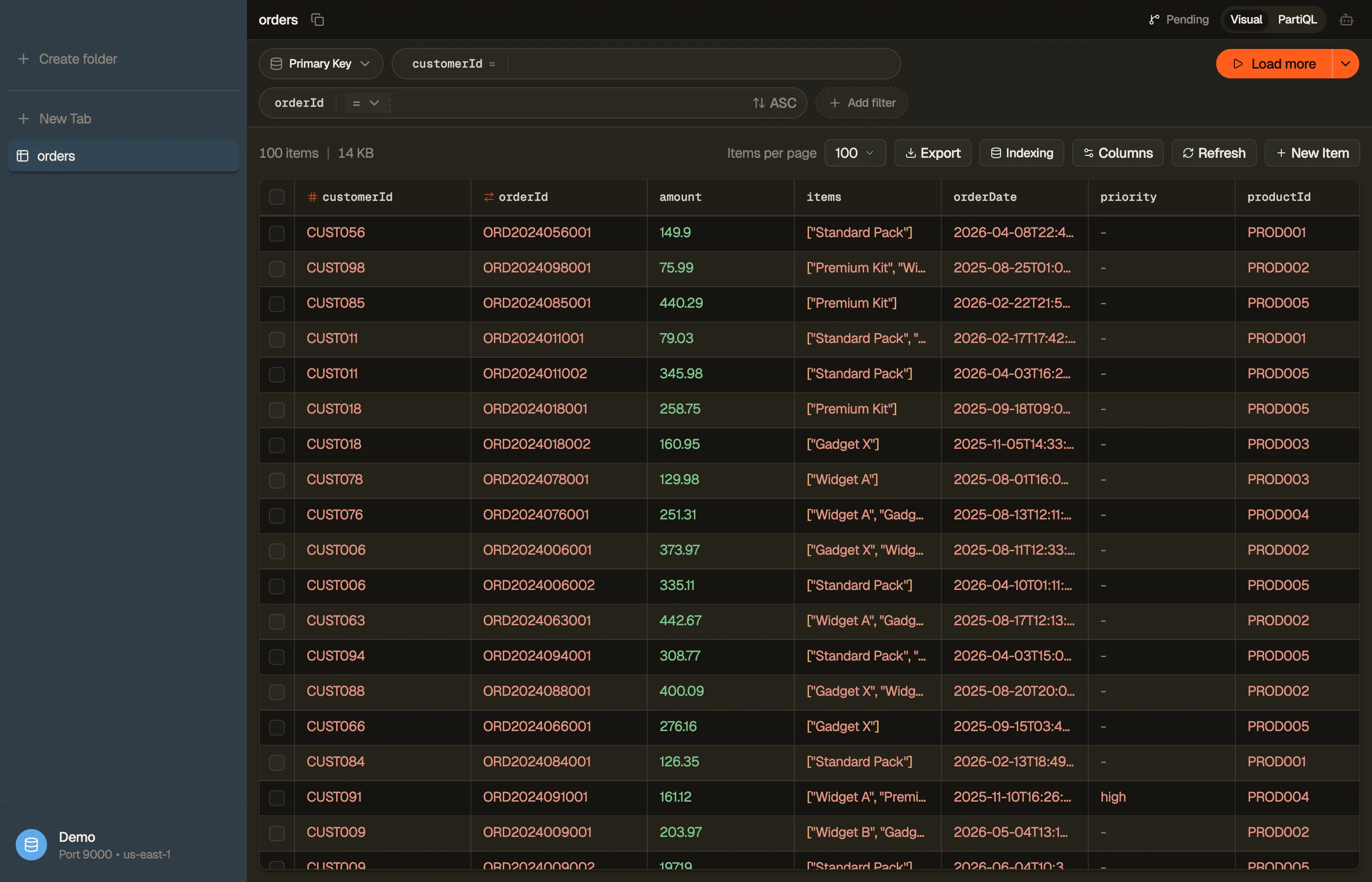
Tab modes
Every table tab has two modes; toggle with ⌘⇧M:
- Visual — point-and-click filters and query patterns. The fast default for browsing and key lookups.
- PartiQL — write SQL-style PartiQL directly against the table.
For joins, aggregates, and GROUP BY across tables, open a
Workbench or Smart Table tab instead.
The table grid
Results render in a virtualized grid that stays smooth at tens of thousands of rows: only the visible cells are mounted, so scrolling never stalls.
- Key columns first. and keys are sorted to the front automatically.
- Resize columns by dragging the header edge.
- Discovered columns. Attributes that appear in your data but not in every
row still get a column; missing cells render as
-.
Column visibility
Use the column menu to hide attributes you don't care about. Your selection is remembered per tab. Newly discovered attributes are merged in, so widening your data never silently hides a column. Reset to show every loaded and discovered attribute at any time.
Page size
Each tab fetches a page at a time. Changing the page size reloads from the first page; Load more fetches the next page. By default, filtered scans are capped to protect you from accidentally reading an entire large table — set a hash-key filter to issue a targeted query instead, or use Run to end to intentionally read through the whole table.
Quick View
Press Space on a row to open Quick View — a focused look at that single item without leaving the grid. Use ↑ / ↓ to walk rows; the panel follows live. Press Space again to close it.
To edit a row instead, open it in the item editor.