Editing items
DynoTable edits items as JSON in a real code editor — autocomplete, formatting, and inline validation — then routes every save through the staging area so nothing hits DynamoDB until you commit.
Open an item from the grid to edit it, or press ⌘N to create a new one. A new item is pre-populated with the table's key attributes; fill in the rest.

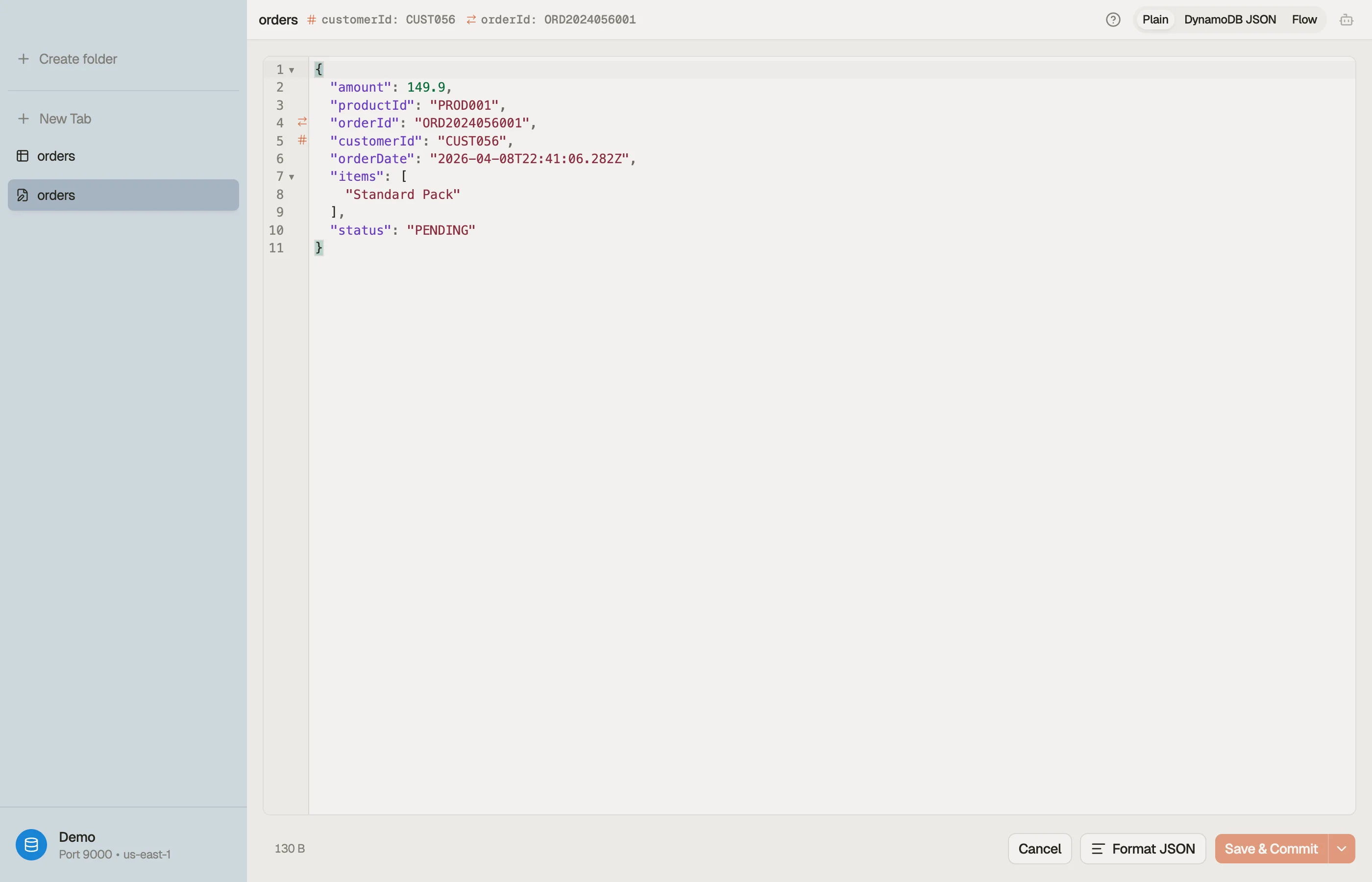

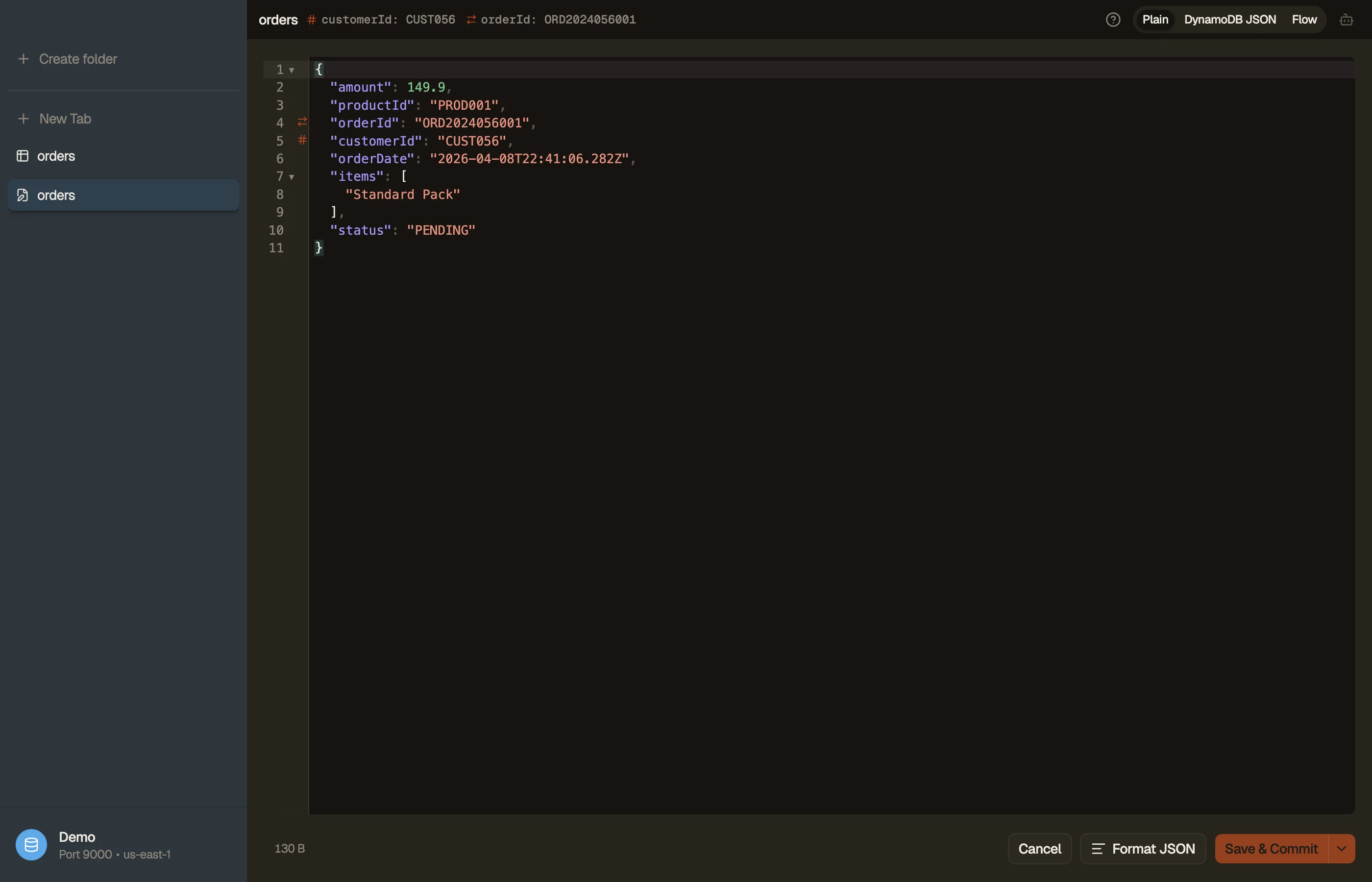
JSON modes
A toggle in the editor header switches how the item is represented. Plain and DynamoDB JSON are fully lossless — switching between them round-trips Strings, Numbers, Booleans, Null, Maps, Lists, and Sets without changing your edits.
- Plain — primitives stay plain (
"count": 3, not{"N": "3"}). Sets use a compact one-key sentinel:{"SS": [...]}for string sets,{"NS": [...]}for number sets,{"BS": [...]}for binary sets. The easiest mode to read and edit by hand. - DynamoDB JSON — the canonical AWS wire form, where every value is type-wrapped. Use it when you're pasting DynamoDB-JSON from elsewhere.
- Flow — a read-only graph of the parsed item (Maps, Lists, and Sets as nodes). Useful for understanding the shape of a deeply nested record. Edits still happen in the Plain / DynamoDB buffer underneath.
Press ⌘⇧M in the editor to cycle modes. A ? next to the toggle shows
a side-by-side example of each format.
Validation
The editor validates as you type and surfaces problems inline:
- Malformed JSON and schema violations show as editor diagnostics.
- Key attributes are checked so you can't save an item missing its partition/sort key.
- Press ⌘⇧F to reformat the buffer.
If a parse error blocks a mode switch, the toggle snaps back and the error stays visible — your buffer is never silently reformatted into something invalid.
Saving
Saving an item stages it — the change joins that table's staging area as a diff (shared across every view of the table) and is written to DynamoDB only when you commit. The two save chords:
- ⌘S — stage the change (no commit). Safer; review it in the panel first.
- ⌘⇧S — save and commit immediately.
Staging (or a clean commit) closes the editor. If a commit hits a write conflict or error, the editor stays open so you can rebase from the staging panel. To resume editing a staged change, reopen it from the staging panel's diff card.
Limitations
A few v1 edge cases are worth knowing:
- Numbers larger than 2⁵³ lose precision in either JSON mode (a DynamoDB SDK boundary). For lossless large numbers, use the marshalled variant when you export.
- Binary (
B/BS) values edited in DynamoDB mode can round-trip to string types on save — edit binary in Plain mode.