Troubleshooting
Most issues come down to credentials, indexing, or licensing state. This page collects the common ones and how the app keeps itself up to date.
Credentials & connection
The profile's status dot is red with a Sign in / Enter MFA action. Your AWS token expired and needs re-auth. Click the inline Sign in (SSO) or Enter MFA (TOTP role) action on the profile chip, or just re-run the query — DynoTable re-authenticates on demand. An amber/orange dot is different: the token is expiring soon but will refresh automatically, so there's nothing to do. See Connect an AWS account.
SSO login does nothing / the browser doesn't open. DynoTable runs the OAuth
device flow in-process. If the browser tab doesn't appear, check that your
~/.aws/config SSO profile is valid by running aws sso login once from a
terminal — DynoTable writes to the same ~/.aws/sso/cache, so a working CLI
login confirms the profile.
A table I expect isn't listed. DynoTable lists every table in the active profile and region. If one is missing, you're either in the wrong region (switch it per tab) or a Table Prefix Filter on the profile is hiding tables that don't start with the prefix — clear or adjust it in the profile's connection settings. ⌘K draws from the same filtered list, so a prefix or region mismatch hides the table there too.
Data & queries
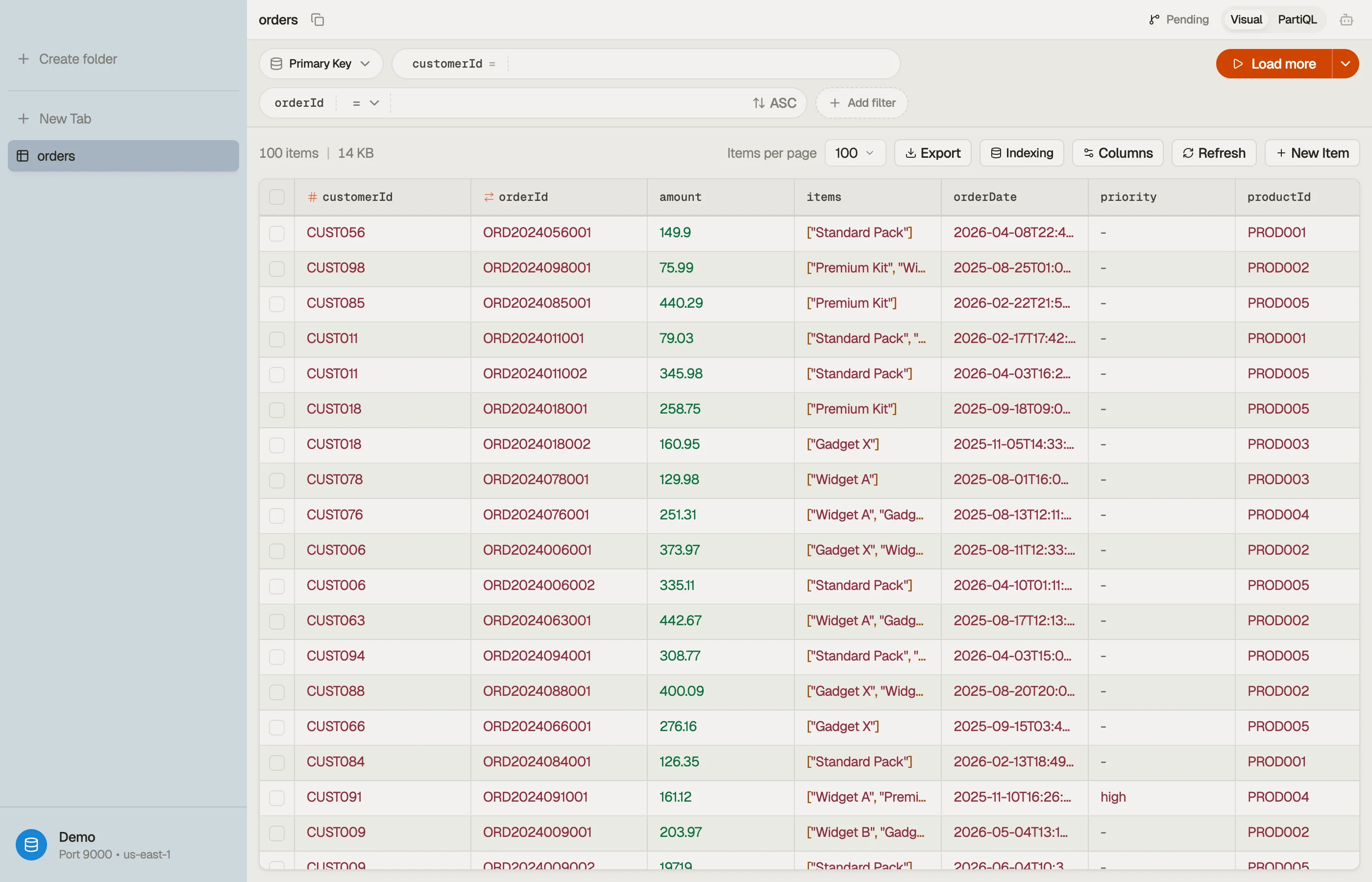
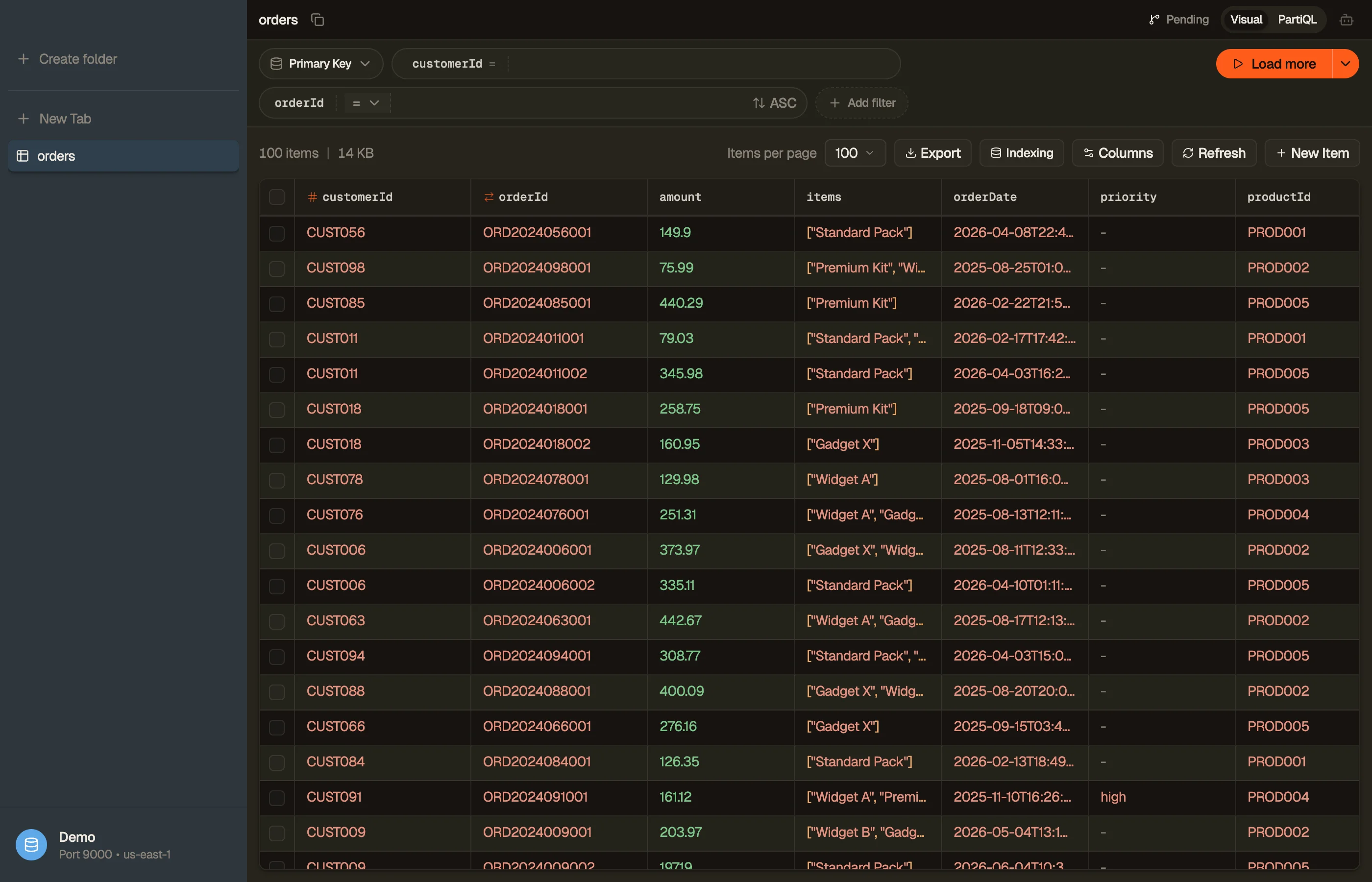
Results look stale or empty. Re-run the query with ⌘R.
Smart Tables and Workbench query DynamoDB live. If expected fields or values are missing from suggestions, check the table's indexing status and limits.
A filter returns nothing I expect. Check you're in the right query mode (⌘⇧M toggles Visual / PartiQL) and that the key filter targets the correct attribute. See Filters & query patterns.
Writes are blocked
If saving an item, committing a staged change, or running a PartiQL write all fail, the app is in Read-only — your license lapsed. Reads and exports still work. Click Reconnect in the banner; if your subscription is valid you're back to Active immediately. See Activation.
AI isn't working
The chat shows a Configure AI banner instead of a composer until you pick a Bedrock-capable AWS profile and region in the profile's AI section and click Test Connection. You also need Bedrock model access enabled in that account and region. Full setup: AI chat.
Updates
How DynoTable gets new versions depends on your platform.
| Platform | How it updates |
|---|---|
| macOS | In-app auto-update. Checks on launch and periodically; downloads in the background. |
| Windows | In-app auto-update, same as macOS. |
| Linux | .deb / .rpm update through your package manager; the AppImage is a manual download. |
On macOS and Windows, when a new build has downloaded an "Update ready — restart" banner appears — restart to apply it. Occasionally a release sets a minimum supported version; if your build is below it, the banner becomes a blocking "Update required" until you restart into the new version.
Still stuck?


- Activation and Devices — licensing and the two-machine limit.
- Settings — where every preference lives.
- Account billing — your plan, invoices, and subscription.
- Common DynamoDB API faults —
ValidationException, throttling, IAM denials, expression syntax — are covered in the DynamoDB guides: match the exception name, then fix IAM, keys, or expression syntax. - Size expensive Scans before you re-run them with the pricing calculator.