OpenSearch queries: Lucene and query DSL
DynoTable runs an OpenSearch query in either of OpenSearch's query languages: Lucene query syntax in the search box, or the JSON query DSL in the query editor. Filter pills and a time range narrow either one.
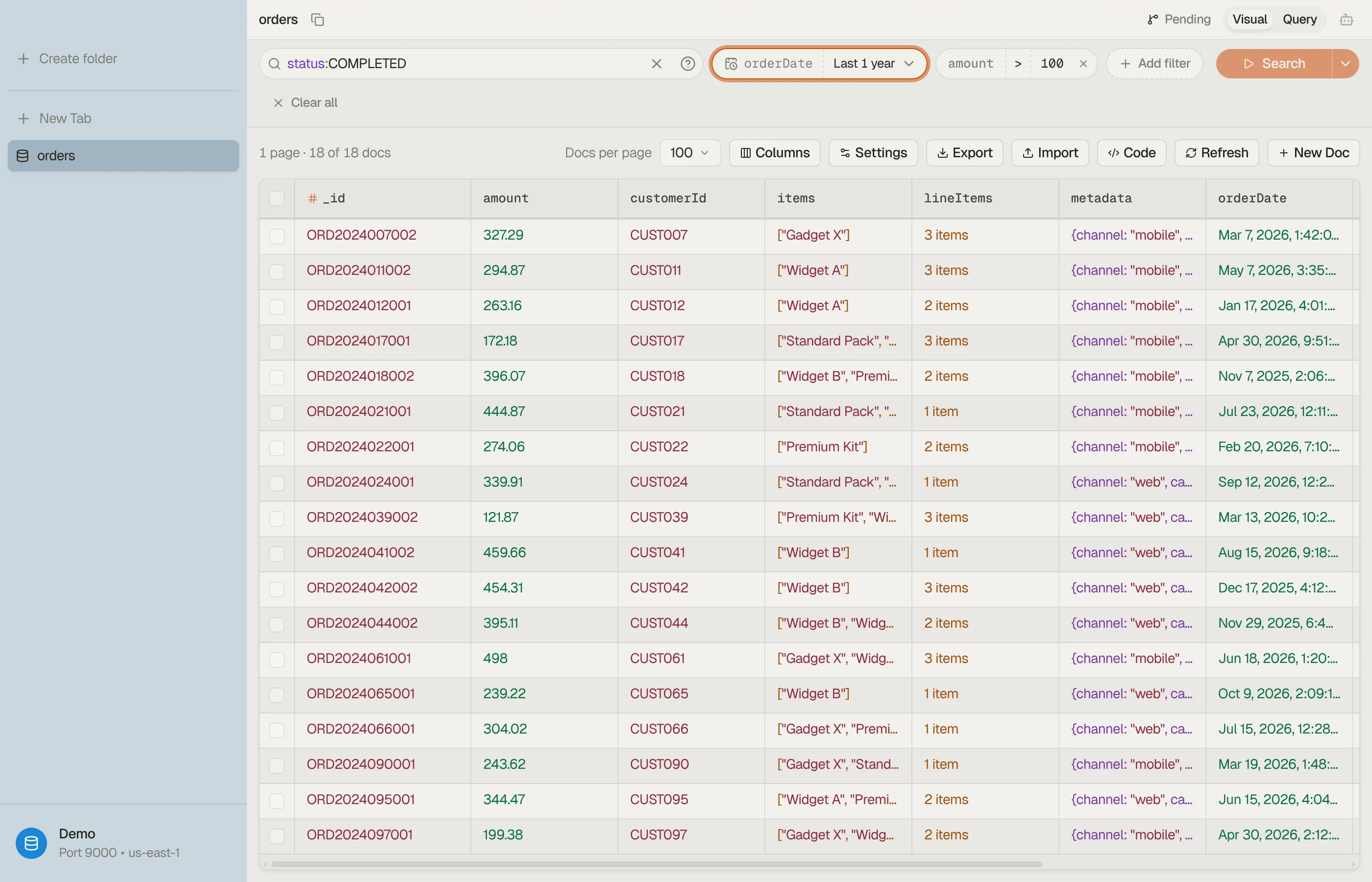
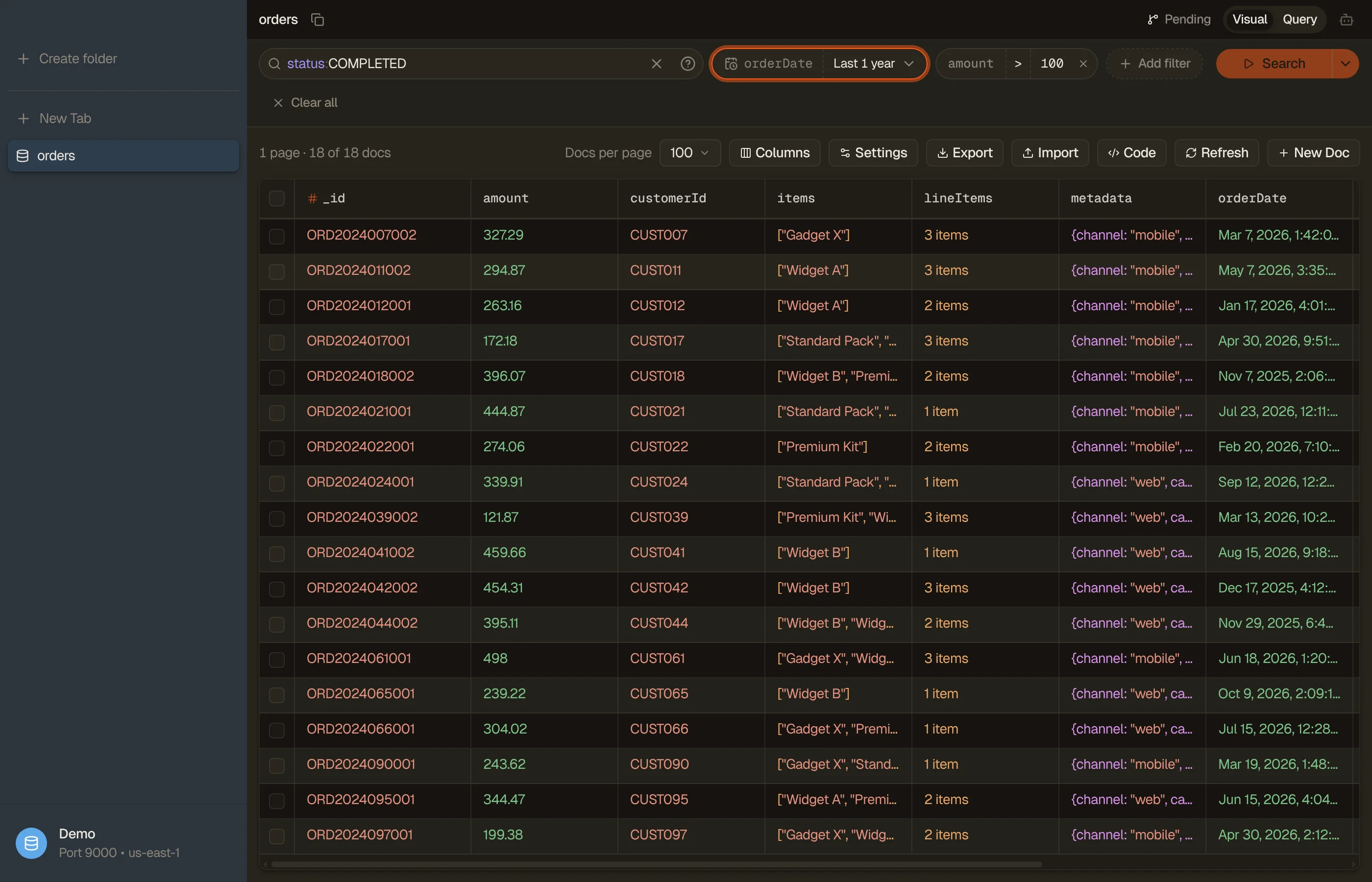
An index opens as a tab, like a table. The grid, paging, selection, Quick View and Run to end work the same way; the toolbar counts documents instead of items and reads N of M docs, because OpenSearch returns the exact total of a search.
Open an index
Press ⌘K and type part of the index name. Indices sit in their own Indices group under your tables, each with its document count and size. When a profile reaches more than one domain or collection, each row names its target.
- An alias row reads Alias of and the indices behind it. It opens like an index, but you can't edit, bulk edit or import through an alias: open the index itself for that.
- A name typed in full opens the index directly, even when no table has that name.
- An index created after the app started appears the next time you open ⌘K.


The grid
_idcomes first. It's the document key and carries the same#mark a partition key does.- Sort on the server. Use a column header's menu to sort ascending or
descending. The whole index is sorted, not just the loaded rows. A text field
sorts through its
keywordsub-field; a text field without one, anobjector anestedfield can't be sorted, and the menu says why. - Fewer columns, smaller pages. Hiding columns asks OpenSearch for only the fields you still show, so the search runs again. The editor and exports still read whole documents.
- Nested values. Each field of an
objectgets its own column, named with the object's name and a dot. Fields under anestedfield don't get their own column.
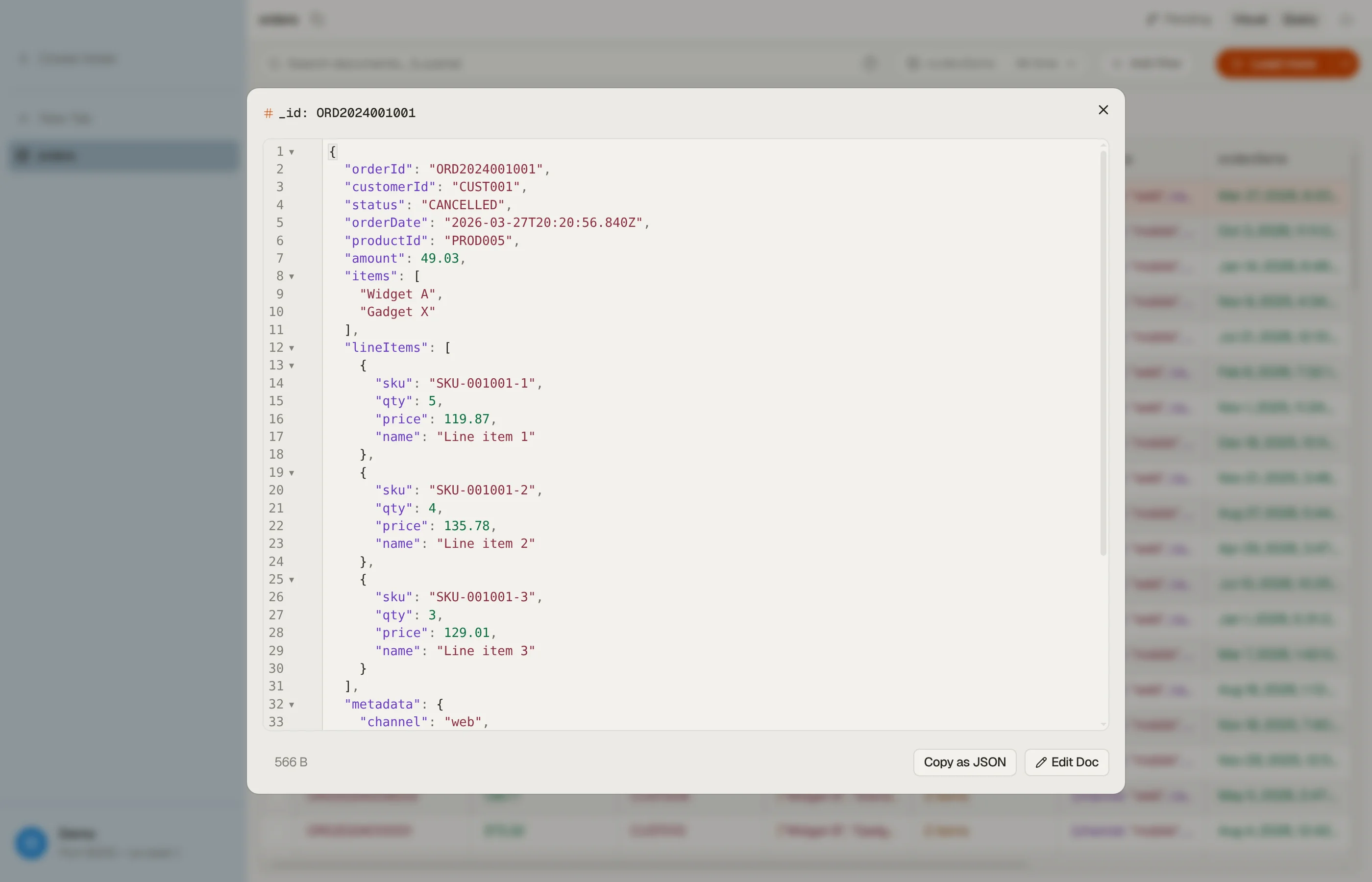
Press Space on a row for Quick View; ↑ / ↓ walk the rows. To change a document, open it in the editor.


Search with Lucene
The search box takes Lucene query syntax: status:shipped,
total:[100 TO *], AND / OR / NOT, wildcards and quoted phrases. Press
↩ to run it; / puts the cursor in the box. Syntax is
colored as you type, and the ? at the end of the box shows eight common query
shapes.
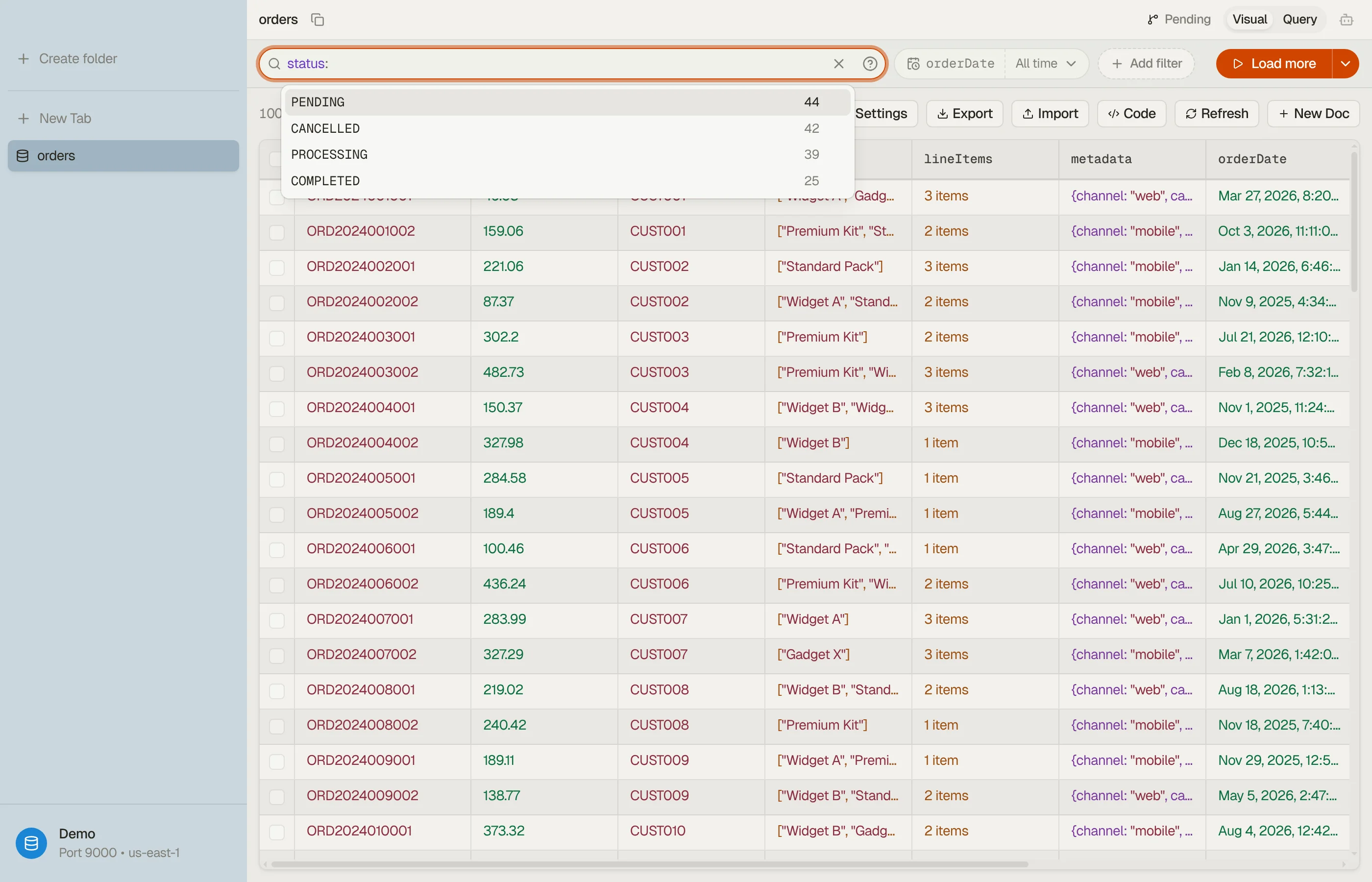
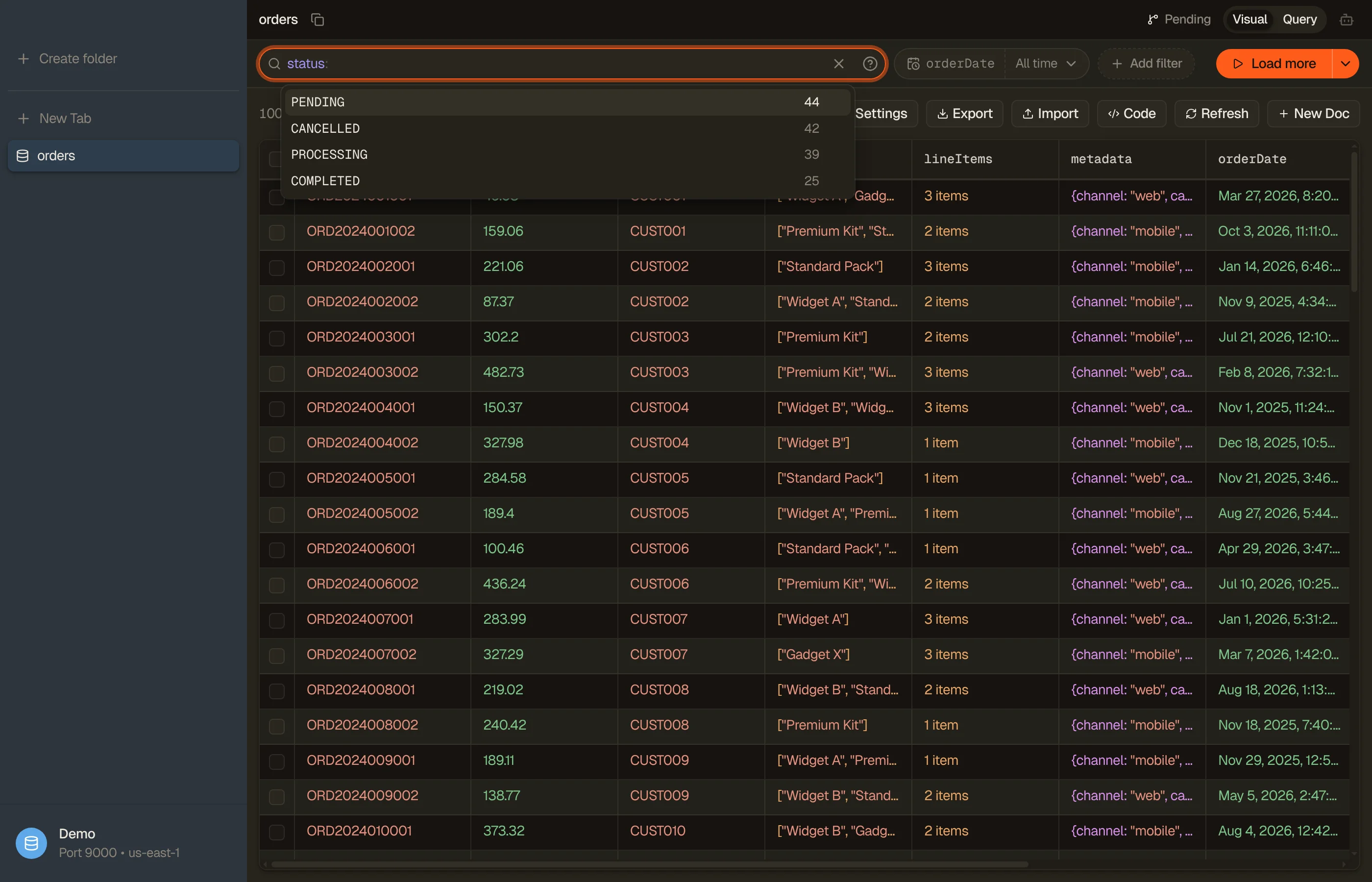
The box completes as you type:
- A bare word suggests field names from the index mapping.
- After
field:, it suggests values that field holds. A numeric, date or IP field offers range shapes such as[* TO *]and>=first. - After a finished clause, it suggests
AND,ORandNOT.
Tab accepts a suggestion.
A free-text search ranks results by relevance and highlights the matching text in each cell. Sort a column and the results follow that sort instead.


Filter pills and the time range
Add filter builds a condition on one field, with the same operators a table
offers: comparisons, between, in, begins_with, contains, and the two
exists checks. The mapping types each field, so there is no type picker. Pills
and the search box combine: a document must match both.
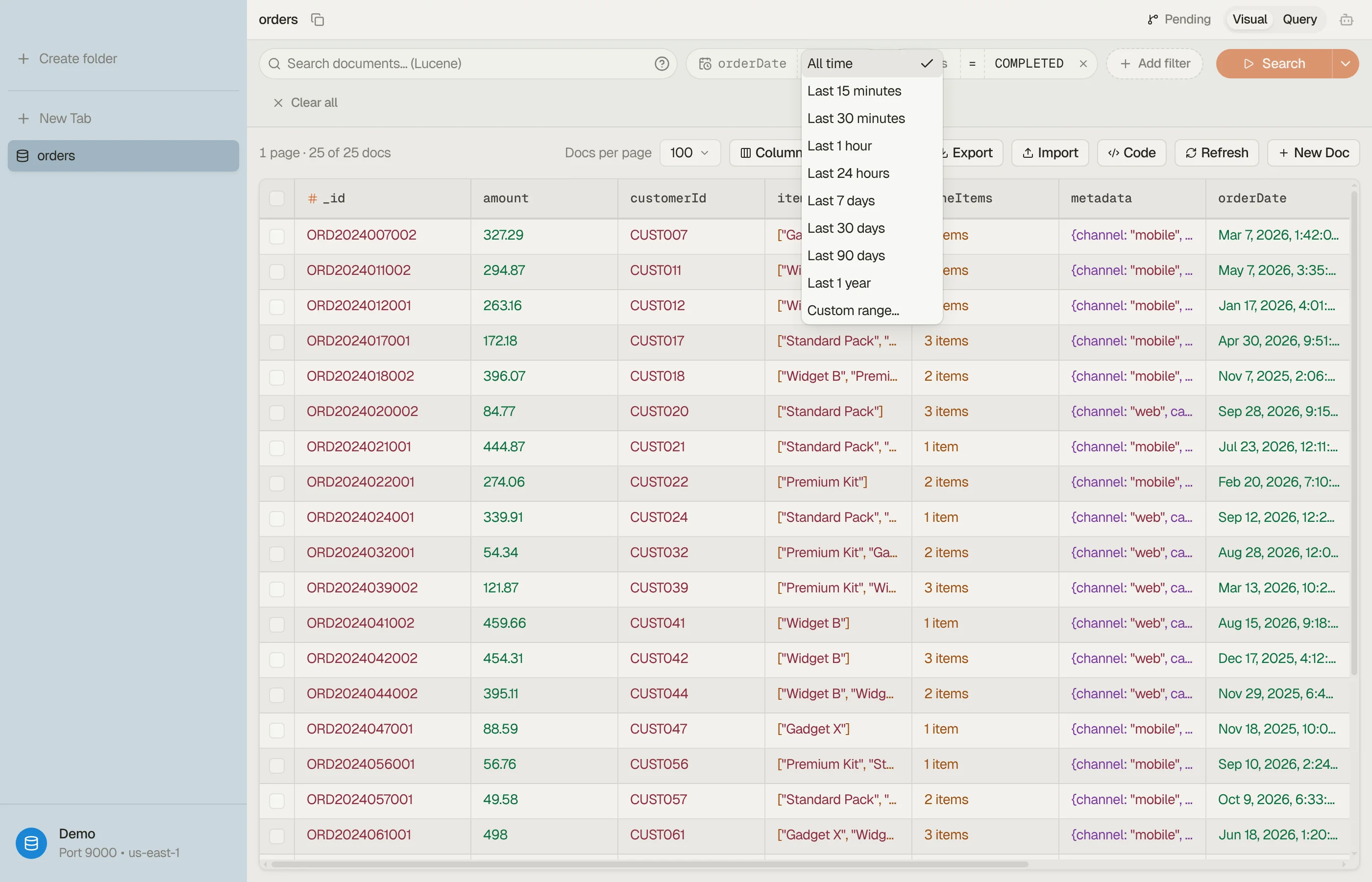
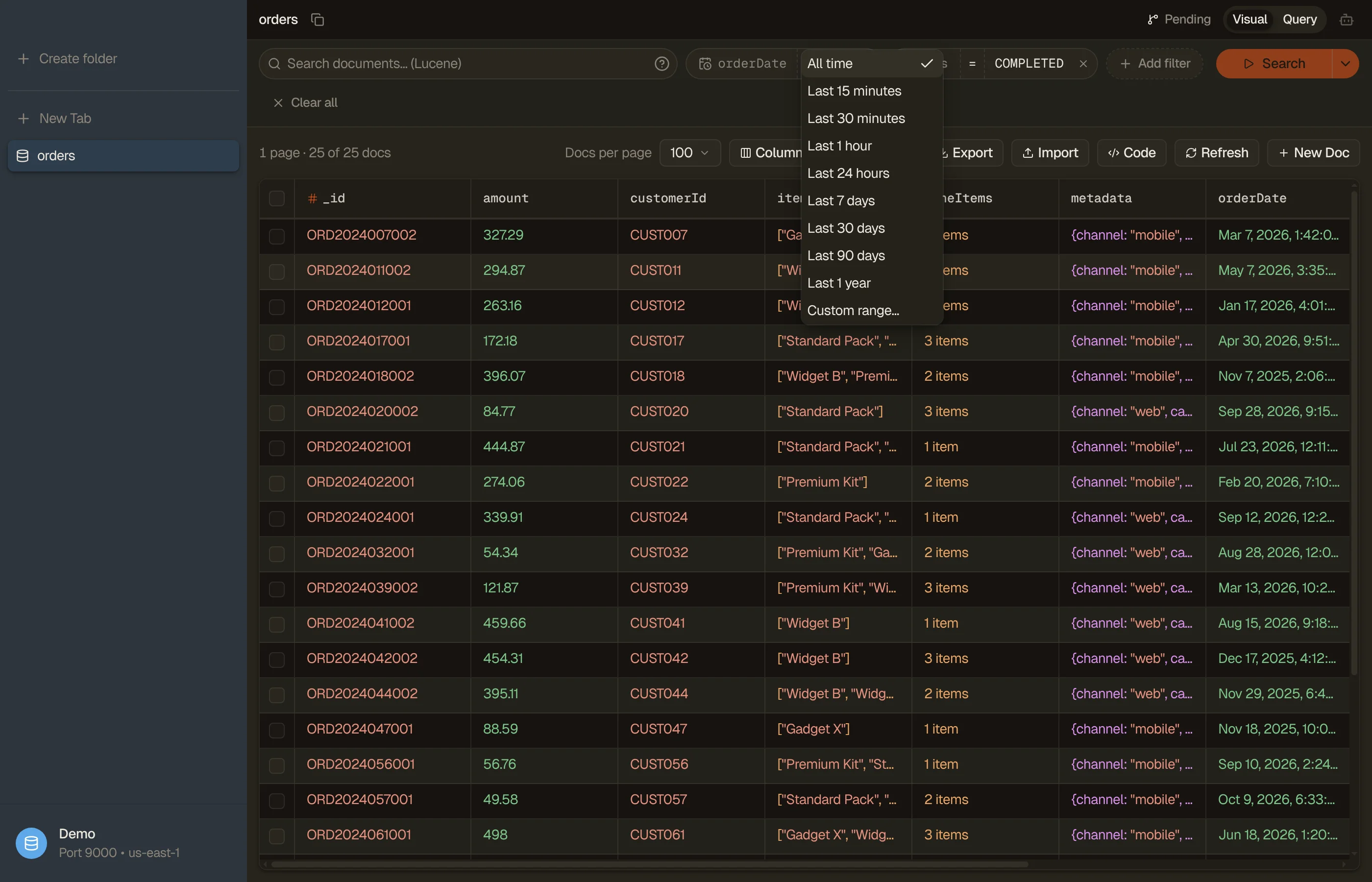
An index with a date field gets a time range pill next to the search box:
- All time, a preset from Last 15 minutes to Last 1 year, or Custom range… with a two-month calendar.
- A preset slides forward each time the search runs. Load more keeps the range the first page used, so the pages stay consistent.
- The pill uses
@timestamp, thentimestamp, then the first date field. With more than one date field, pick the field on the pill.


Write the query yourself
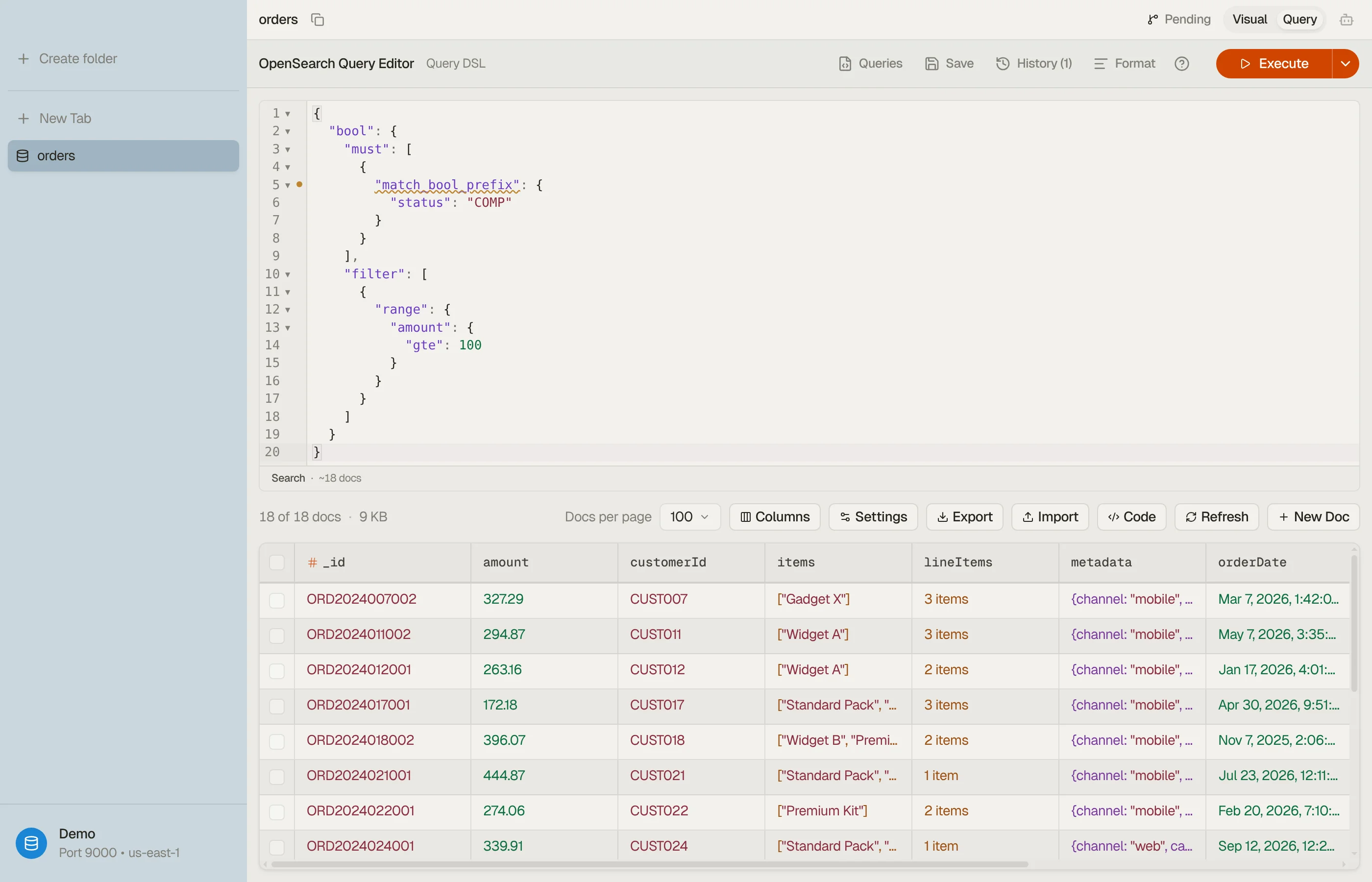
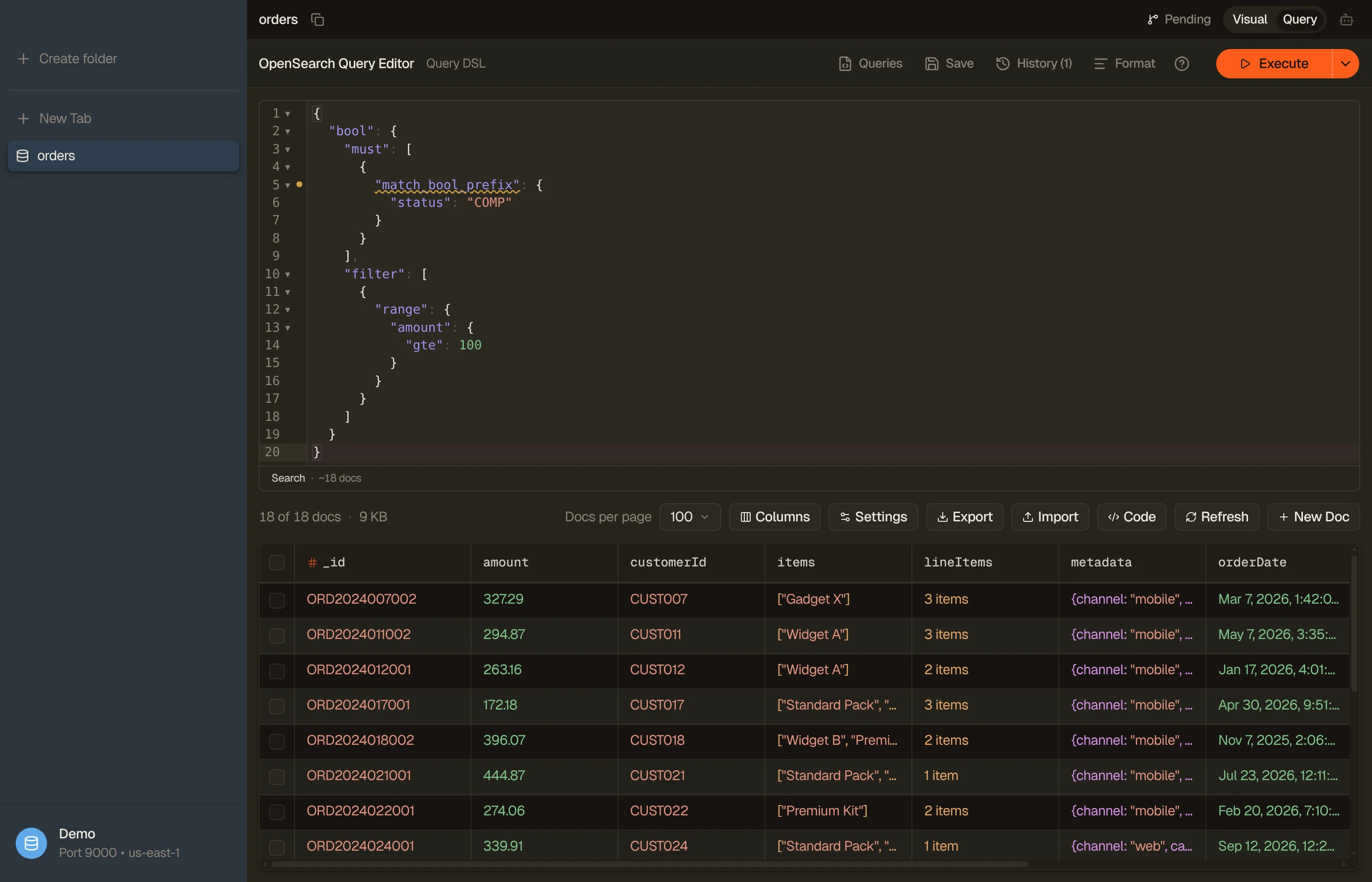
Press ⌘⇧M or pick Query in the tab header to swap the pills for a query editor. It takes either dialect:
- Query DSL: JSON that starts with
{, either a bare clause such as{"match": {"title": "refund"}}or a whole body. Only thequeryobject runs; DynoTable ownssize,sortand paging, and says so if you include them. - Lucene: anything else, the same syntax as the search box.
The editor checks the query as you type: broken JSON, an unknown clause name that is a likely typo (with a fix), and fields the mapping doesn't have. Only real errors disable Run; the rest are warnings. ⌘↩ runs the query and ⌘⇧F formats the JSON.
Under the editor, the result count reads ~N docs for the query you ran.


Saved queries and history
- Saved queries open with starter queries (
match,multi_match,exists,prefixand others) filled in with field names from this index. Save your own next to them. - History keeps every query you ran on this index. Picking one puts it in the editor; it does not run until you run it.
The AI autocomplete and the ⌘⇧K inline edit work in this editor when AI is set up.
Copy the search as code
Code in the toolbar exports the search you ran as a REST request (Dev Tools
notation), curl, the JavaScript client or the Python client. Each is signed
with your profile's credentials; a self-hosted endpoint stays unsigned.
The snippet holds only the query: paging, sorting and highlighting are what
the grid adds, so the snippet returns the cluster's default page. The same
dialog exports the index definition.