OpenSearch vector search and k-NN
If you use OpenSearch as a vector database, DynoTable runs k-NN and semantic
search on an index's knn_vector fields, with the same
vector search a DynamoDB table has: type a sentence, paste
a vector, or right-click a row and pick Find similar. The editor keeps the
stored vector in step with the text it came from.
DynoTable searches vector fields an index already maps. It does not add a
knn_vector field or create a k-NN index for you; define those in the mapping
before you write documents.
Which fields can be searched
DynoTable reads the vector fields from the index mapping. A knn_vector field
can be searched when the mapping states its dimension and its space type is
l2, cosinesimil or innerproduct (the k-NN default is l2).
Other vector fields still show the vector mark in the grid but aren't offered
for search: a field with the l1, linf or hamming space, one built from a
trained model with no stated dimension, and one under a nested field.
Search
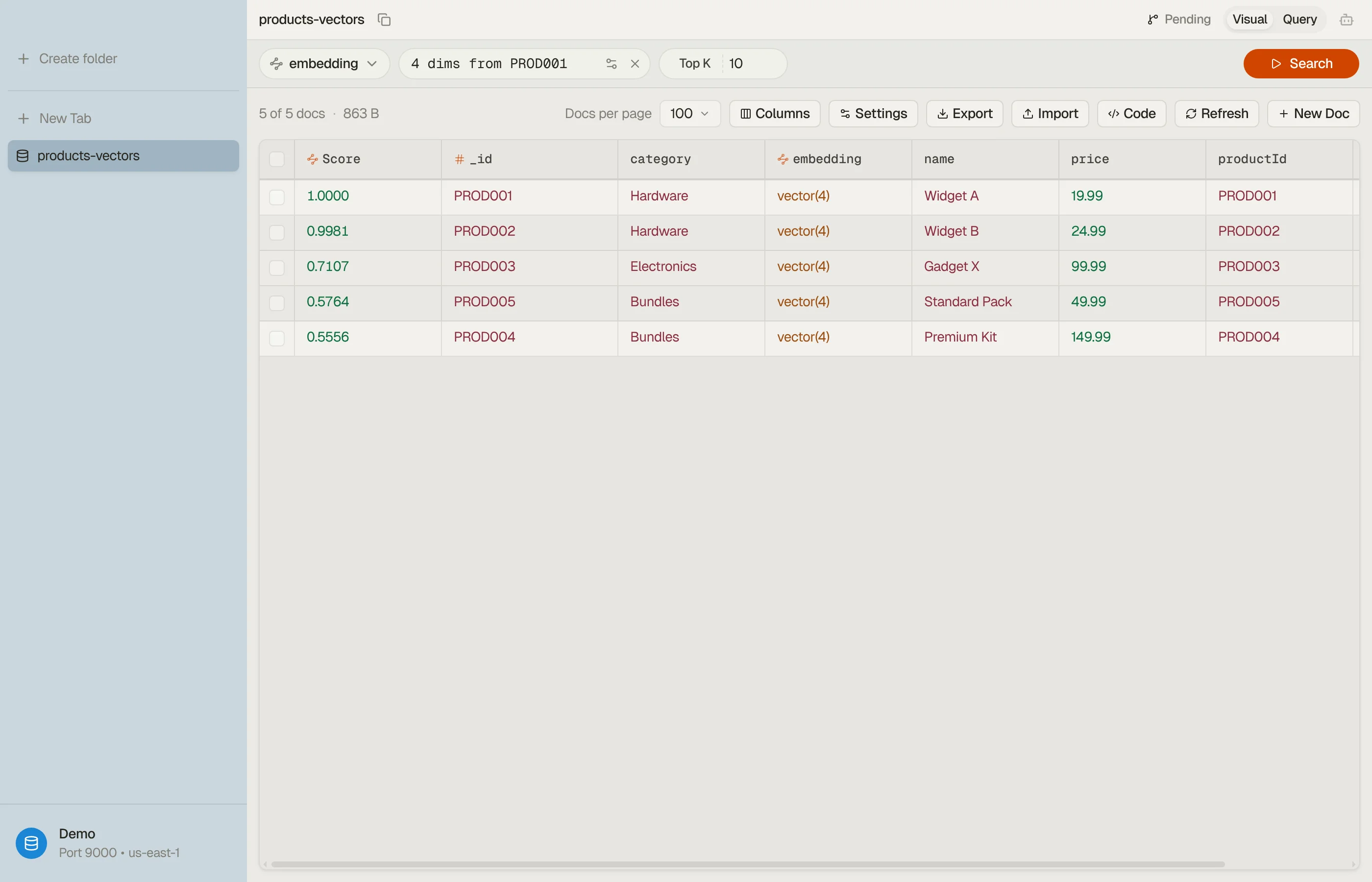
When an index has a searchable vector field, the tab gets a picker before the search box: Docs for ordinary browsing, and Vector: with the field name for each vector field. Pick a field and the vector bar replaces the search box and filters.
- Search by meaning. Type a sentence. DynoTable turns it into a vector with the embedding model bound to the field, then asks for the closest documents.
- Paste a raw vector. Under Search options, switch to pasting the numbers yourself. This needs no AI setup.
- Find similar. Right-click a row and pick Find similar to search with that document's own vector. It works in Visual mode.
Top K sets how many documents come back. The result is one page, with no Load more: raise Top K for more.
Results lead with a Score column. On an index, a higher score is always closer, whatever the space type: OpenSearch turns distance into a score. This differs from a DynamoDB table, where cosine and Euclidean scores are distances and lower wins.
Press Esc in an empty vector box to go back to Docs.


Bind an embedding model
A sentence search needs to know which model made the stored vectors. Open Search options → Embedding model on the vector bar:
- Pick a Bedrock embedding model that emits the field's number of dimensions.
- Pick the source fields the text is built from. The list comes from the
index mapping. Advanced shows the same setting as a template such as
{title}: {description}.
The binding belongs to that field of that index on that domain or collection. An index with the same name elsewhere keeps its own.
Searching is a read, so pasting a vector and Find similar work on the free read-only plan. Turning a sentence into a vector calls Bedrock, so it needs an active plan and AI set up in Settings, the same rule as on a table.
Edit documents with vectors
In the document editor, a vector folds to one line so the document stays readable. Click it, or the vector mark in the gutter, for the options:
- Show values displays the numbers; Hide values folds them again. Showing them is not an edit.
- Generate produces the vector from the source fields now.
When you save a document whose source fields changed, DynoTable embeds the new text and writes the new vector into the same staged change. If the index mapping hasn't loaded yet, the save stages without a new vector and the editor says so.