Create and manage tables
DynoTable creates and deletes tables, adds and drops global secondary indexes, adds and removes global-table replicas, and edits the handful of table settings you change most often — TTL, capacity mode, point-in-time recovery, and deletion protection. You do not have to leave for the AWS console to start a new table or add an index.
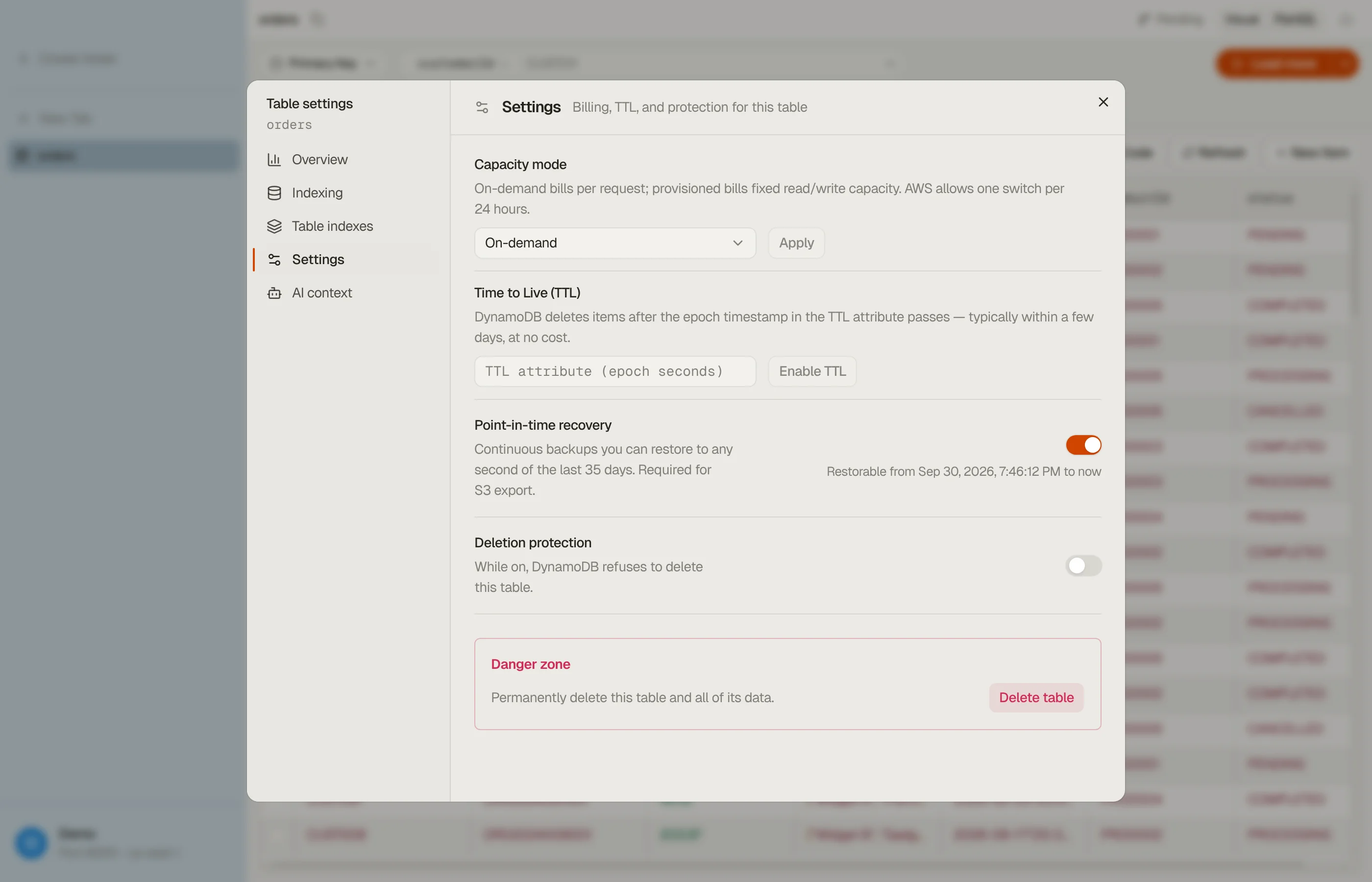
Everything except Create table lives in one place: the Settings button in the table toolbar opens the Table settings dialog, and its left rail holds Table indexes, Replicas and Settings.
Every action on this page writes to DynamoDB's control plane, so all of them need an active license or trial. See Activation.

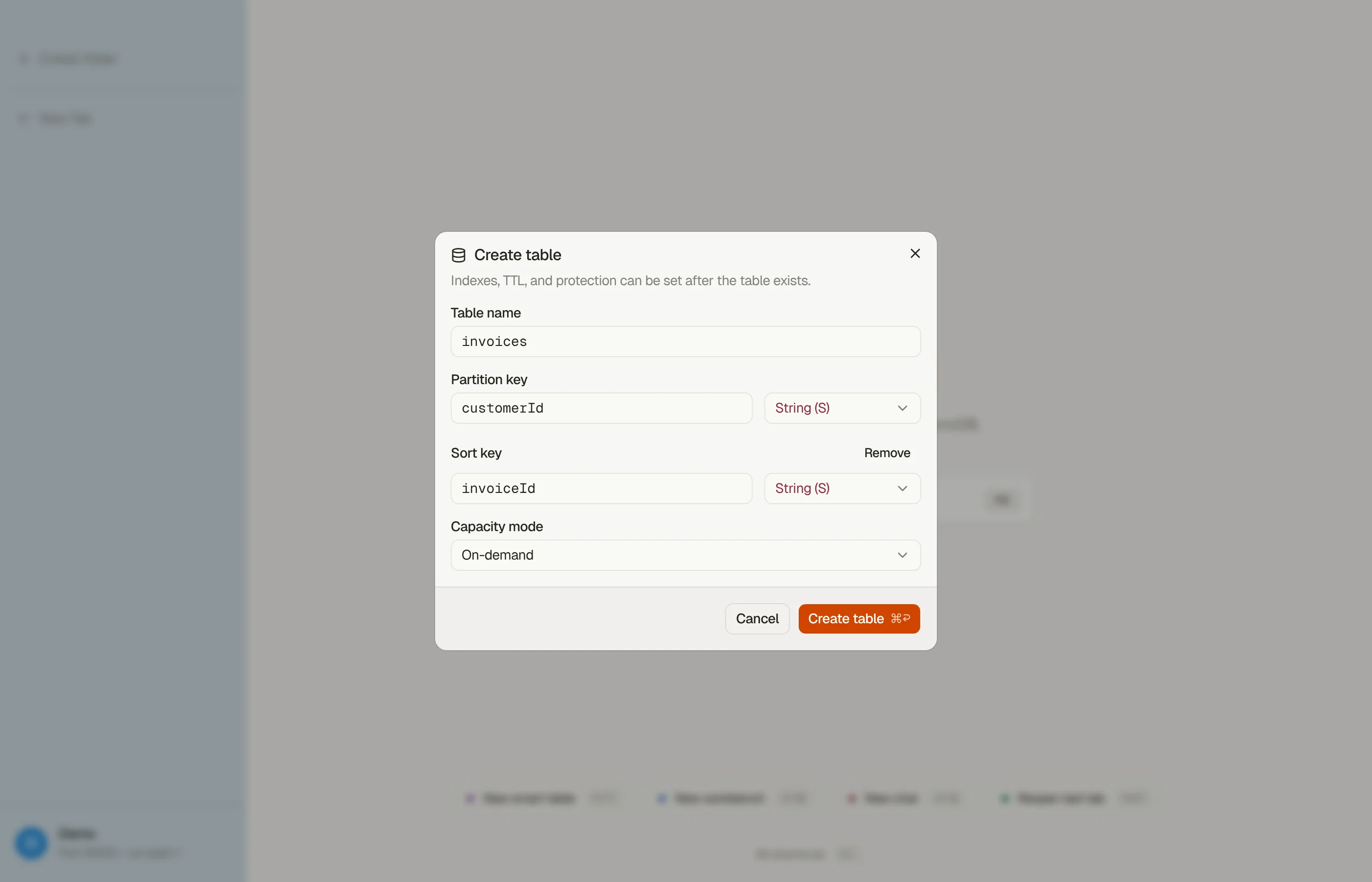

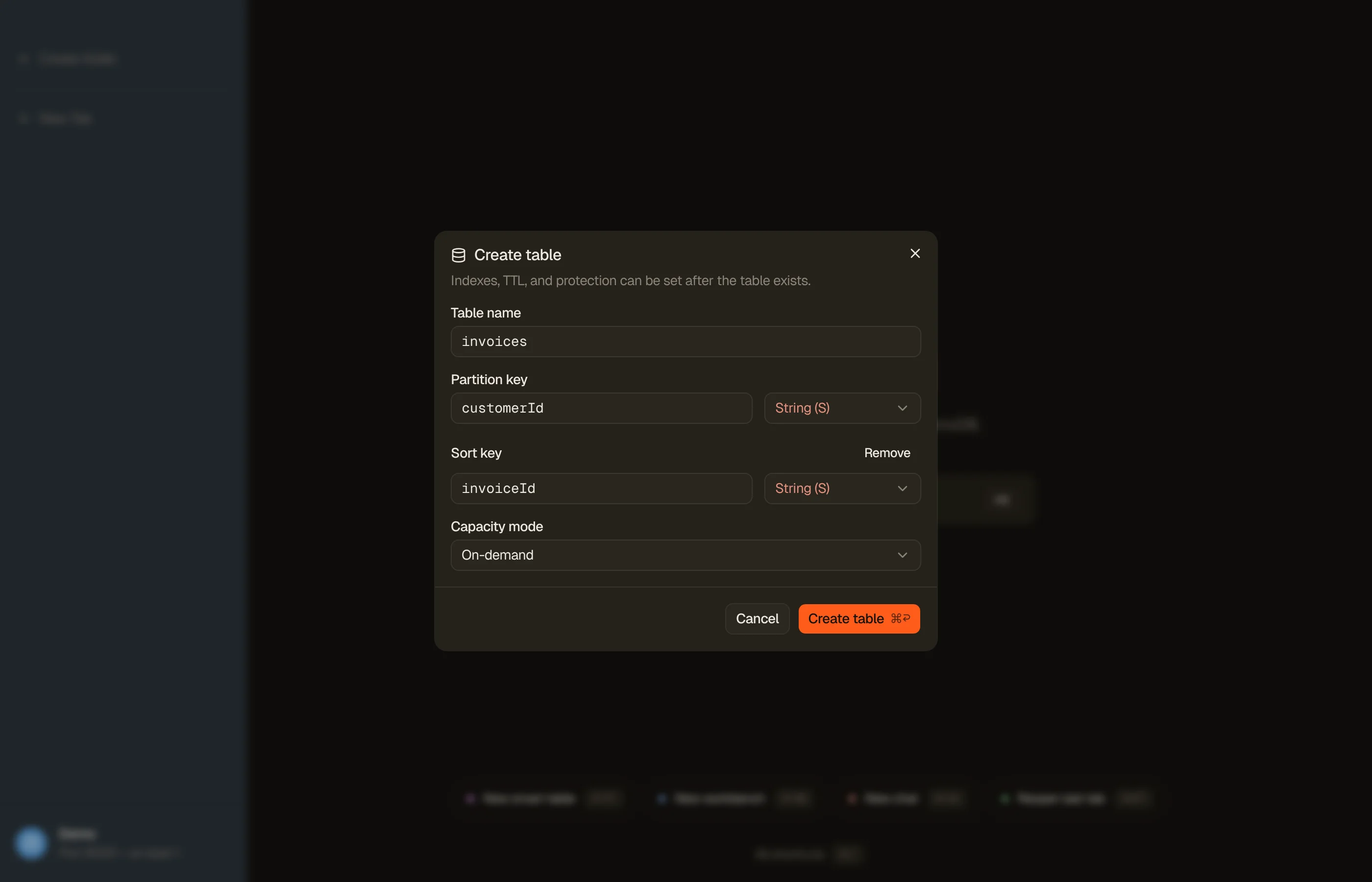
Create a table
Right-click anywhere in the sidebar's table list, or open the command palette
with Cmd/Ctrl+K and pick Create table. Fill in:
- Table name: 3 to 255 characters, letters, digits,
_,-and.only. - Partition key: an attribute name and its type (String, Number, or Binary).
- Sort key: optional. Add sort key reveals it; Remove takes it away.
- Capacity mode: On-demand (pay per request, no idle cost) or Provisioned with read and write capacity units.
The table opens in a tab as soon as DynamoDB accepts it.
Combinations DynamoDB refuses are caught before anything is sent, and the message names the problem rather than passing back a validation error: a sort key that repeats the partition key, provisioned capacity with no read or write units, or capacity units on an on-demand table.
Add or drop a global secondary index
Open the Table settings dialog and pick Table indexes. The pane lists every global and local secondary index with its keys, projection, and size.
Create index asks for:
- Index name: 3 to 255 characters, same character set as a table name.
- Partition key, and an optional sort key, each with a type.
- Projection: All attributes (simplest, largest storage), Keys only (smallest, other attributes need a fetch from the base table), or Include plus the attributes you list, up to 20.
- Read and write units, on a provisioned table only.
DynoTable refuses a duplicate index name, a sort key that repeats the index's partition key, an Include projection with nothing listed, and a key attribute whose type contradicts an existing attribute definition. That last message names the type the table already uses.
A new index shows Creating, then Backfilling while DynamoDB populates it. The pane polls until it settles. Deleting an index asks for confirmation first.
Two limits worth knowing, both DynamoDB's rather than ours:
- Local secondary indexes are read-only here. DynamoDB fixes them when the table is created, so no tool can add or remove one afterwards.
- An existing index cannot be edited. Change a projection by creating a replacement index and dropping the old one.
For which projection to pick, see index projections.

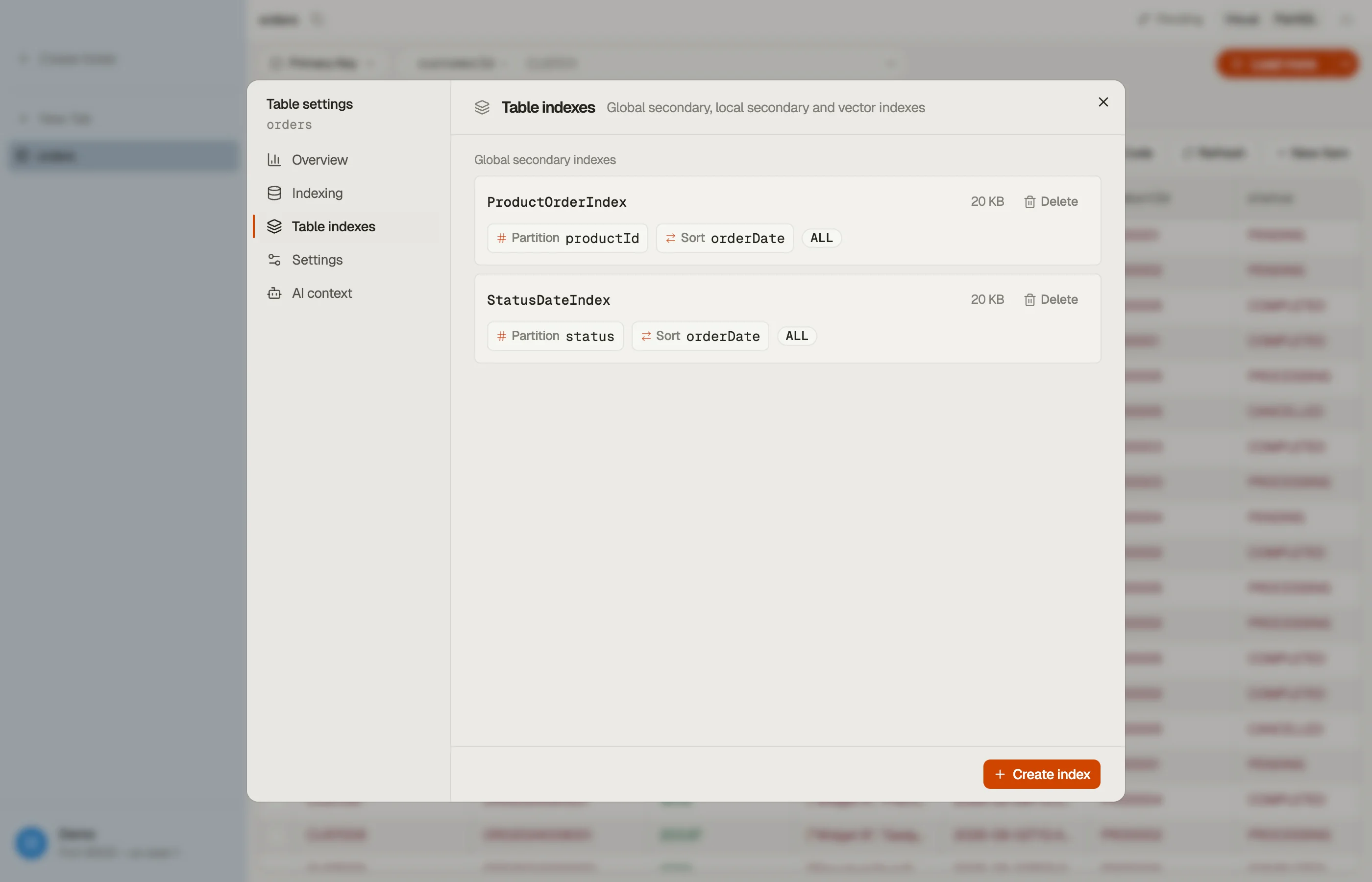

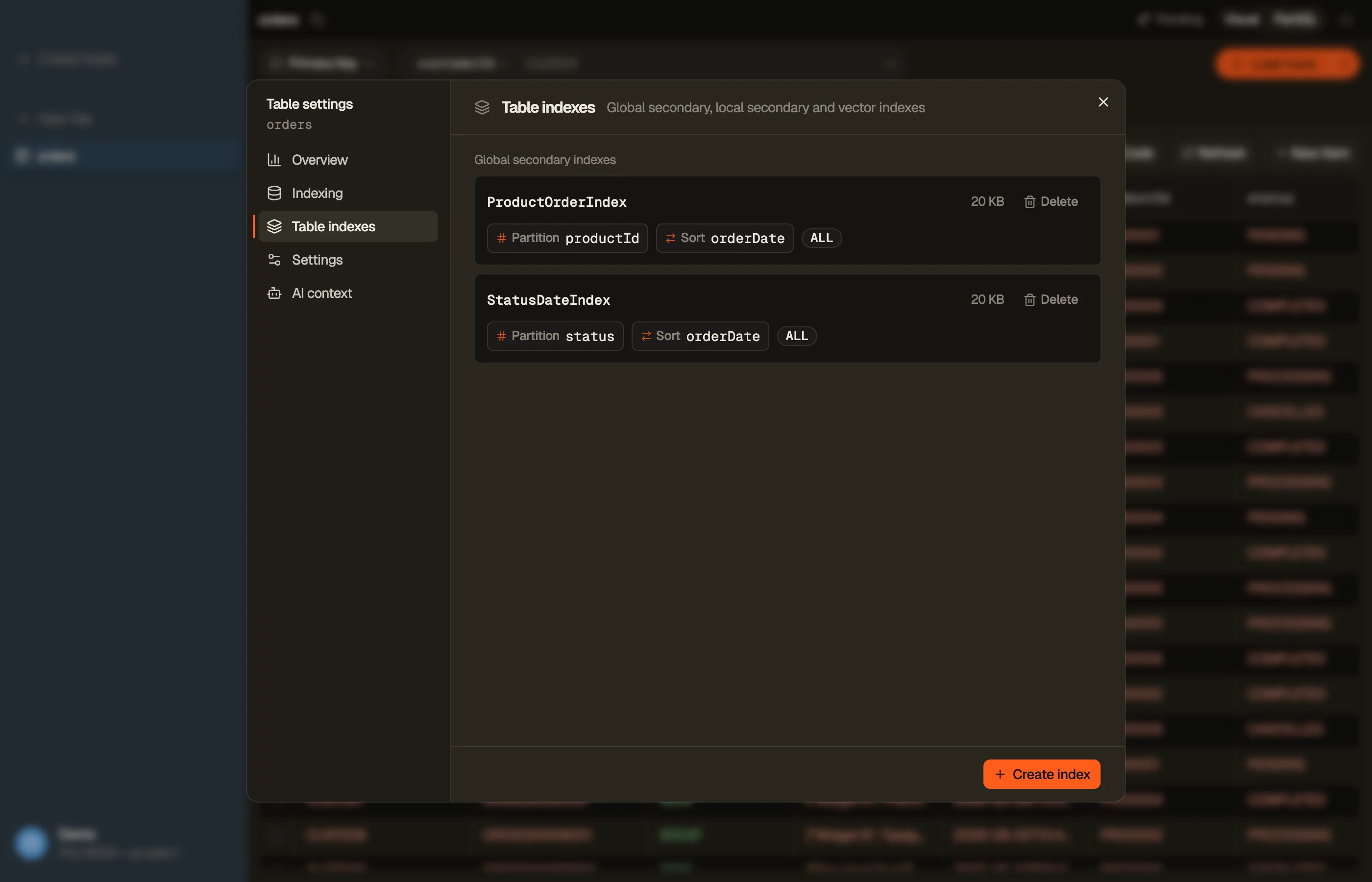
Table settings
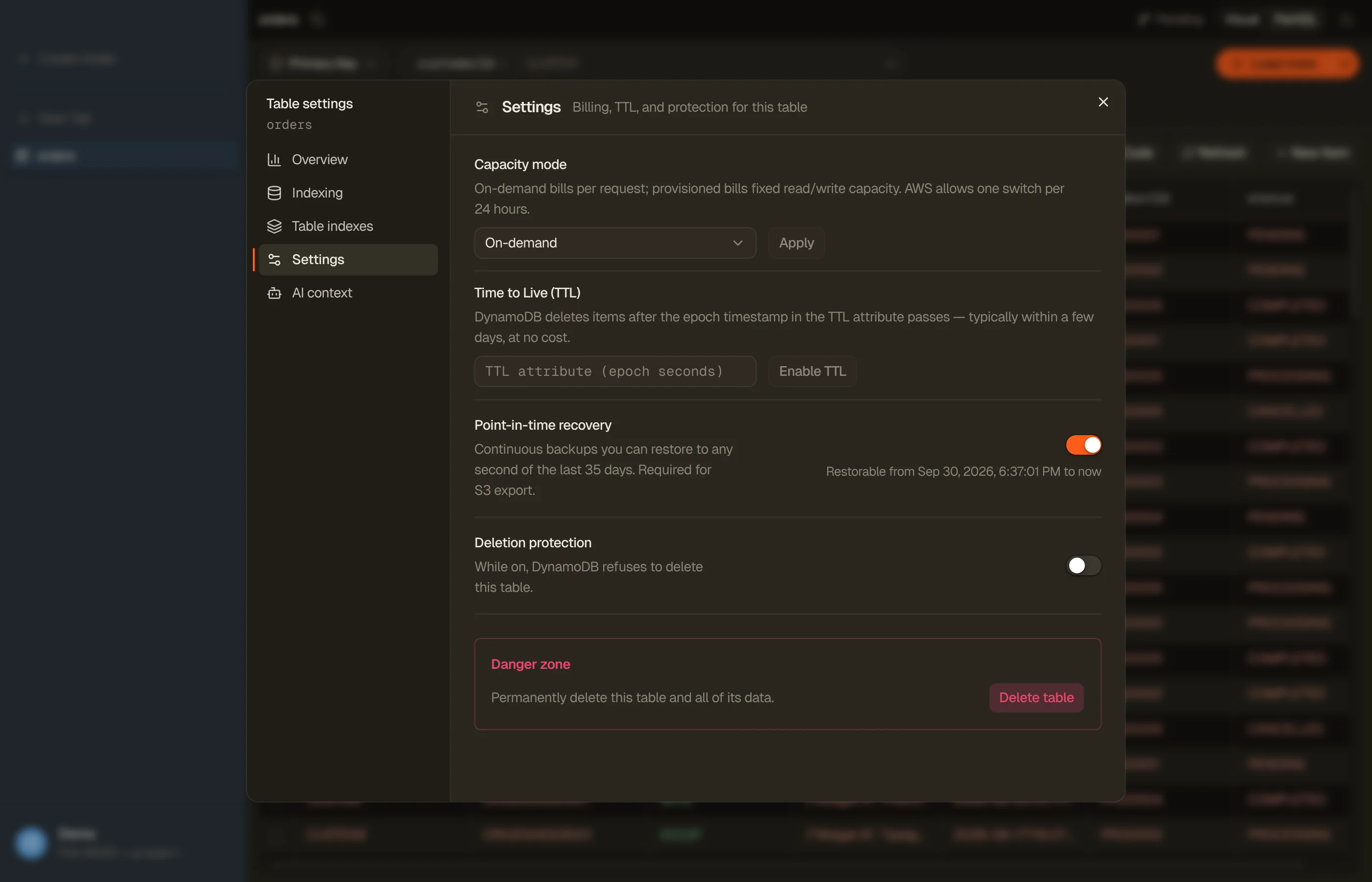
The Settings section of the Table settings dialog holds four controls. All
four are read-only while the table's status is anything other than ACTIVE; a
table still settling from an earlier change says so. Capacity mode, TTL and
point-in-time recovery confirm in both directions; deletion protection confirms
only when you turn it off, because switching it on takes nothing away.
Capacity mode switches between on-demand and provisioned, and edits read and write capacity units on a provisioned table. AWS limits how often you can switch back to provisioned; see on-demand throughput.
Time to Live (TTL) takes the attribute holding the expiry timestamp in epoch seconds, then enables expiry. Disabling TTL stops future expiry and keeps the items already in the table. The grid marks a TTL column and strikes expired items through (see browsing tables).
Point-in-time recovery turns DynamoDB's continuous backups on or off. While it is on, the row shows the restorable window, from the earliest restorable time to now. Turning it on is billed by AWS per GB-month of table size, and the confirmation says so. Turning it off deletes the restore window: the table can no longer be restored to an earlier point in time. Point-in-time recovery is what an S3 export reads, so it must be on before you export to S3. The row is hidden on DynamoDB Local profiles, and if your credentials can't read the setting it says so and the switch stays disabled.
Deletion protection stops DynamoDB deleting the table at all, whoever asks and whatever their IAM permissions allow. Turning it off is confirmed separately.


Global tables and replicas
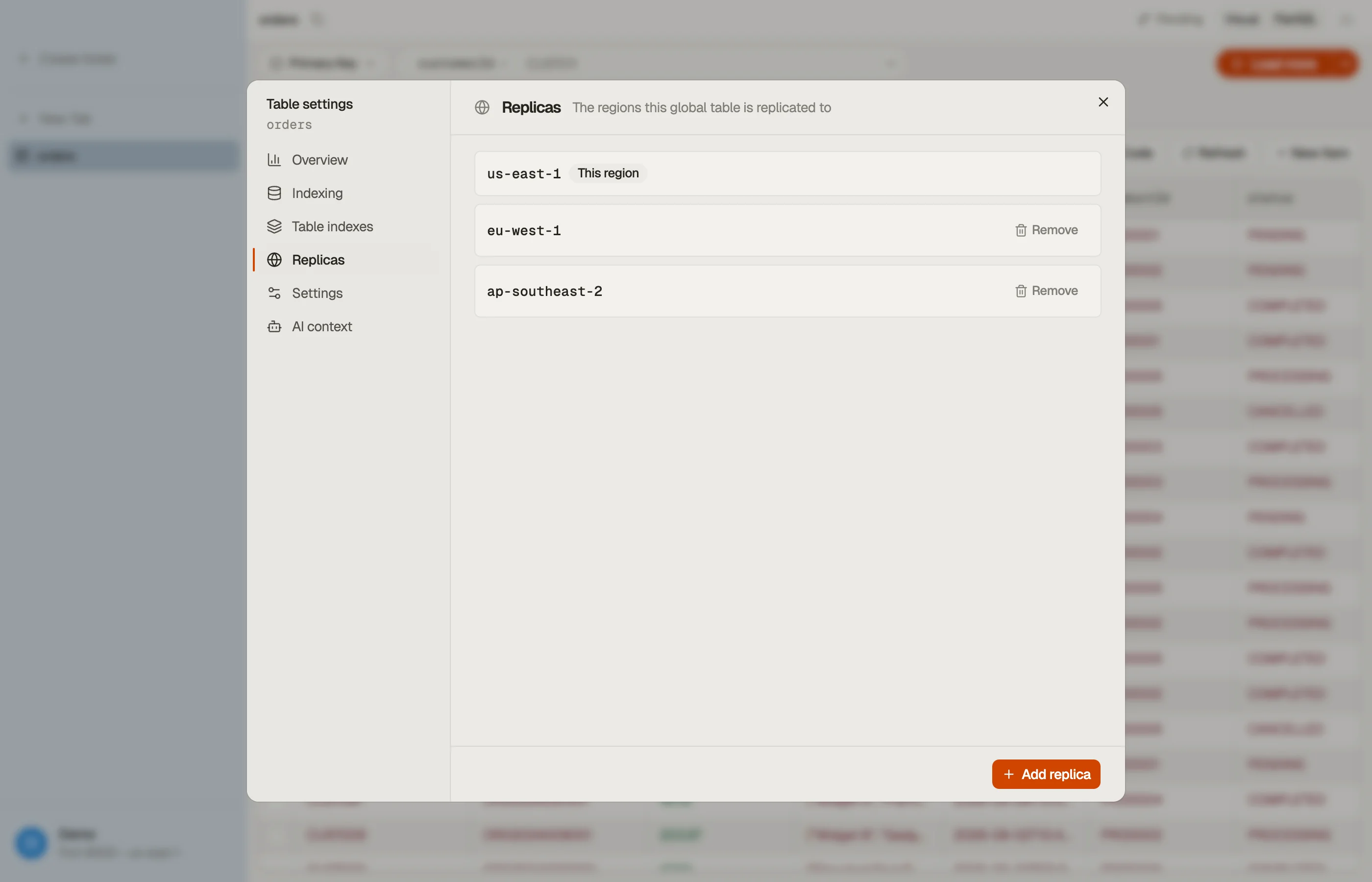
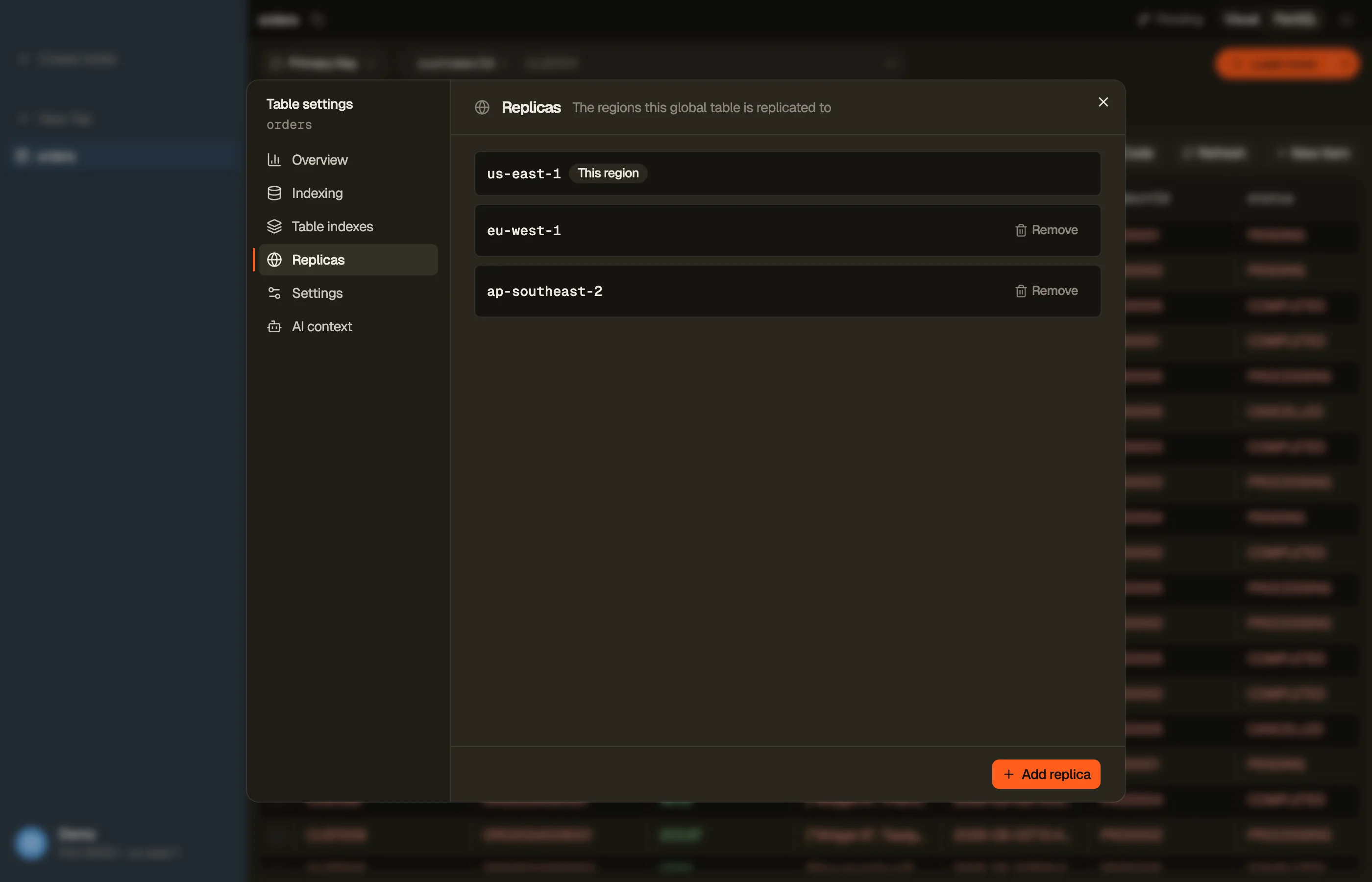
The Replicas section of the Table settings dialog lists the regions a table is replicated to. Your profile's region comes first, marked This region. While a change is running, a row shows Creating… with a percentage, Deleting…, or Updating….
To add a region, choose Add replica, pick the region, and confirm. If the table is encrypted with a customer managed KMS key, enter the key ARN in the new region; leave it empty to use the AWS managed key. Adding a replica can take minutes or hours, depending on the table's size. To drop a region, choose Remove replica on its row. That deletes the table in that region; the other regions keep the data.
Some limits come from DynamoDB itself:
- One change at a time. While a replica or an index is being created or deleted, adding and removing wait.
- A provisioned table needs write auto scaling before a replica can be added. DynoTable does not check this first; DynamoDB's refusal shows as an error.
- A table created with multi-Region strong consistency has its regions fixed at creation, so the section is read-only for it.
- A replica in another AWS account is marked Another account and is managed from that account.
DynoTable manages replicas from your profile's region; a tab never opens another region's copy. To browse a replica, use a profile for its region. The section is hidden on DynamoDB Local profiles, which have no global tables.


Delete a table
Delete table sits in the Danger zone at the bottom of the Settings section. It is disabled while deletion protection is on.
Deleting asks you to retype the table name exactly. The table and every item in it go, DynamoDB has no undo, and the tab closes once the table is gone.
What stays in the AWS console
DynoTable covers the settings you change while working with a table's data. These need the AWS console or the CLI:
- Backups and restores. Turning point-in-time recovery on and off is supported here; restoring from it is not.
- DynamoDB Streams and Kinesis data streams.
- Creating a table with multi-Region strong consistency, and per-replica settings.
- Contributor Insights and CloudWatch alarms.
- Tags and resource-based policies.
The AI assistant and the MCP server cannot create, alter, or delete tables and indexes either. Those actions are yours, from the UI — nothing an agent drives can reach them.