Bulk edit and bulk delete
Bulk edit applies one set of changes to many DynamoDB items at once: set an attribute, remove one, or add to a number. Bulk delete removes the items instead. Both work on the rows you select or on every item your query matches.
By default both end in Pending changes, where you review each item's diff before anything reaches the table. For runs too large to review, a direct mode writes straight to DynamoDB, with no item limit and no undo.
Choose the items
Bulk edit and bulk delete act on the grid selection of a table tab, in Visual or PartiQL mode, vector search results included. Smart Tables and Workbench tabs are read-only and offer neither.
- Selected rows: select two or more rows, then press ⌘E, click Edit in the toolbar, or right-click and choose Bulk edit selected items. With one row selected, ⌘E opens the item editor instead. A bulk edit takes at most 10,000 selected rows.
- All matching items: press ⌘A or tick the header checkbox when the result has more pages than are loaded. The selection then covers every item the query matches, loaded or not, and the toolbar's selection chip reads All.
An all-matching selection shows no count. DynamoDB cannot count matching items without reading all of them, so DynoTable says "All" rather than a number.
Uncheck a row to keep it out; the selection reports how many you unchecked. A plain click or an arrow key collapses it back to one row.
All-matching works on a visual key query or scan that has run as shown. The run reads that executed query, so edit the filter and run it before you start.
Delete uses the same selection: Delete in the toolbar, ⌘⌫ or ⌘⇧⌫. On selected rows they work as described in Staging & commit.
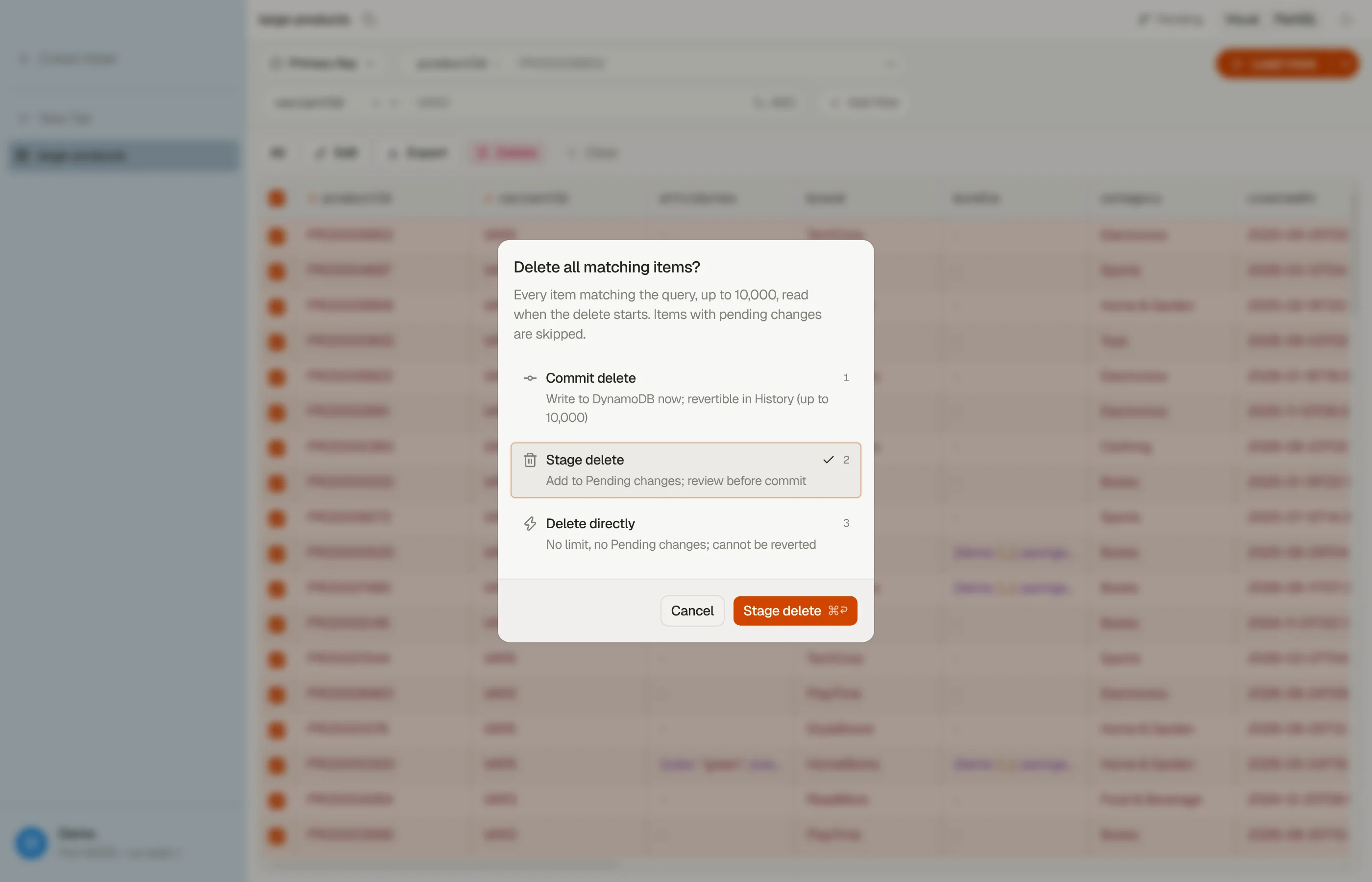
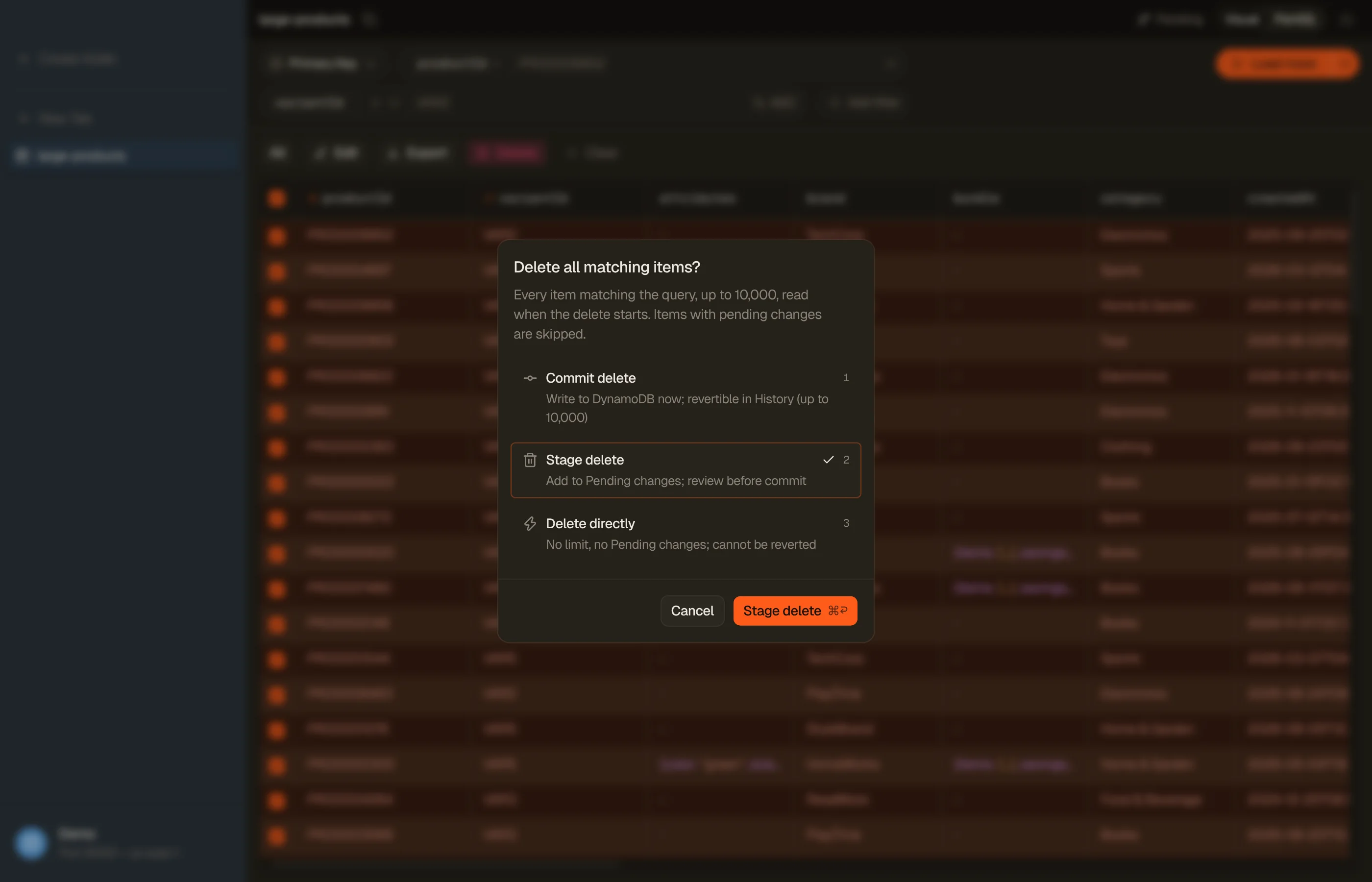
On an all-matching selection, each of them opens the Delete all matching items? dialog instead, with the modes in Pick how the run writes.
Describe the edit
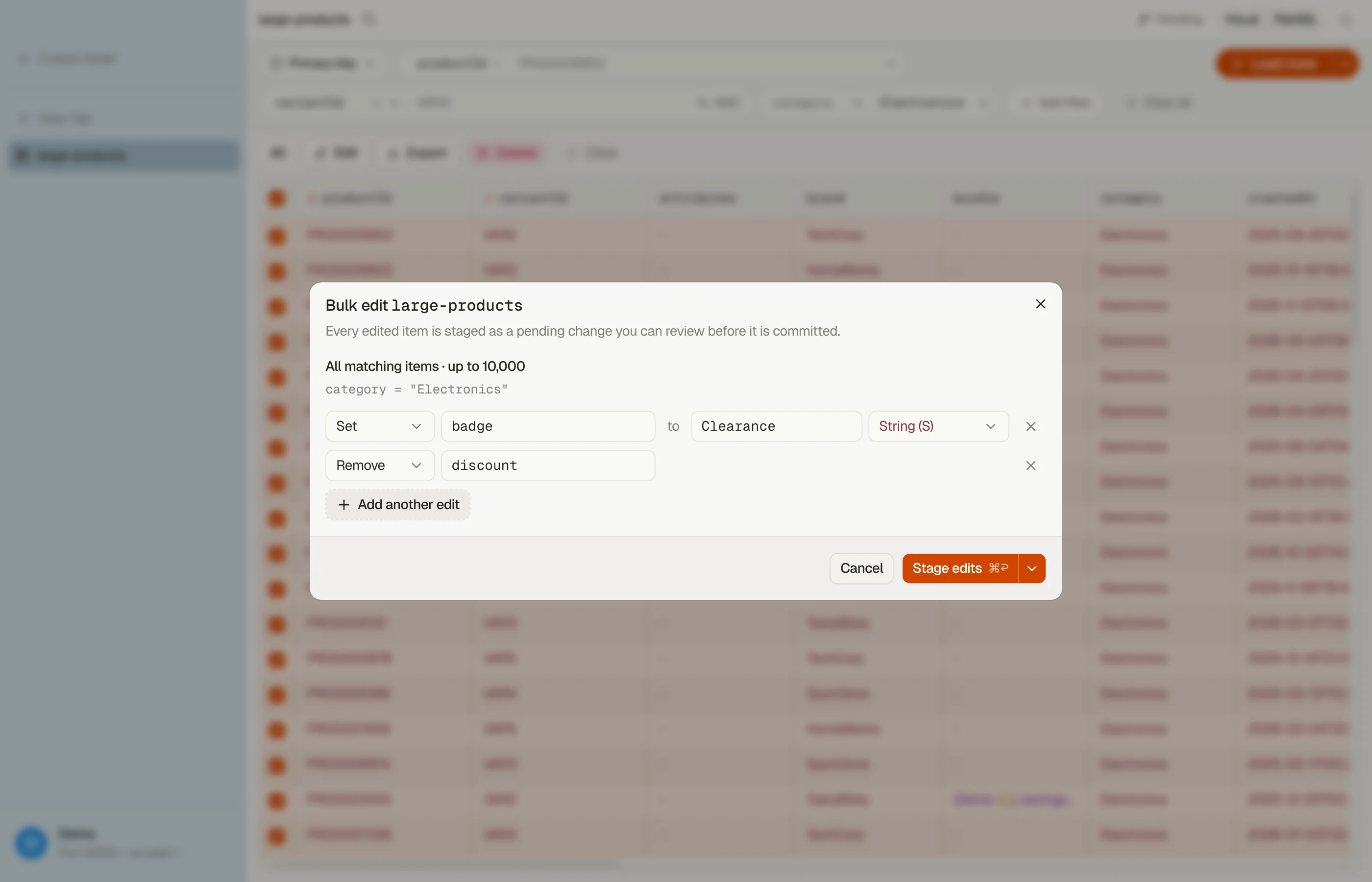
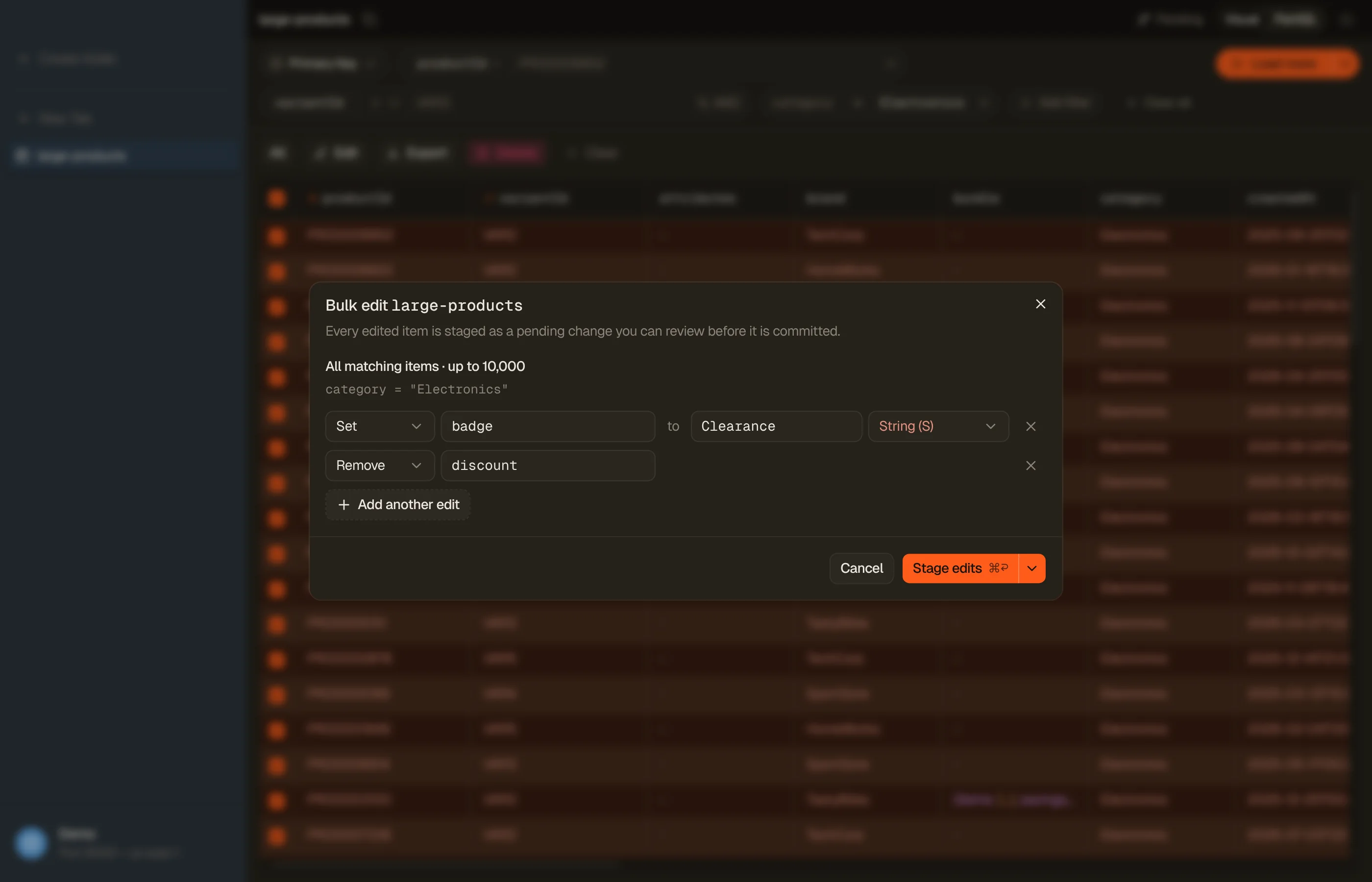
The Bulk edit dialog opens with the scope on top: the number of selected rows, or All matching items with the filter underneath. Below it, each line is one change, read left to right:
- Set an attribute to a value of type String, Number, Boolean or Null.
- Remove an attribute.
- Add an amount to a number. A negative amount subtracts. An item without
the attribute gets the amount as its value, which is how DynamoDB's own
ADDbehaves.
The attribute can be a nested path such as address.city. Names and values
autocomplete from the table's local index, and free text is always allowed. Use
Add another edit to change several attributes in one run.
DynoTable checks the whole edit against the table before it reads a single item, and refuses it with the reason shown on the line when:
- the attribute is part of the table's primary key, which DynamoDB never lets you update;
- two lines overlap, such as
addressandaddress.city; - the value doesn't fit a secondary-index key: wrong type, empty, or Add on a key that isn't a number;
- a number is outside the range DynamoDB can store.
Other edits are allowed with a warning. Changing a secondary-index key moves items into or out of that index, and changing an attribute behind a vector index changes what search finds. Committing staged changes does not re-embed items, so their embeddings go stale.


Pick how the run writes
The Bulk edit dialog's button is split, and its arrow opens the write modes. The Delete all matching items? dialog lists the same modes as a numbered picker — Commit delete, Stage delete and Delete directly. Press 1–3 or move with ↑ / ↓; the footer button follows your pick, and ⌘↩ presses it. Both dialogs always open on Stage, however you finished the last run, so one Enter never writes to your table.
| Mode | What happens | Items | Undo |
|---|---|---|---|
| Stage edits / Stage delete | Add to Pending changes; review before commit | up to 10,000 | Discard before commit, Revert after |
| Commit edits / Commit delete | Write to DynamoDB now; revertible in History | up to 10,000 | Revert from History |
| Write edits directly / Delete directly | No limit, no Pending changes; cannot be reverted | the whole match | none |
Choose Stage when you want to read the diffs first, or commit only some of them. Choose Commit when you trust the edit and want History as your undo. Commit stages the run and then commits everything it staged, in one step.
Choose the direct mode when the match is bigger than 10,000 items, or a review is pointless, such as backfilling an attribute across millions of items. It appears only for an all-matching selection; selected rows always go through the stage.


What a staged run skips
A Stage or Commit run reads each matching item again before staging it, and stages one ordinary pending change per item. It skips an item, and counts why, when:
- the item already has a pending change, which the run never overwrites;
- the item no longer exists, or, for all matching items, changed since the query matched it;
- the change would not apply: Add on a value that isn't a number, a nested path whose parent isn't a map, or a result too large to write;
- the item already holds the values you set.
A staged change is committed with the same optimistic locking as any other pending change: if the item changes before you commit, the commit conflicts instead of overwriting it.
A staged delete of all matching items is locked to your filter. When you commit, an item is deleted only if the attributes your filter tested still hold the values they had when the run read them. Any other item shows up as a conflict and is not deleted. Rebase is not offered for these, because the old values are what make the delete safe; discard the change instead.
The 10,000-item limit
A staged run reads at most 10,000 items and says so when more matched.
- Delete: commit what was staged, then run the delete again. The deleted items are gone, so the next run starts on the rest.
- Edit: running it again reads the same first items, which skip as pending until you commit them. An Add runs again on every item the run reaches, so after a committed run it adds a second time. The dialog warns you before an Add run that might hit the limit.
For a match larger than the limit, use a direct run.
Direct runs
A direct run reads the matching items page by page and writes each change as it reads, with no stage in between. Picking a direct mode shows its options in the dialog, collapsed to a one-line summary such as Safe · No limit. Open it for the Guard select, Safe or Fast, on a delete, and Max writes/s for both.
Every item a direct run writes bills write capacity, so a run over millions of items costs millions of writes. The pricing calculator ballparks it before you start.
Confirm a direct run
Choosing Write edits directly or Delete directly opens a confirm step before anything is read. It names the table and the filter, counts the rows you unchecked, and says This cannot be reverted. The destructive button never has focus when the step opens.
Delete directly also asks you to type the table name. The button stays disabled until the name matches exactly.
Safe and Fast
A direct delete offers two guards:
- Safe (the default): each delete re-checks the filter, so items that stop matching are kept. Every write carries a condition built from the query that read the item.
- Fast: deletes in batches without re-checking the filter. It is quicker, and items that stop matching during the run are still deleted. The confirm step says so.
A direct edit is always Safe. Each update re-checks the filter, and each Add checks that the number still holds the value the run read, so a concurrent change makes the item skip instead of receiving a stale result.
Max writes/s
Max writes/s caps how fast the run writes, in items per second, counting each item of a Fast batch. Leave it empty (No limit) and DynoTable starts at a moderate pace, speeds up while DynamoDB accepts writes, and slows down when DynamoDB throttles.
Set it on a production table that serves live traffic, so the run leaves write capacity for your application instead of competing with it.
When a direct run is refused
DynoTable checks a direct run before it starts, and again when you resume one. It refuses, with the reason in the dialog, when:
- Fast is chosen for an edit: Fast deletes only;
- the query reads an index that doesn't hold whole items, so the edit cannot see the attributes it would change. Query the table instead;
- the edit changes a key of the index the run reads, which would move items the run is still reading;
- the edit and the filter together exceed DynamoDB's 4 KB expression limit.
Follow a run in Activity
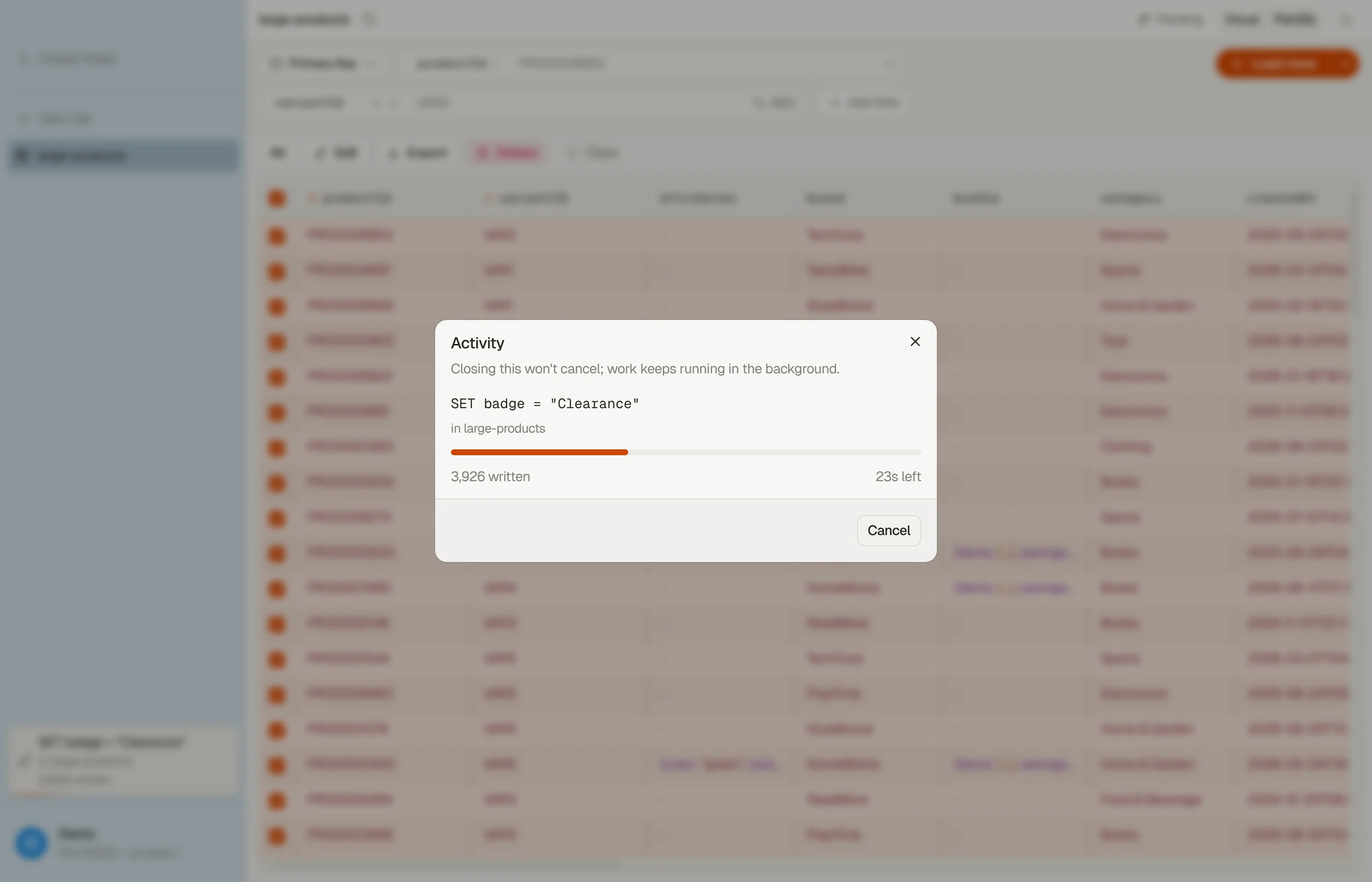
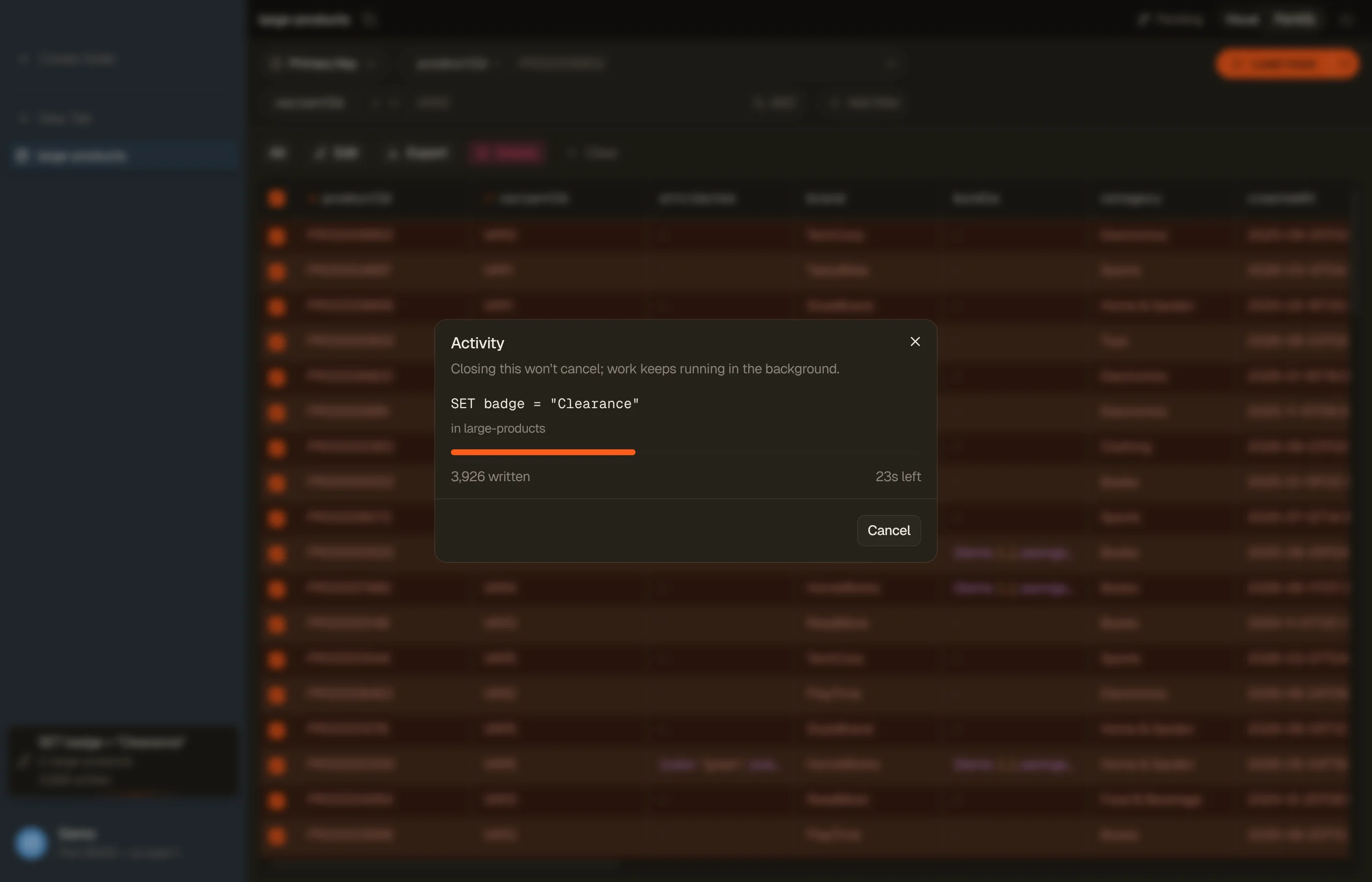
The dialog closes when the run starts and hands it to the Activity popup. The same run stays in the Activity panel at the bottom of the sidebar, beside exports and imports, so you can keep working while it runs.
Every run reads the same way: one count on the left, such as 10,000 staged or 801 written (deleted for a delete), and while it runs, the time on the right. For a scan, the progress bar fills against DynamoDB's item count for the table, and the time becomes an estimate of the time left. A query has no total, so it shows the time so far.
Below the count, and only when there are any, the run lists each skip reason with its count, such as items that no longer matched when written or already have a pending change, and the first errors when items failed. When a staged run ends, Review & commit opens what it staged in Pending changes.
A throttled write is retried, never counted as failed. An item with a pending change is skipped rather than written over. If 100 writes in a row fail, the run stops as interrupted, so a missing IAM permission or a bad edit doesn't fail every remaining item.
Cancel stops the run once the page it is working on is done. A staged run keeps what it staged in Pending changes. A direct run cannot take its writes back: items written before the stop keep their new values, and deleted items stay deleted.
A run that finishes while you watch it in the Activity popup stays there on its final count until you click Done. One that finishes cleanly in the background clears itself from Activity after a few seconds. A run with skipped or failed items, a cancel or an error stays until you dismiss it. When a direct run writes anything, open grids of that table refresh.


Resume an interrupted direct run
A direct run keeps track of how far it got. When something stops it, the run stays in Activity as interrupted, with the reason and two buttons, Resume and Discard. A run is interrupted when:
- you quit the app, or it crashed. The run shows as interrupted the next time DynoTable starts;
- your AWS session expired. A long run never stops to ask you to sign in, so Resume asks instead;
- DynamoDB could not be reached;
- 100 writes in a row failed, or another error stopped it. Fix the cause first.
Resume continues where the run stopped and applies no change twice, including an Add, even when it stopped in the middle of a page. Before it continues, it checks the table again. If the table was deleted and recreated, its key schema changed, the index the run reads is gone, or the edit is now refused, Resume is refused and Discard is the only way out.
Discard forgets the run and writes nothing more. Items it already wrote keep their new values.
One direct run per table can exist at a time, running or interrupted. Starting a second one is refused until you resume or discard the first.
A resumed delete of an item that someone else deleted in the meantime counts the item as deleted. The table ends up the same either way.
Compare two items
Select exactly two rows and press ⌘⇧C, or right-click and choose Compare selected items. DynoTable reads both items again and lists the attributes that differ, side by side as A and B, with a count of the identical ones.
Copy to A or Copy to B on an attribute takes the other side's value. Stage N changes to A (or B) stages them as one pending change, reviewed and committed like any other.
The AI assistant only stages
The AI assistant can run a bulk edit or a bulk delete for you, over a filter it states, your current selection, or a list of keys. It only ever stages, up to 10,000 items, and its changes wait in Pending changes for you to commit. Agents connected through the MCP server follow the same rule. Neither can commit a bulk edit or start a direct run.
What blocks a bulk edit
Starting or resuming a bulk edit or bulk delete needs a Trialing or Active license, like every other write. In the read-only state you can still cancel a running bulk edit or discard an interrupted one, so nothing is left holding the table.