Vector search
DynamoDB can search a table by meaning rather than by exact values. You store an embedding (a list of numbers a model produced from some text) on each item, add a vector index over that attribute, and ask for the items closest to a query.
DynoTable does the whole loop in one place: create the index, say which model and which attributes the embedding is built from, and every save keeps the embedding in step with the text. Then search by typing a sentence, by pasting a vector, or by picking Find similar on a row you're already looking at.
Vector search needs a real DynamoDB table. It is not available on a local
DynamoDB profile. The knn_vector fields of an OpenSearch index get the same
search: see OpenSearch vector search.


Create a vector index
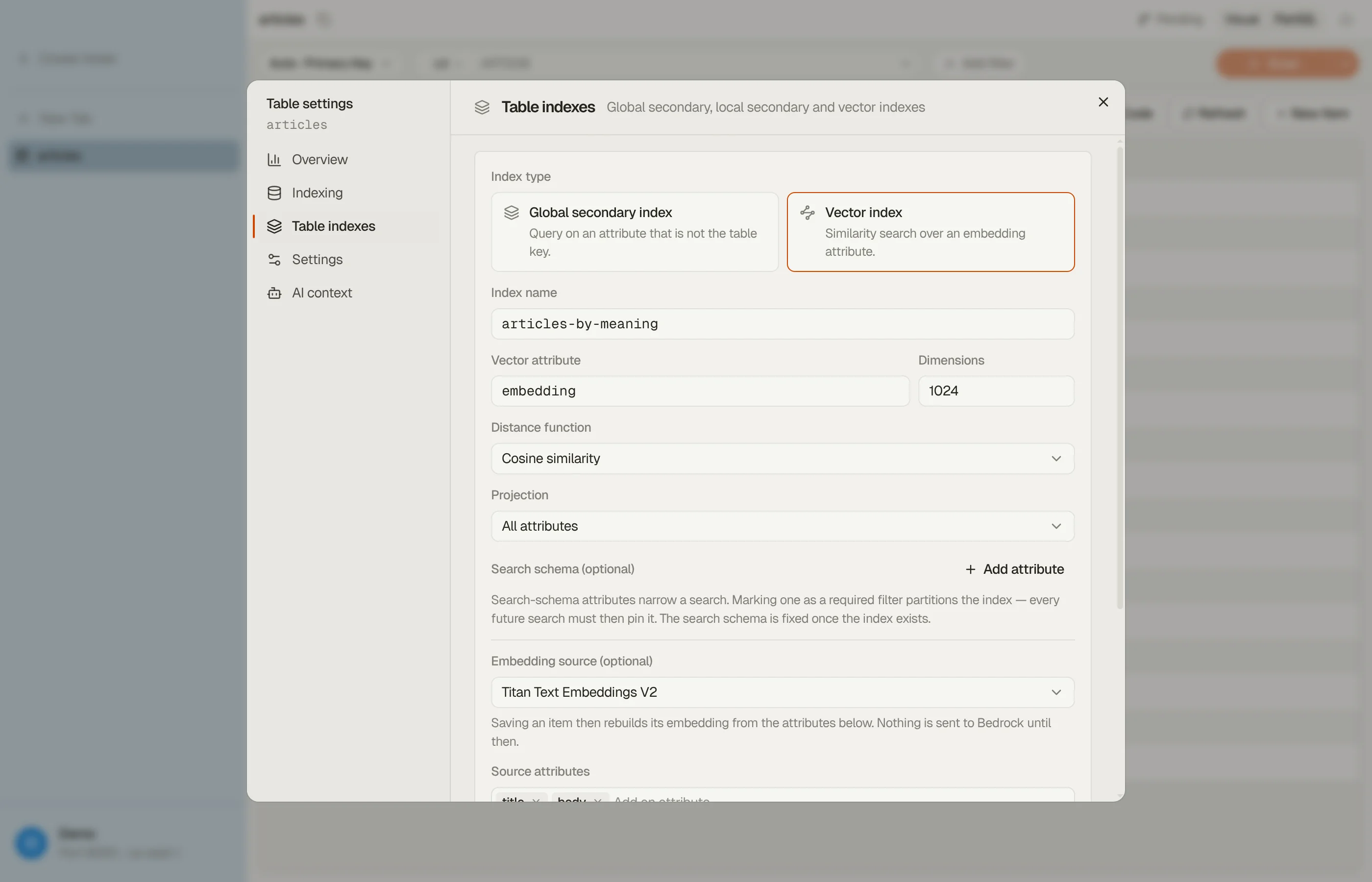
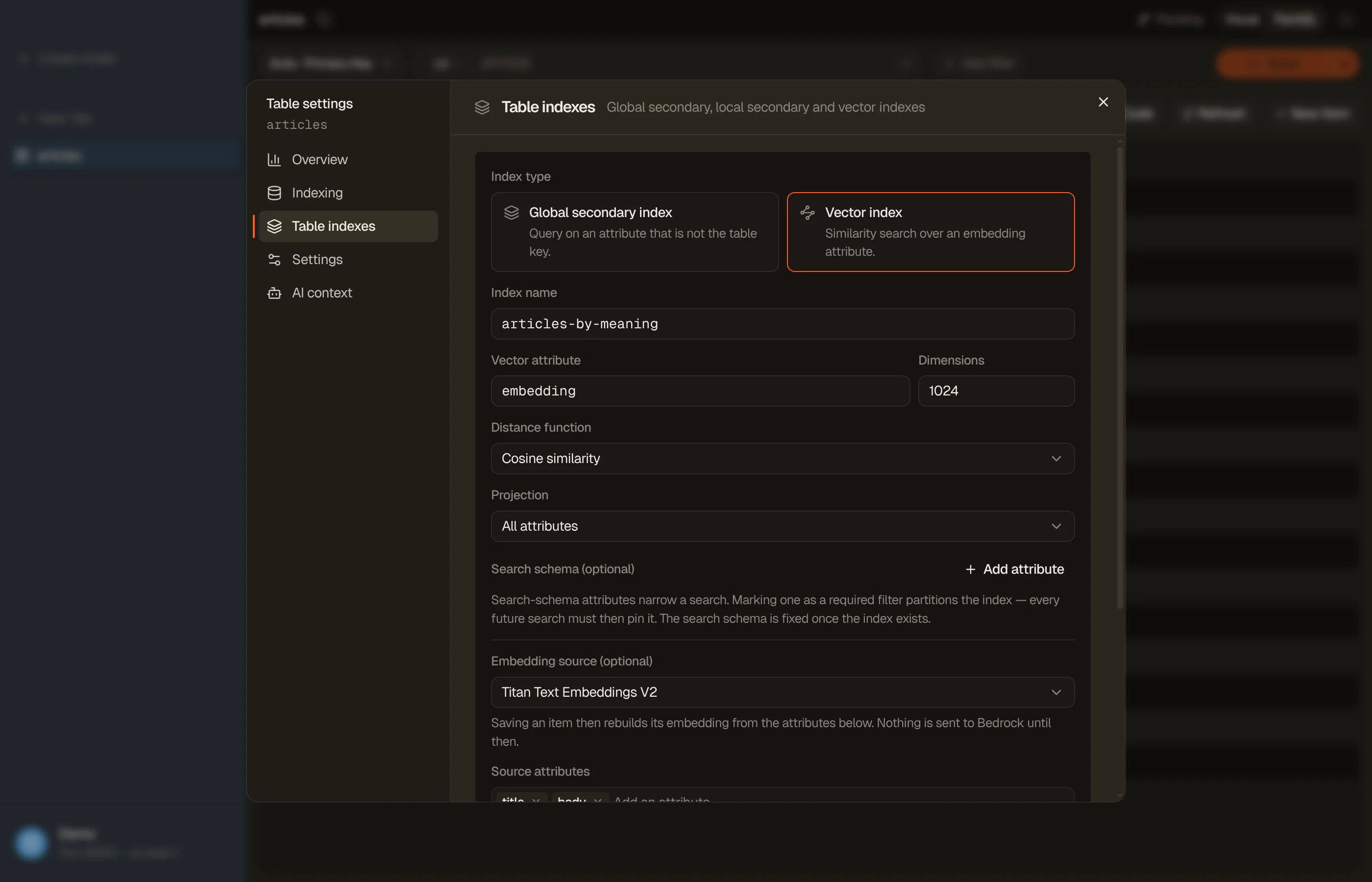
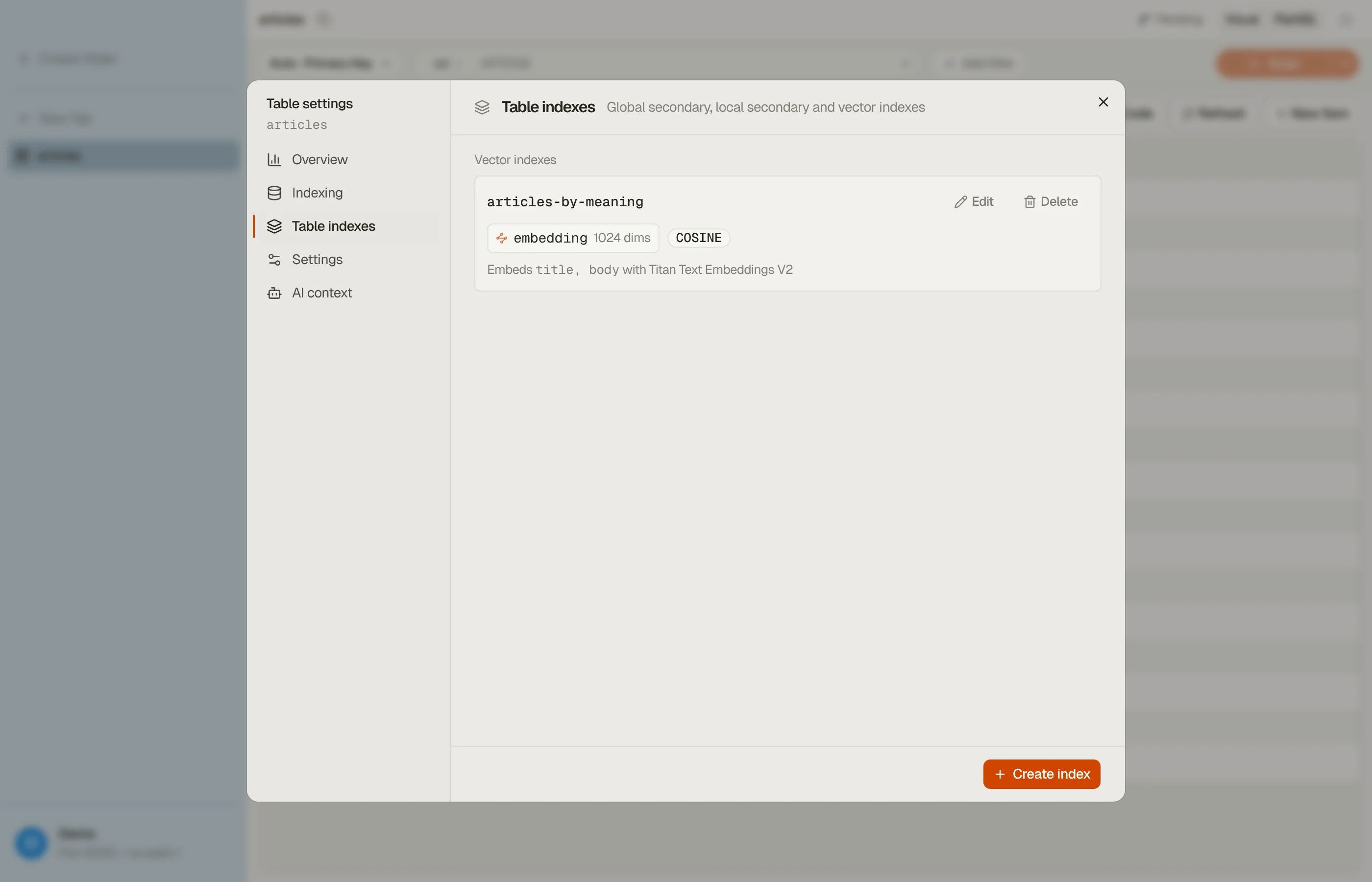
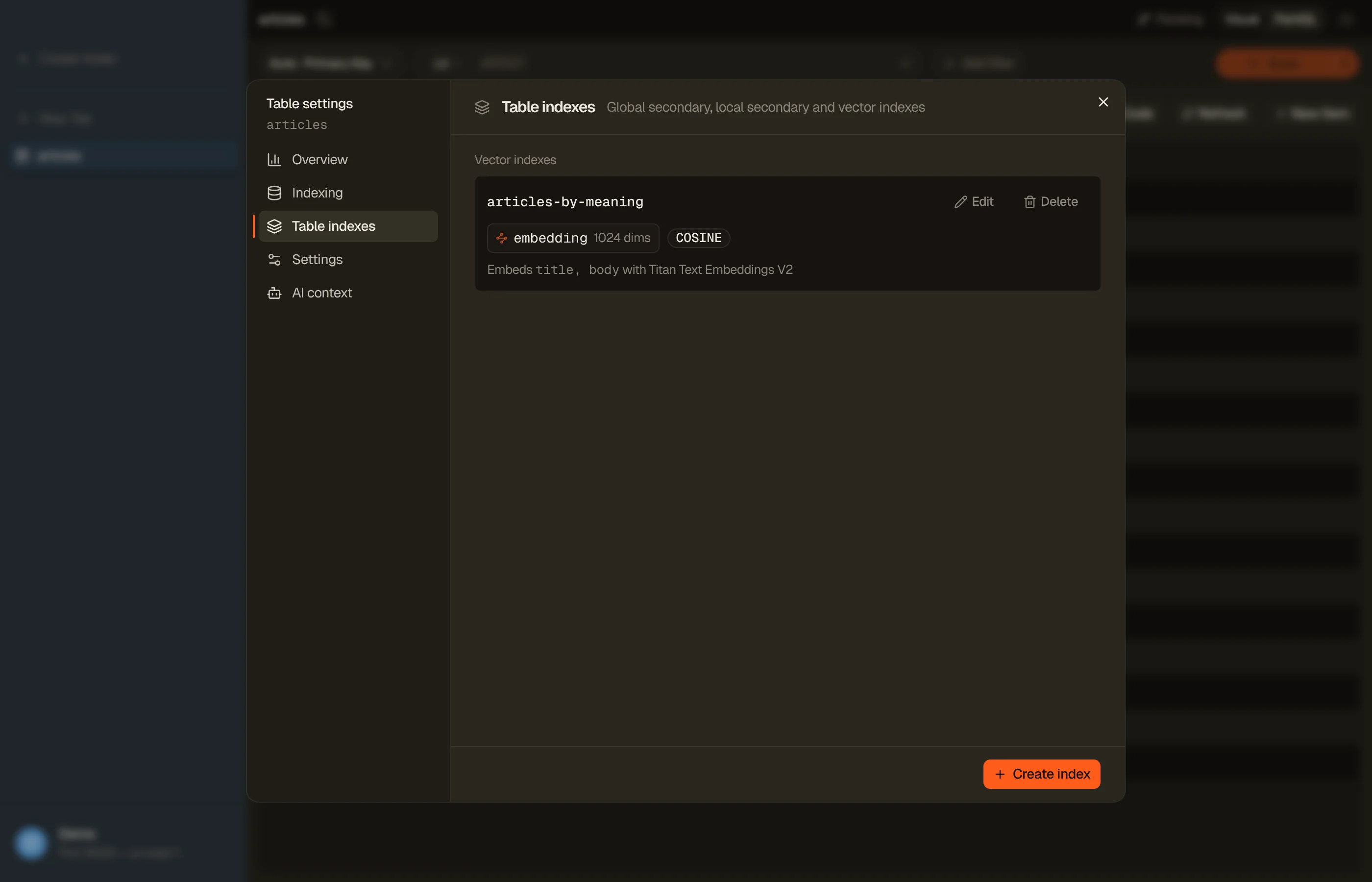
A vector index lives beside your GSIs and LSIs. Open the table's Settings button, pick Table indexes, and press Create index. The first field is Index type: choose Vector index instead of Global secondary index and the fields below swap in place.
- Index name: unique across every index on the table, GSIs and LSIs included.
- Vector attribute: the attribute holding the embedding. It must be a list of numbers; DynoTable offers the attributes it has seen that can be one.
- Dimensions: how many numbers each embedding has, 1 to 4,096. It is
prefilled with
1024, the width every bundled embedding model can produce. - Distance function: Cosine similarity (the angle between two vectors, the usual choice for text), Euclidean distance (straight-line distance), or Dot product (for models that emit normalized vectors).
- Projection: which attributes a result carries, exactly as for a GSI: All attributes, Keys only, or Include plus the ones you list.
- Search schema (optional): attributes a search can narrow on. Each is an Optional filter unless you make it the index's one Required filter.
- Embedding source (optional): see the next section.
Create vector index sends it.
A table can hold up to 5 vector indexes, and only on on-demand capacity. On a provisioned table the Vector index option is offered but refused, with the reason on it. Switch the table to on-demand from the Settings section first.
A required filter is a permanent contract
Marking a search-schema attribute as the Required filter partitions the index. Every search against it must then pin that attribute to a value: there is no way to search across the whole index afterwards. It's the right choice when every search is naturally scoped (per tenant, per customer, per language) and the wrong one otherwise. The form says so where you make the choice, because it can't be undone later.


Tell DynoTable where the embedding comes from
An index that holds vectors and a rule that produces them are one decision, so they're declared together. The Embedding source section of the create form asks for two things:
- Embedding model: a Bedrock embedding model that emits exactly this index's number of dimensions. If nothing matches the width you typed, DynoTable says so rather than offering a model that would be refused later. Leaving it Not set is allowed; you then write vectors yourself.
- Source attributes: which attributes the text is built from. Picking a model suggests a sensible set from what DynoTable already knows about the table; add or remove attributes as chips.
Advanced holds the same thing in its raw form: Source text (ordinary
text with {attributeName} references), with a live preview of exactly what
would be sent to the model for a sample item and a character count against the
model's input limit. Use it when the embedding should be more than the attributes
run together, for example {title}: {description}. Chips and Source text are two
views of one setting, so editing either updates the other; a template that is
more than a list of attributes keeps Advanced open.
Nothing is sent to Bedrock while you fill this in. The first call happens the first time an item is saved.
The index row
Every vector index appears in Table indexes with its keys, dimensions and status. Underneath it, one line says what feeds it (Embeds title, body with Titan Text Embeddings V2), or Set up embeddings when no model is bound yet. While the index is being built the row carries its own status: Creating, Backfilling, Updating, Deleting.
Edit opens that line as a form in the row itself: same model picker, same source attributes, same Advanced template, with Save and Cancel. No dialog opens over the pane, so the index you're editing stays on screen.
Delete removes the index. It asks first, and says plainly that the embedding model and source template saved for the index go with it, that searches against it start failing immediately, and that recreating is the only way to change an index's shape. Your table's own data is untouched — the embedding attribute stays on every item.


Searching
A vector index joins the query patterns
in a table tab's index picker, alongside PRIMARY and your GSIs. Pick it and the
key pills are replaced by the vector bar. Nothing runs until you press
Search: a vector search is a single request, where a scan would
page through the table.
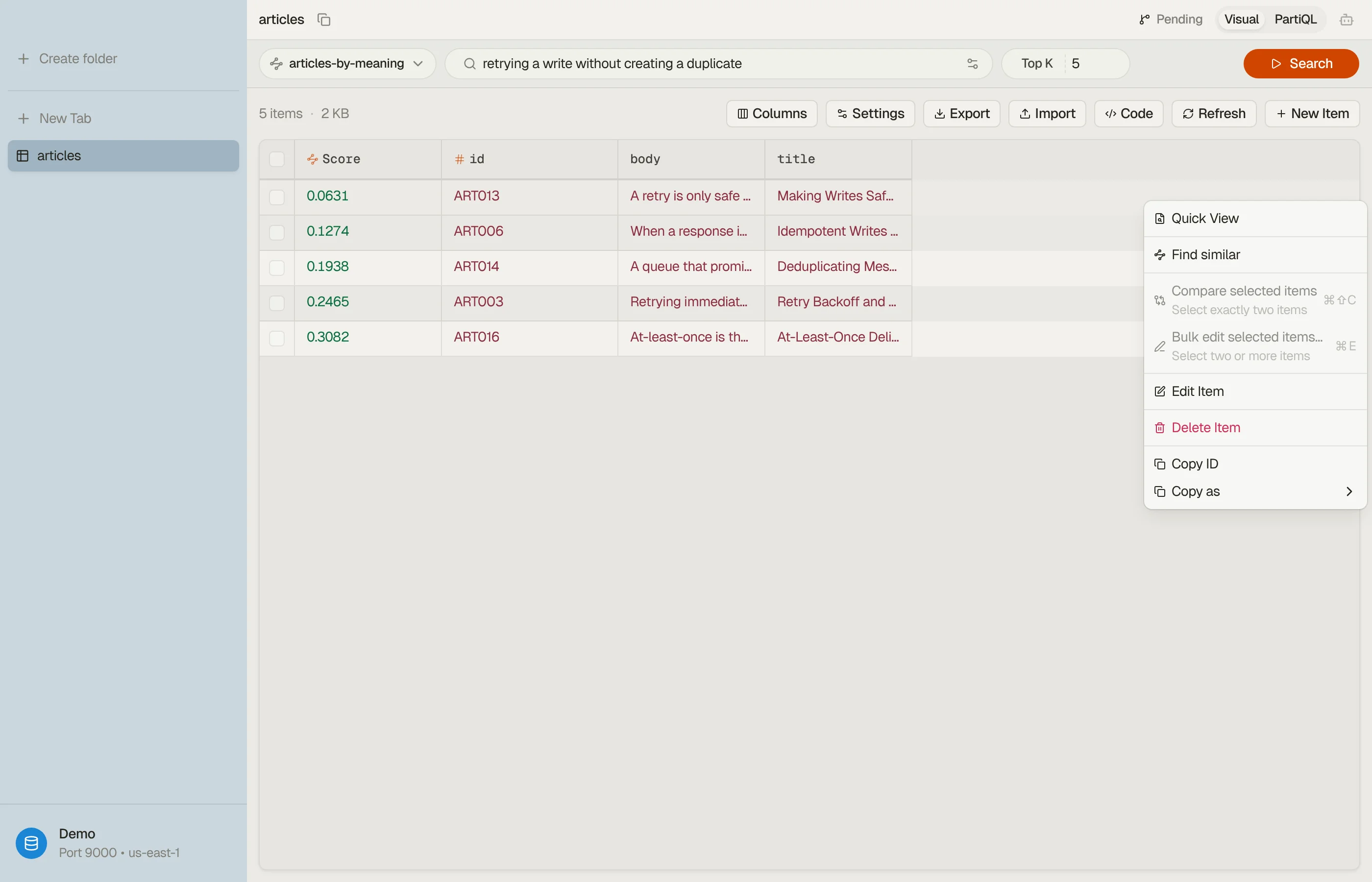
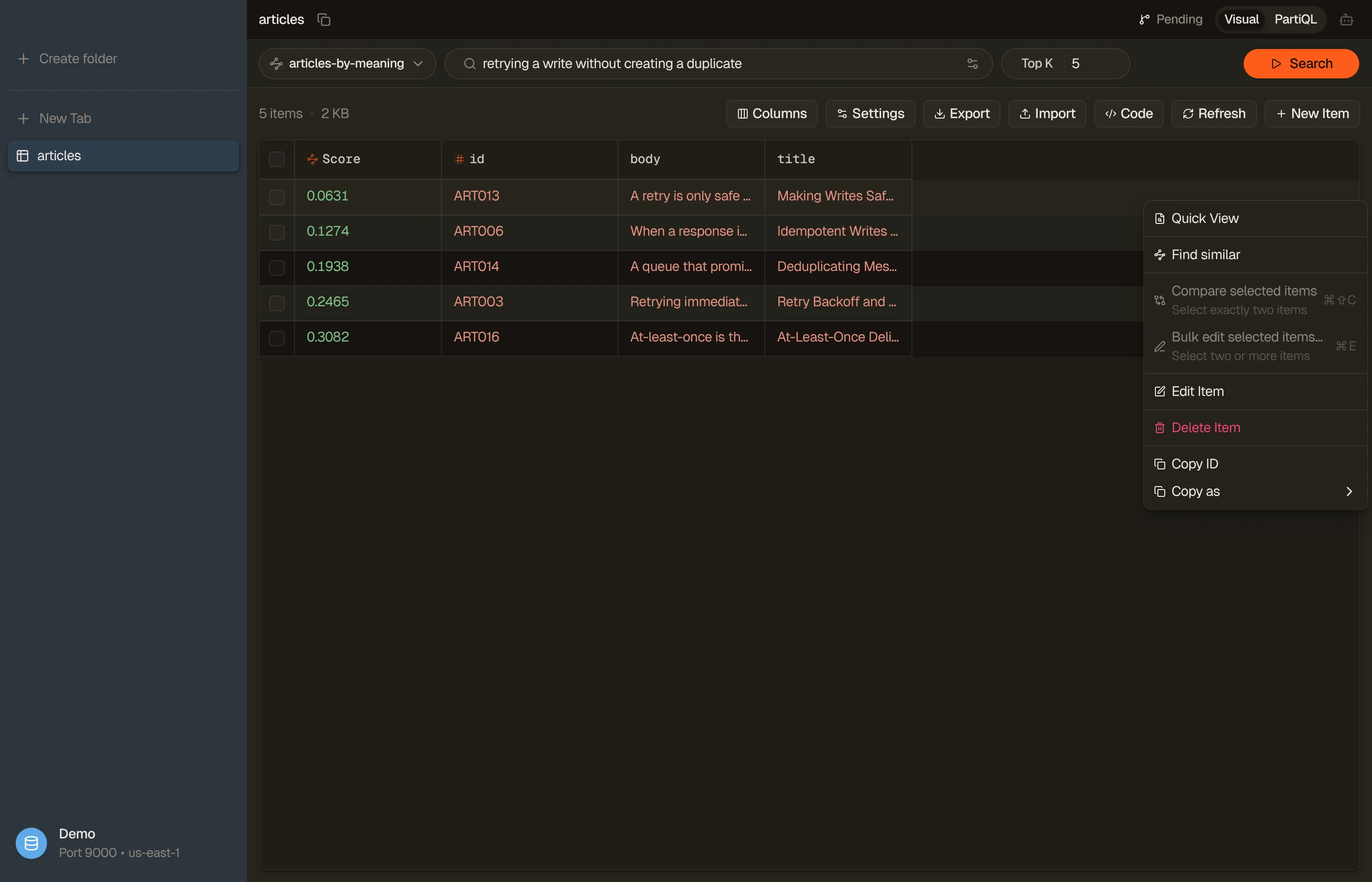
Search by meaning. Type a sentence ("orders that arrived damaged") and DynoTable turns it into a vector with the model bound to the index, then asks DynamoDB for the closest items.
Paste a raw vector. Open Search options (the same menu that holds Embedding model) and switch Search with to Paste raw vector to give the numbers directly. Use it when your embeddings come from somewhere DynoTable isn't calling; it needs no AI configuration at all.
Find similar. Right-click any row and pick Find similar to search using that row's own embedding. It's the fastest way to ask "more like this one" without writing a query at all. If the row on screen doesn't carry its embedding (vector search results never include the vector attribute itself), DynoTable re-reads the item first. A row's own vector sits at distance zero from itself, so the row you started from usually comes back as the top match. A required filter is pinned from that row automatically; optional ones are left for you to fill in.
Top K is how many of the closest matches come back: 10 by default, anywhere from 1 to 100. There is no paging past it. Raise Top K instead.
Filters come from the index's search schema. Each attribute in the schema gets a field with value suggestions; a required filter is marked and the search won't run until you fill it in.
Results render in the ordinary grid with one extra leading column, Score. Read it next to the index's distance function, which the column's tooltip names:
| Distance function | Better score |
|---|---|
| Cosine similarity | Lower |
| Euclidean distance | Lower |
| Dot product | Higher |
Cosine and Euclidean are distances, so the smallest number is the closest match; dot product is a similarity, so the largest is. Rows always arrive already sorted best-first, so you rarely need to work it out — but the numbers themselves only make sense with the direction in mind.
Items and their embeddings
Saving keeps the embedding in step. When you save an item whose source attributes changed, DynoTable sends the new text to the model and writes the new vector into the same save. One save, one write: search matches what the item now says.
It never writes past a problem quietly. If the bound model emits the wrong number of dimensions, or the embedding call fails, the save stops on an Embedding could not be updated dialog that says why, with Save without updating embedding if you want the text change to land anyway. Anything that merely prevents embedding (AI off, no plan, no provider) doesn't block the save: the editor's footer says Embedding not updated and names the fix. Either way the vector keeps describing the old text until the item is saved again with embedding available.
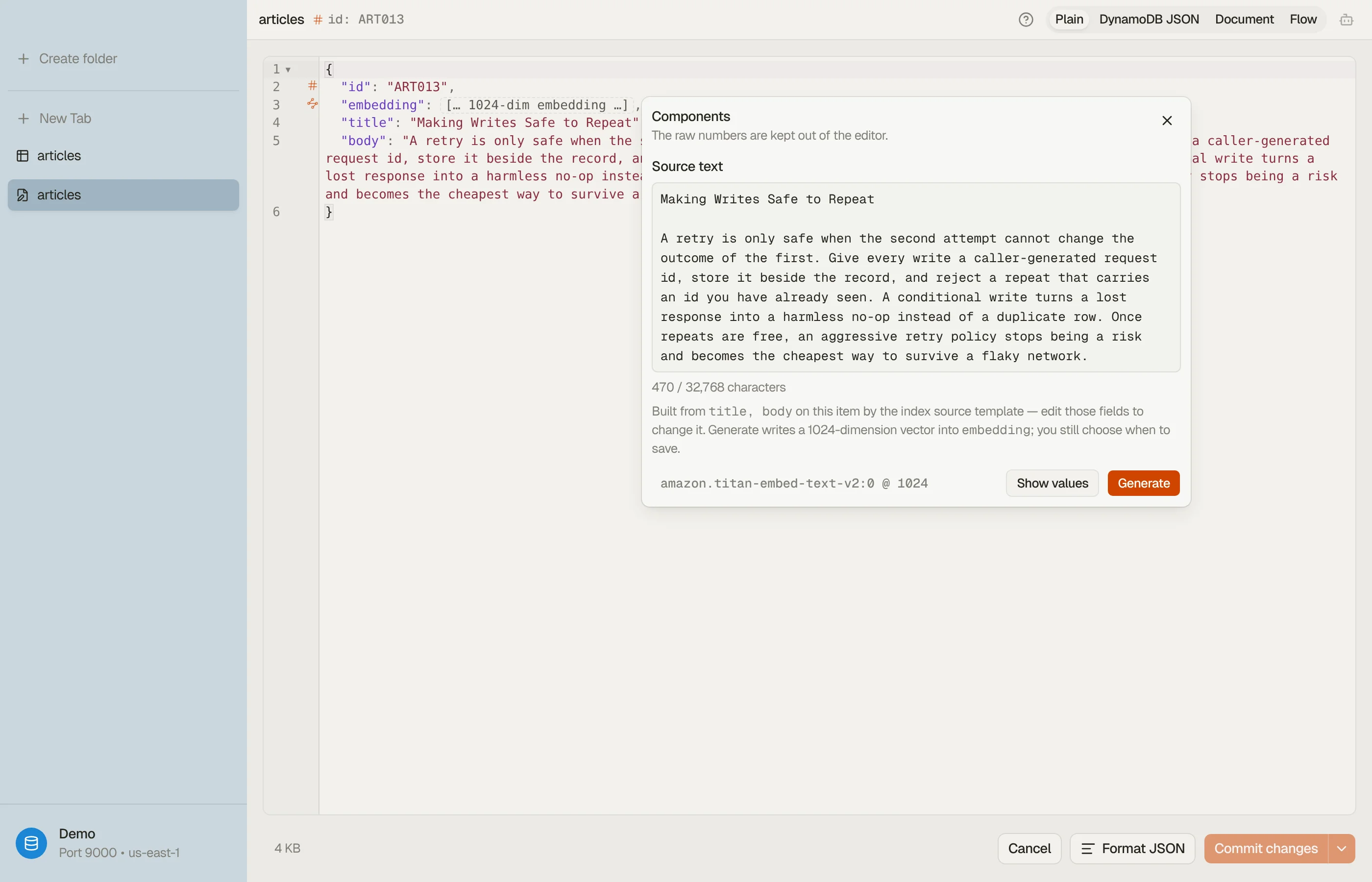
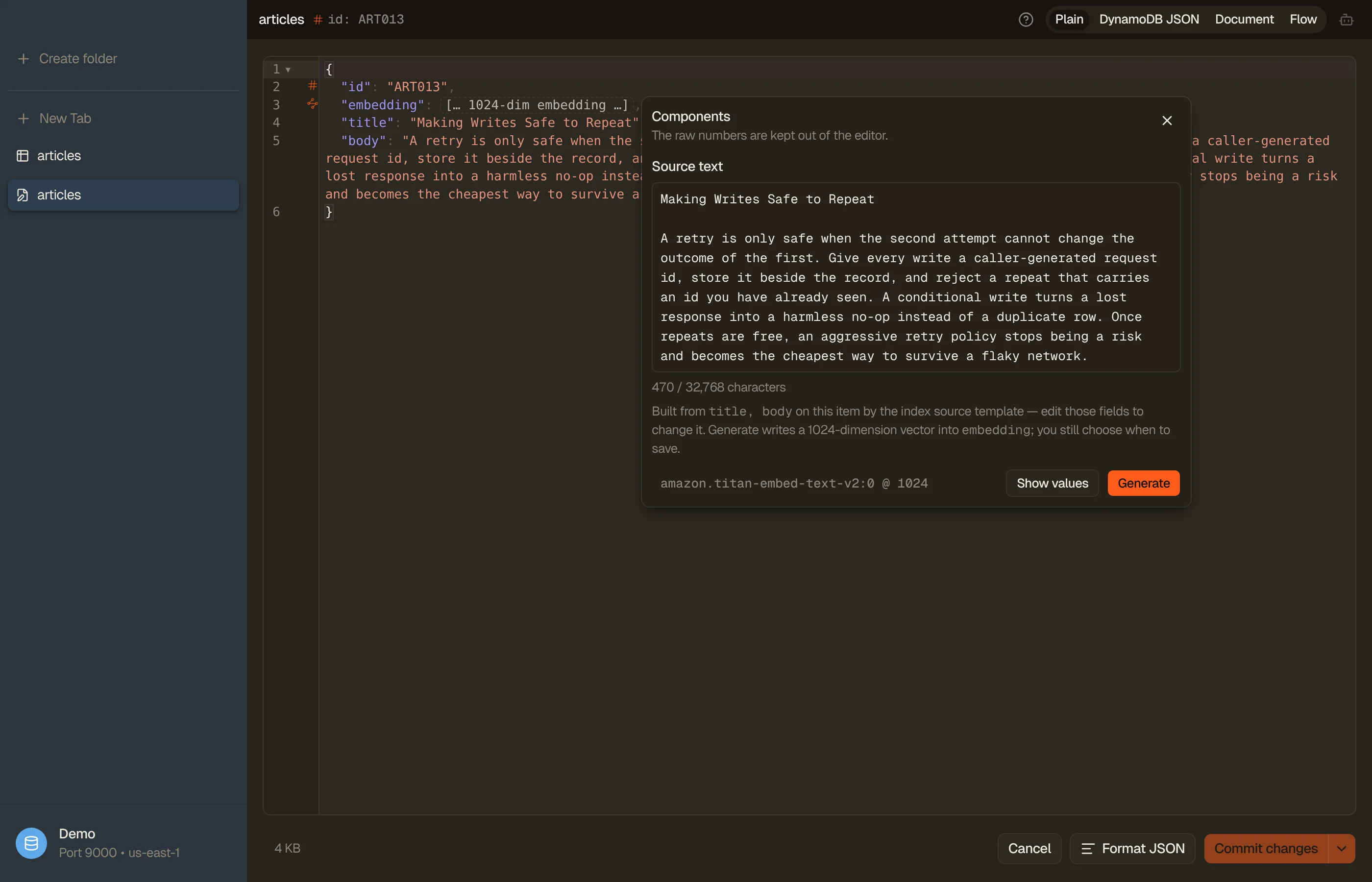
The raw numbers stay out of your way. A 1,024-number embedding is tens of thousands of characters of JSON. In the item editor the indexed embedding is replaced by a short placeholder, so the item stays readable and the editor stays fast. Click the placeholder (or the vector marker in the gutter) for the embedding options: the Target index it feeds, the Source text that would be sent with its character count, a Generate button to produce the vector now, and Show values if you really do want to read the numbers. Showing them is not an edit; Hide values puts the placeholder back.
Document view renders an item as a form (one control per attribute, sized to the value), which is a far better way to work on the long prose an embedding is usually built from than a wall of JSON. The embedding itself is read-only there. Switch views from the buttons at the top of the editor.


Importing
Import can embed rows as it writes them. When the table has a vector index with a model and source attributes bound, the import dialog offers Embed while importing and says which index and model it would use, and what the per-row text limit is.
It is opt-in per run and never blocks the import: a row whose text is too long, or which the model refuses, is written without a vector and counted, and the summary tells you how many rows arrived un-embedded and why. Those rows exist in the table but aren't findable by vector search until they carry an embedding. Saving them from the item editor fixes that.
A file that already carries embeddings (a DynamoDB-JSON export, say) keeps them: what the file supplies is never overwritten.
Asking the assistant
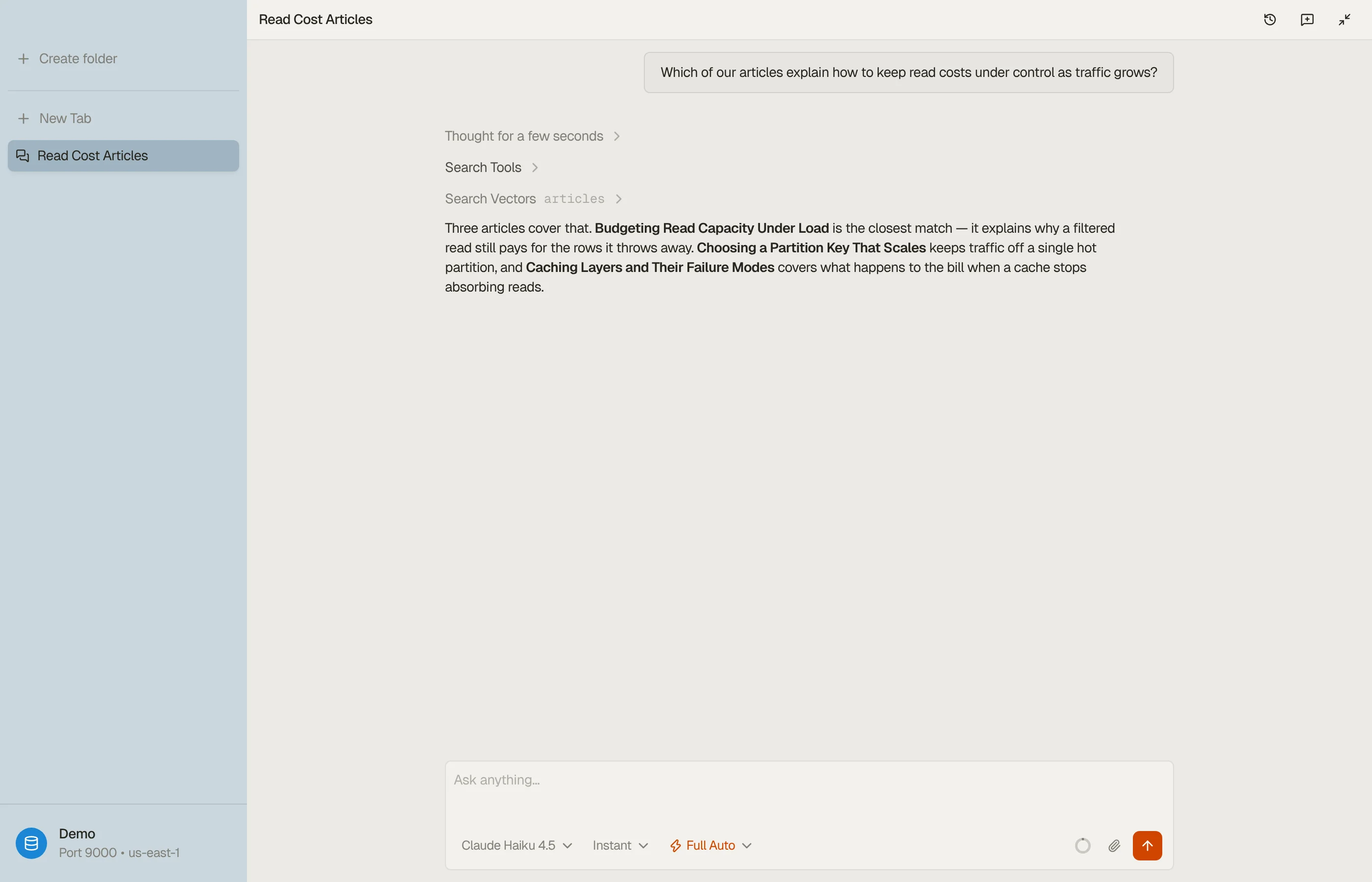
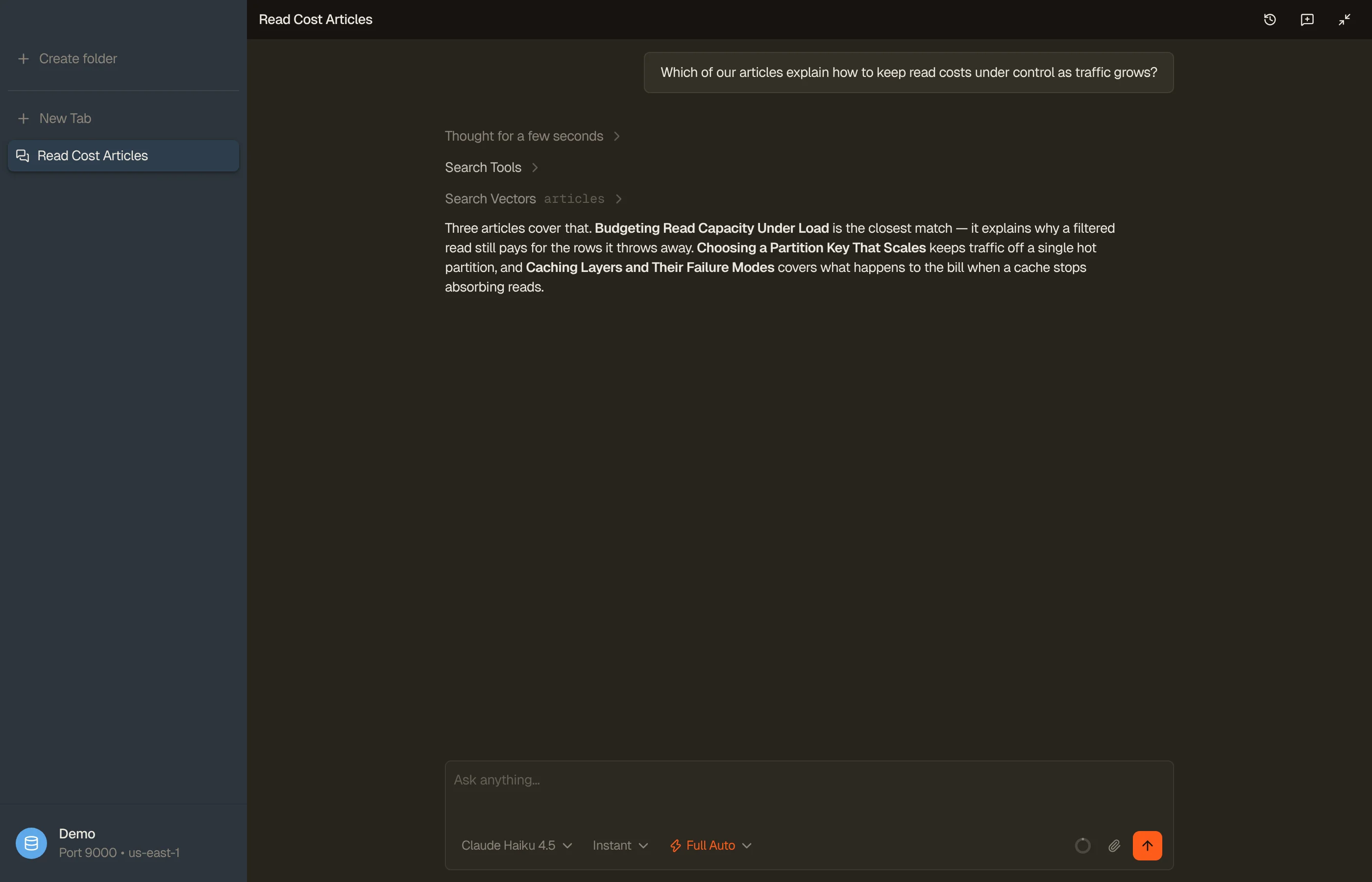
The AI assistant can search a vector index by meaning for you. "Find the five articles closest to this one" or "which support tickets look like this complaint?" works the same way the search bar does, and the answer cites the items it found.
The assistant can search by a vector you give it or by an existing item on any plan that allows AI; turning your words into a vector is the part that spends Bedrock tokens, so it needs an active plan like every other AI feature.


Limits and cost
Vector search is billed by DynamoDB per byte written, searched and stored, and the embedding calls are billed by Bedrock per token. That makes it cheap to try and worth measuring before you index a large table.
The DynamoDB vector search guide has the measured numbers: latency, how quickly a write becomes searchable, what indexing an embedding does to an item's write cost, and when a dedicated vector store is the better answer.
Worth knowing before you start:
- On-demand tables only, up to 4,096 dimensions, up to 5 vector indexes per table.
- An index is fixed once created: plan dimensions and search schema up front.
- An item that has no value for the index's attribute simply isn't in the index. DynamoDB accepts the write and skips the index silently, which is why DynoTable warns you when an item you're editing would land that way.
- Vector search isn't available inside Smart Tables or the SQL Workbench, and DynamoDB Local doesn't support it at all.