Smart Tables
A Smart Table is a saved, reusable joined view: a base table plus relationships out to other tables, drawn on a visual canvas and browsed like an ordinary table. It's the visual lane for the same join engine the Workbench drives with SQL.
Create one from the sidebar right-click menu (New Smart Table), the ⌘⌥T shortcut, or File → New Smart Table. Smart Tables are always read-only.

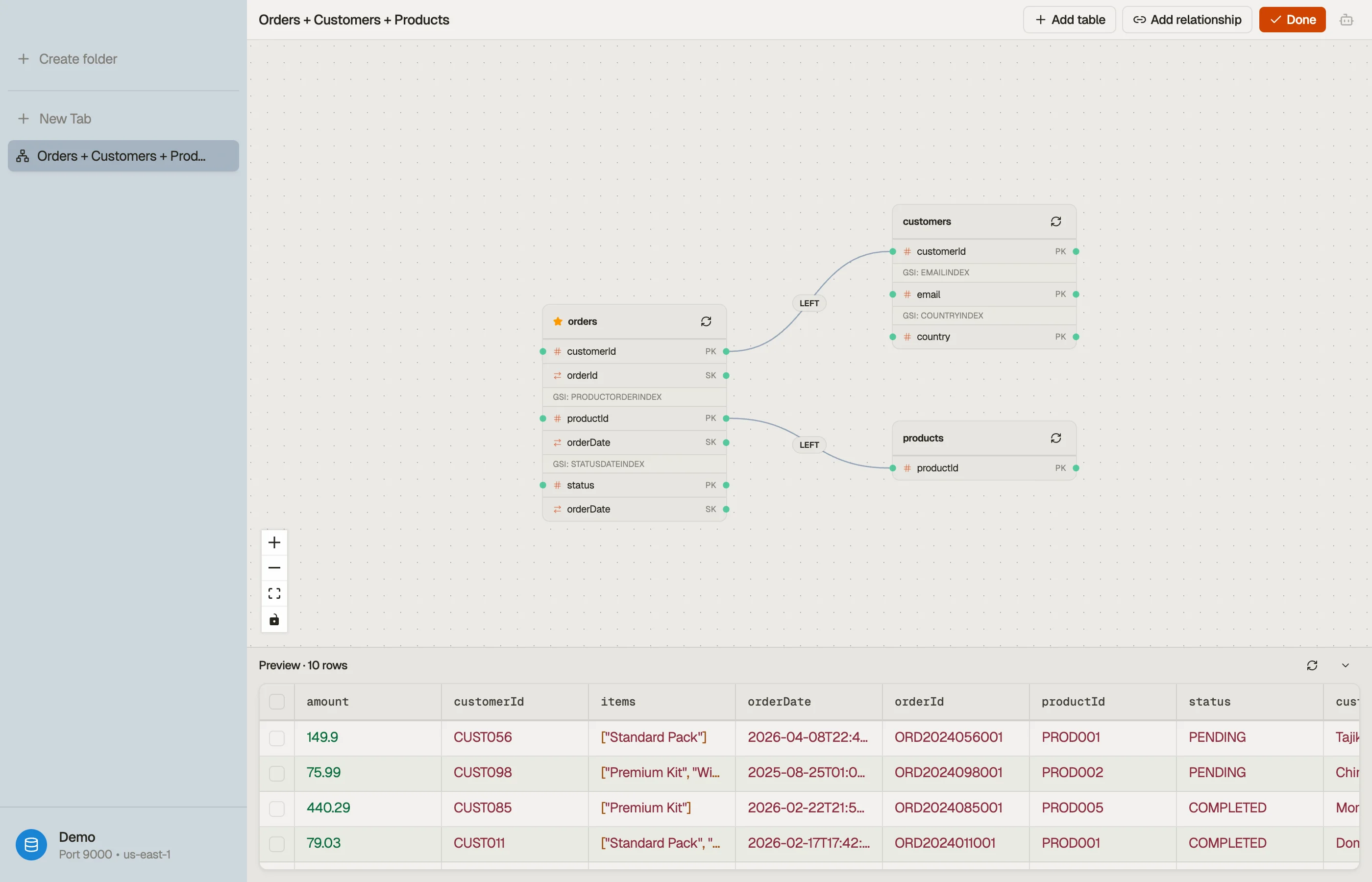

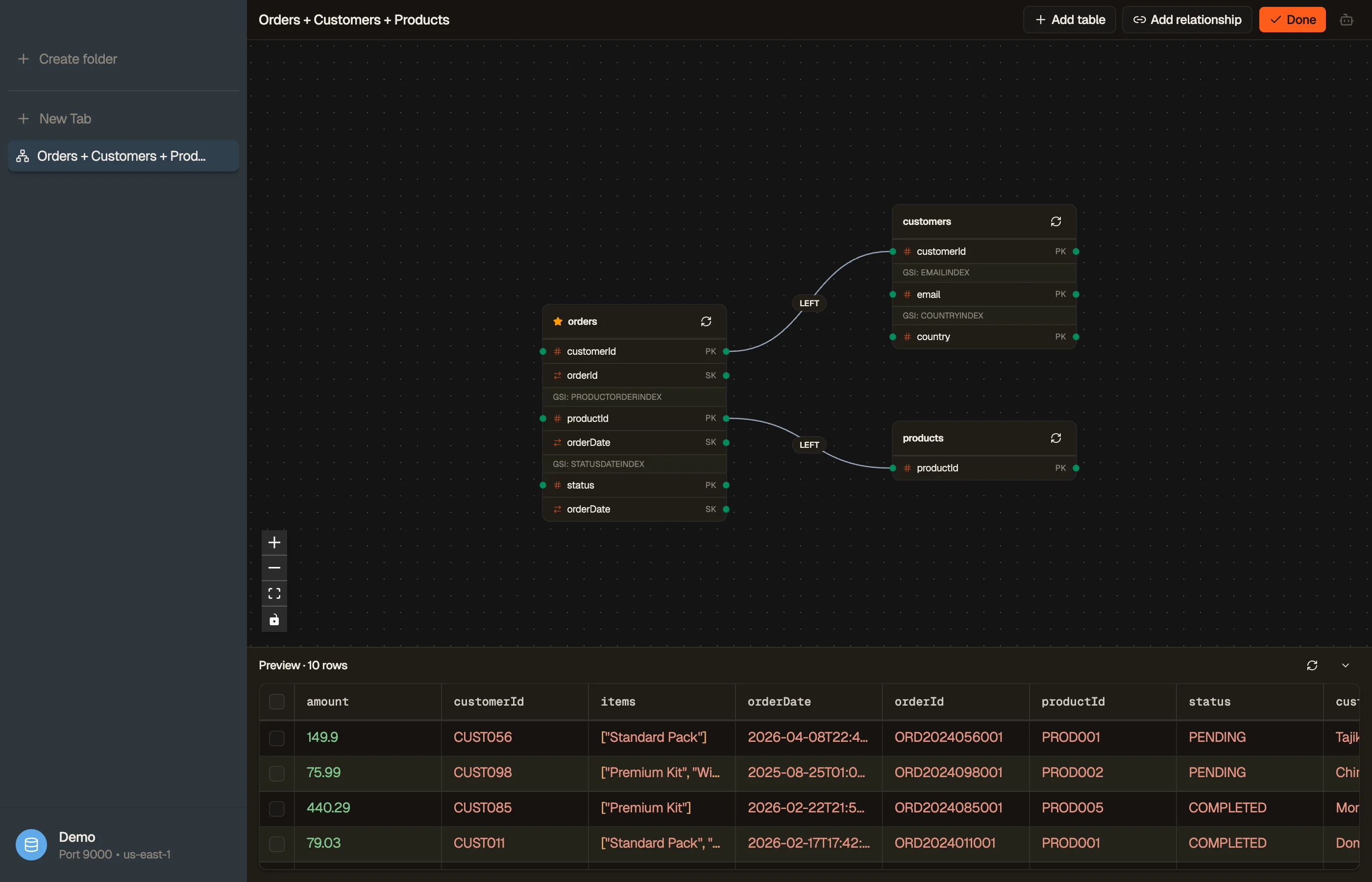
Two modes
A Smart Table opens in one of two modes:
- Configure — the editing surface. An ER-style canvas of table nodes where you add tables and draw relationships. A live 10-row preview at the bottom updates as you edit.
- Data — the result. The joined rows render in the same virtualized grid a normal table tab uses, with the same filters, paging, and Quick View.
An empty Smart Table opens in Configure; a populated one opens in Data. Switch between them from the title-bar buttons. Edits save automatically — there's no Save button.
Building a join
In Configure mode:
- Add tables to the canvas. The first one becomes the base table (marked with a star); you can change which is the base from a node's right-click menu.
- Draw a relationship by dragging from an attribute on one table to a key on another — or use Add relationship for a guided form.
- The join target must be a partition key or GSI partition key (the same access-pattern rule the Workbench enforces). DynoTable only lets you drop the connection onto a valid target.
- Set each relationship's join type —
LEFT(keep base rows with no match) orINNER(drop them) — from the edge popover.
Browsing the data
Data mode fans the joins out into flat rows: one row per matched tuple, with the
related table's attributes shown as <table>.<attr> columns. Filters apply to
the base table — for predicates on a joined attribute, or for aggregates, use
a Workbench instead.
Renaming columns
Right-click any column header to rename it for this tab — handy when joined columns collide or the raw attribute names are cryptic. You can also rename a relationship's whole prefix from its edge popover. Renames flow through to exports.
Smart Table vs Workbench
Same engine, two authoring styles:
- Smart Table — draw the joins, browse the rows. No SQL.
- Workbench — type SQL; adds aggregates,
GROUP BY, and joined-attribute filtering on top.
Pick whichever fits the task; neither can write to your tables.