DynoTable for VS Code
The DynoTable extension lets you write SQL, PartiQL and OpenSearch queries in VS Code and run them against the tables and indices of a DynoTable profile. One SQL file can query DynamoDB tables and OpenSearch indices, and one statement can join a table to an index.
The DynoTable desktop app on the same computer serves the language features from your real schemas and runs the queries. The extension also works in VSCodium, Cursor and Windsurf.
What you need
- DynoTable 1.19.0 or later, installed on the same computer. When your app is too old, the extension tells you to update it.
- Editor integration switched on in the app. It is off by default.
- VS Code 1.91 or later, in a trusted workspace.
Remote workspaces (SSH, WSL, Dev Containers) are not supported. DynoTable serves only files on this computer and new untitled queries.
Turn on Editor integration
- Open DynoTable.
- Go to Settings → Editor integration.
- Switch on Editor integration.
You do this once. Only apps on this computer can connect. The Status section of the pane shows whether the integration is running and how many editors are connected. Set up your editor opens this page.
Install the extension
In the Extensions view, search for DynoTable and install it. VS Code installs it from the Visual Studio Marketplace. VSCodium, Cursor and Windsurf install it from Open VSX. From a terminal:
code --install-extension dynotable.vscode-dynotableAfter you install it, the extension starts DynoTable when it needs the app. See DynoTable runs in the background.
Query files
| File | Language |
|---|---|
*.dynotable.sql | DynoTable SQL, over tables and indices |
*.partiql | DynamoDB PartiQL |
*.opensearch | One OpenSearch query: JSON query DSL or Lucene |
DynoTable: New Query asks for SQL, PartiQL or OpenSearch and opens a new untitled query in that language.
In the explorer, click a table or an index to open a new query for it. A table opens a
SELECT * query. An index opens an OpenSearch file with the index line. The query does not run.
The New Query button on the row does the same.

SQL files
DynoTable does not attach to every .sql file. It attaches to the untitled queries that New Query
opens, and to the files that match the dynotable.sqlFiles setting (**/*.dynotable.sql by
default).
To attach another .sql file, open it and run DynoTable: Attach SQL File. The command adds
the file to the dynotable.sqlFiles setting of its workspace folder.
In a window with folders, each folder's own dynotable.sqlFiles decides which of its files
attach, and [] turns attachment off for that folder.
A .sql file outside every folder does not attach, even when its name ends in .dynotable.sql. In a window with no folder, name the file
*.dynotable.sql.
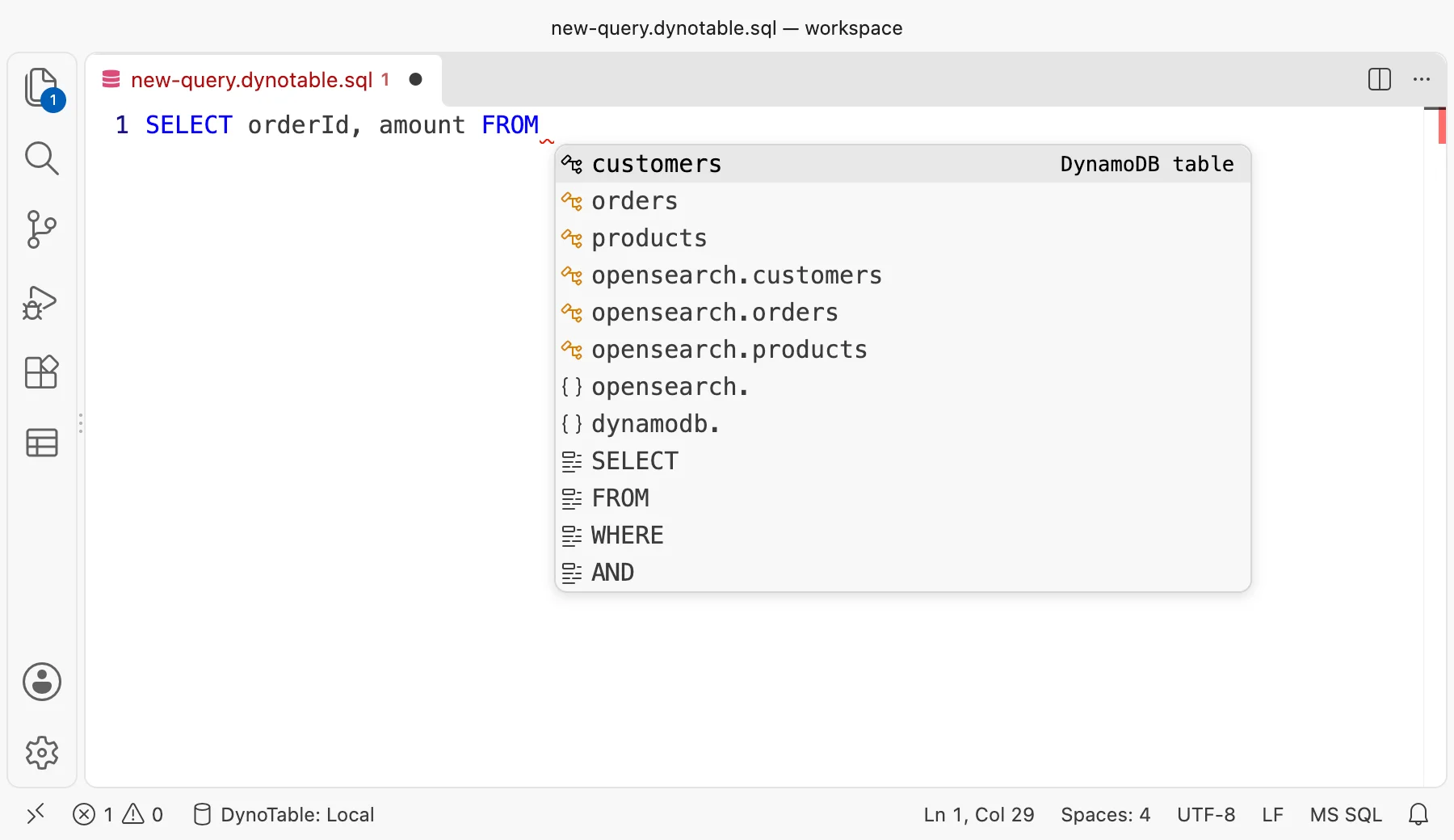
In an attached SQL file, completion lists the tables and indices of your profile.

One SQL file, two engines
DynoTable SQL reads DynamoDB tables and OpenSearch indices. A SQL file can hold a statement for
a table and a statement for an index. Completion lists both after FROM and JOIN.
When a table and an index have the same name, put dynamodb. or opensearch. in front of the
name. See Name an index in SQL.
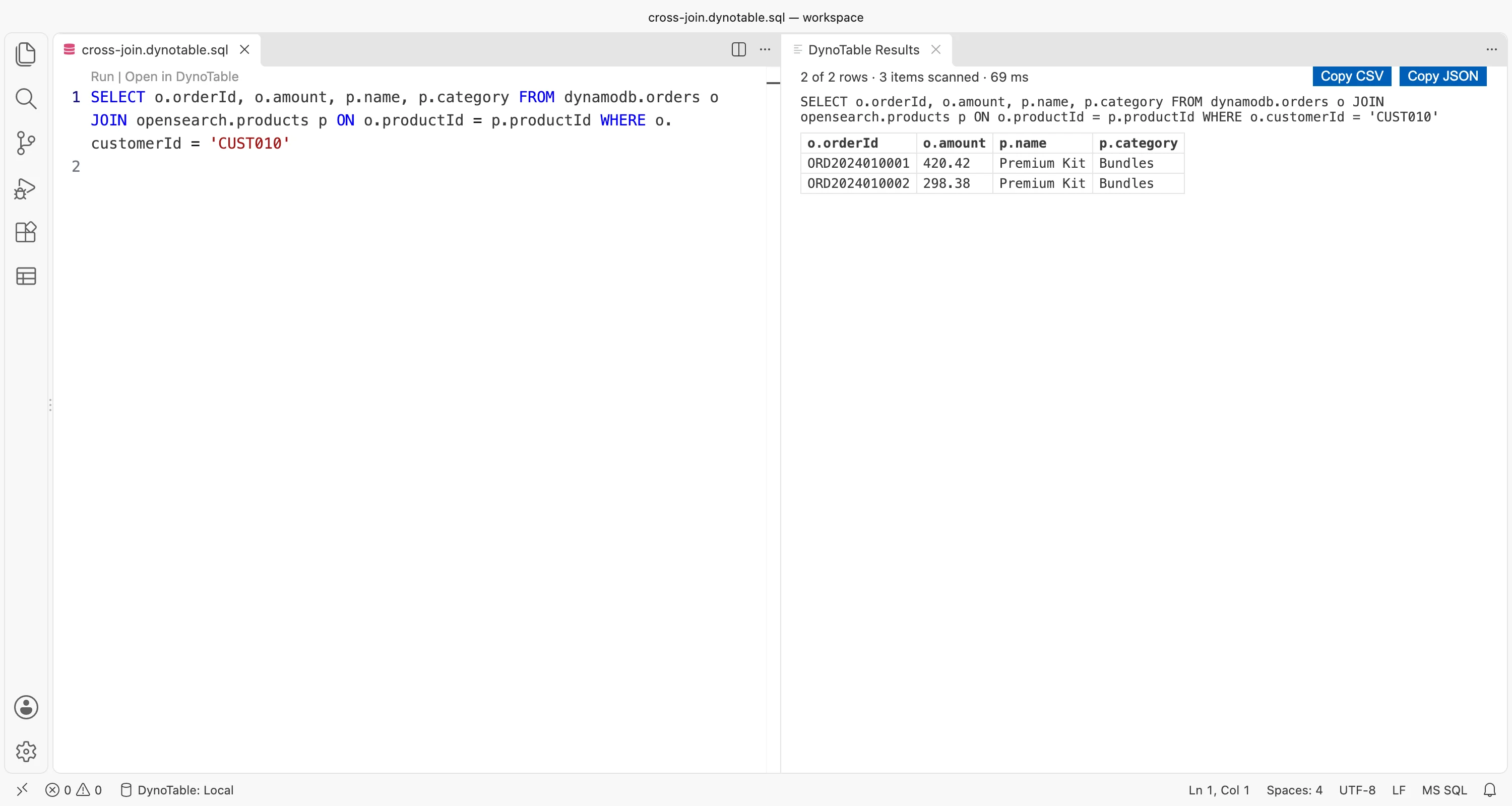
A JOIN can join a DynamoDB table to an OpenSearch index. On the index side, it joins on the
document's _id or on a keyword, number, date, boolean or IP field. DynoTable runs the join
and shows the joined rows in the results panel.
This statement joins the orders table to the products index:
SELECT o.orderId, o.amount, p.name, p.category
FROM dynamodb.orders o
JOIN opensearch.products p ON o.productId = p.productId
WHERE o.customerId = 'CUST010'Each row has columns from the table and columns from the index.
To run SQL, you need a trial or a paid license. See What runs on your plan.

OpenSearch SQL tells which joins DynoTable runs.
OpenSearch files
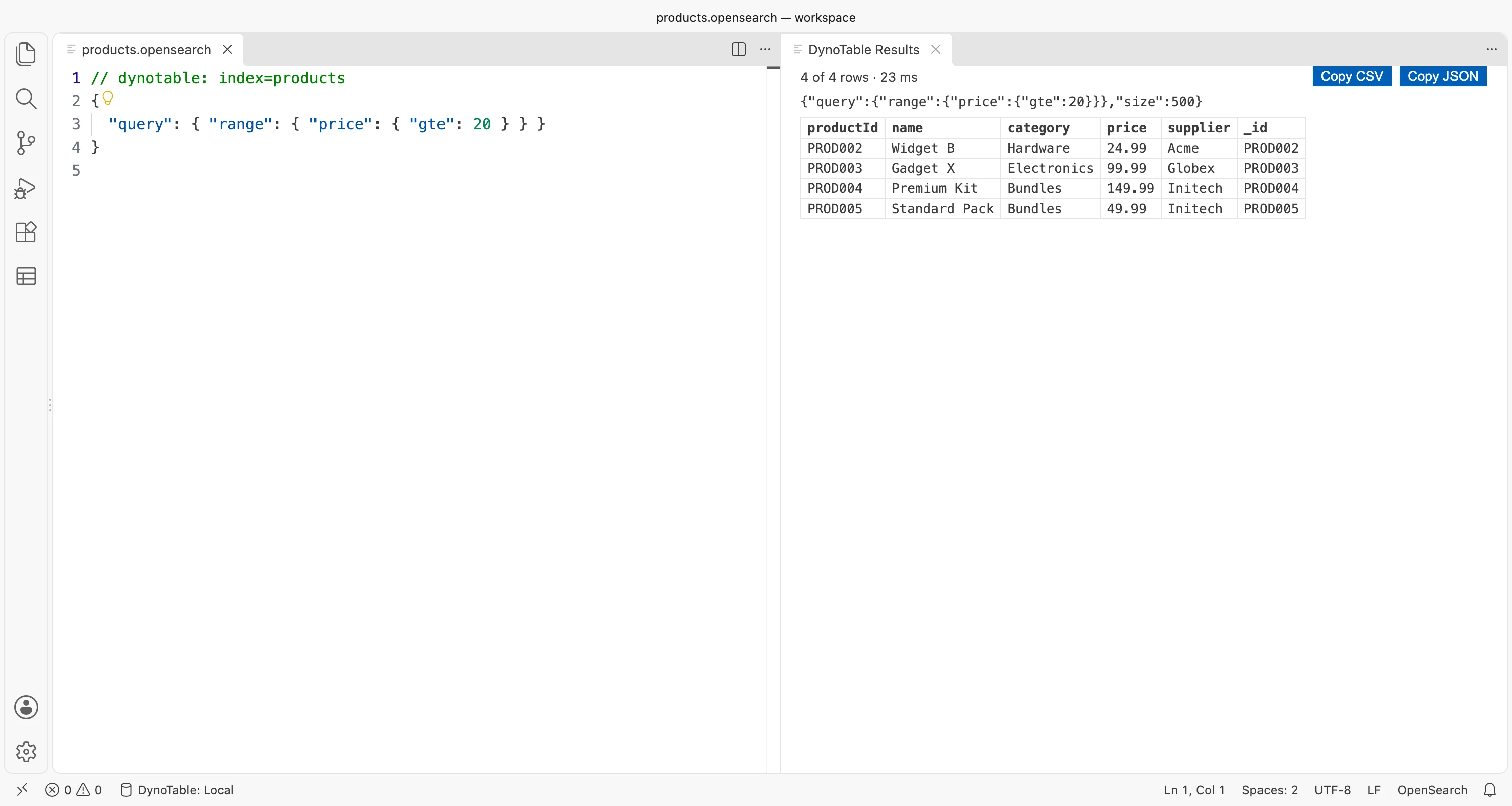
An OpenSearch query names its index on its first line:
// dynotable: index=orders
{"query": {"match": {"status": "shipped"}}}Run DynoTable: Pick Index to choose the index from a list. It writes that line for you.
When two OpenSearch targets have an index with the same name, the line also needs
target=<target name>. It needs it too when DynoTable could not list the indices of every
target.
Pick Index and the explorer's New Query add it for you. A target name that contains a space cannot go on that line.
An OpenSearch file has no lens row. To run the query, press ⌘↩ (Ctrl+Enter on Windows and Linux) or run DynoTable: Run.

Pick a profile
A connection uses one DynoTable profile.
- When DynoTable has one profile, the extension uses it.
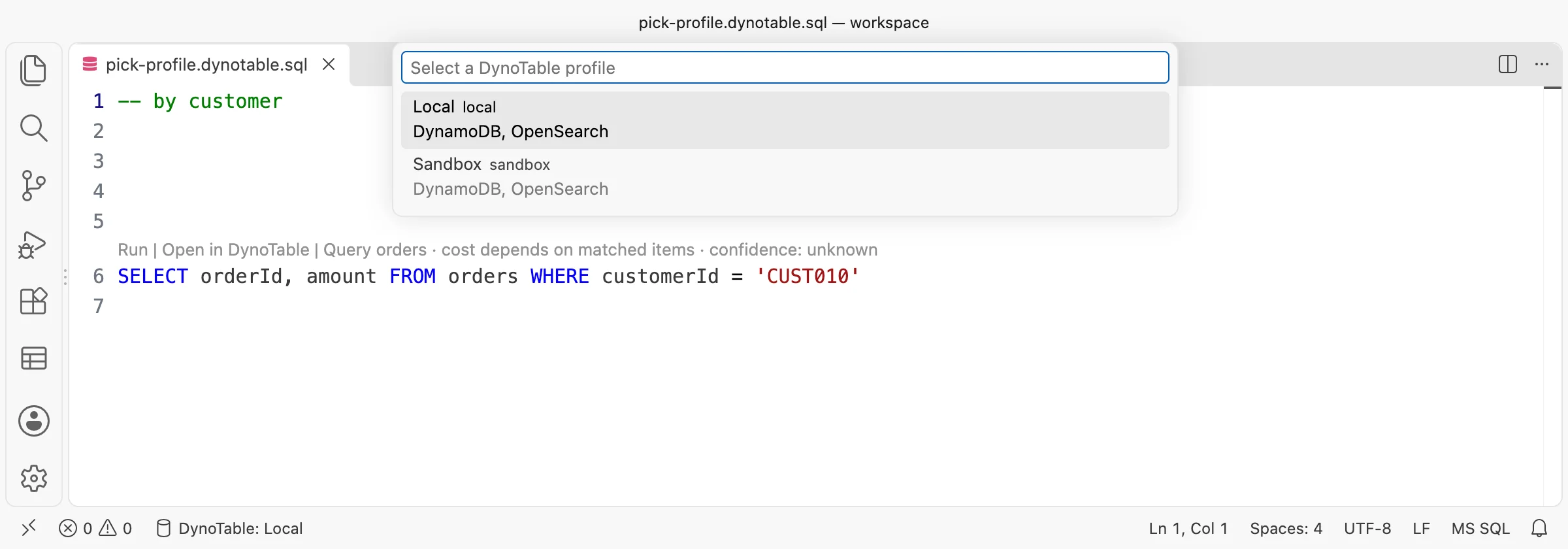
- When it has more, run DynoTable: Select Profile and pick one. Until you do, the status bar shows a warning, a click on it offers Select Profile, and a run tells you to select a profile. VS Code keeps your choice for this workspace.
The status bar shows the profile you picked. The explorer and every run use that profile.
Select Profile lists the profiles in DynoTable and the services of each profile.

What the extension does
- Completion from your real table schemas and index mappings.
- Diagnostics with quick fixes: for example, a PartiQL
IN ('a')offers Use brackets, which changes it toIN ['a']. - Hover.
- A lens row above each SQL and PartiQL statement: Run, Open in DynoTable and the query plan of the statement.
- Formatting of SQL and OpenSearch queries, with Format Document.
- Rename of table aliases in SQL.
- Validate against the index: in an OpenSearch JSON query, this code action asks the index whether the query is valid. Nothing runs.
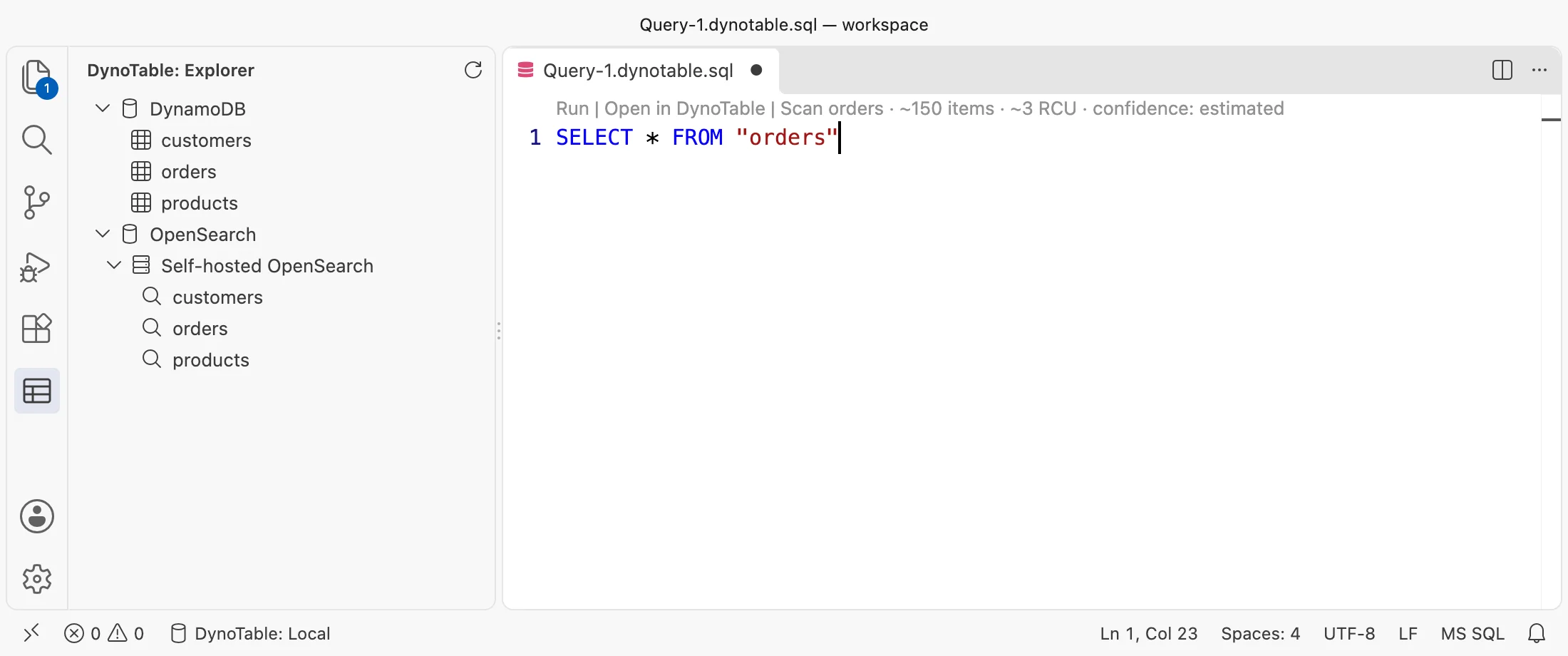
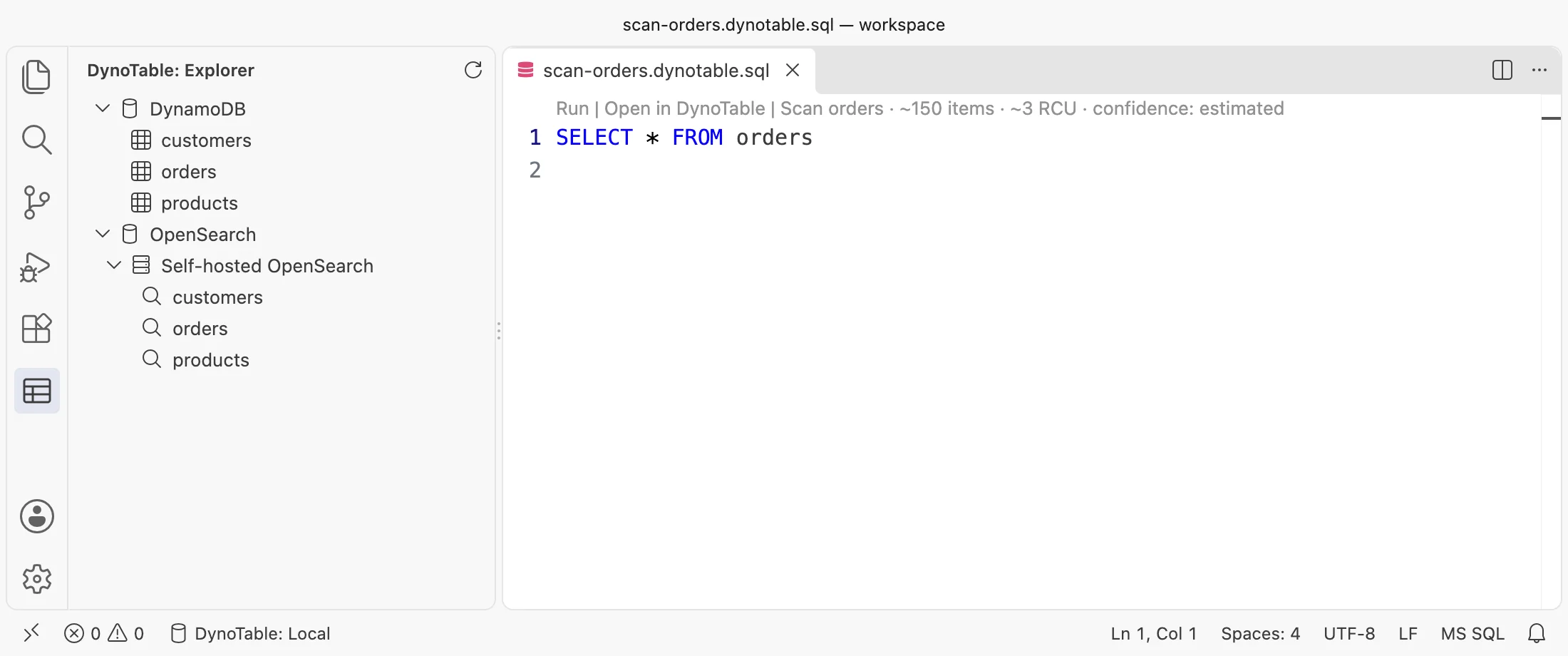
- Explorer: the DynoTable icon in the activity bar lists the profile's DynamoDB tables and, for each OpenSearch target, its indices. A click on a table or an index opens a new query for it. Refresh reads the lists again.
The explorer shows the tables and indices of the profile in the side bar.

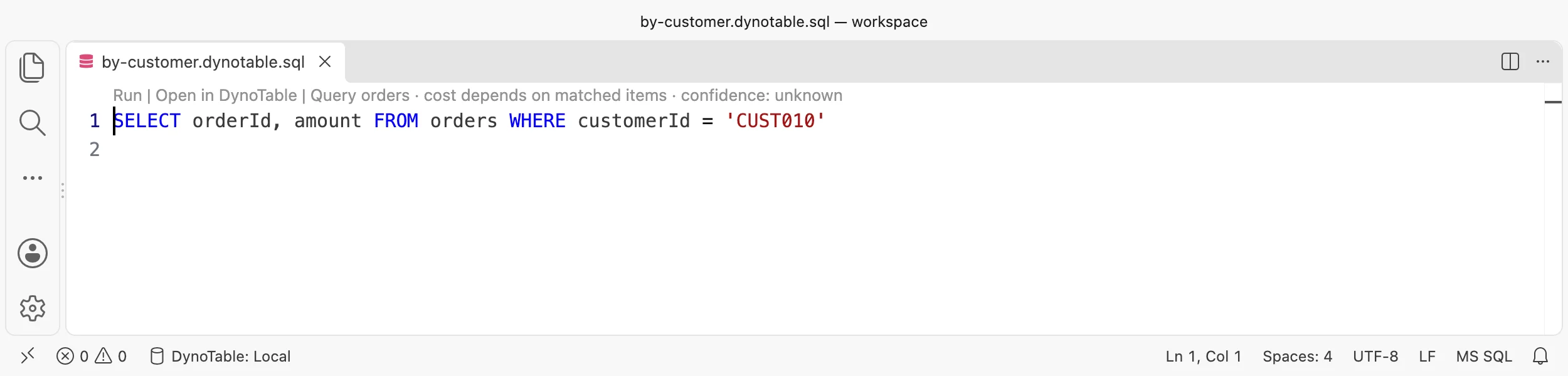
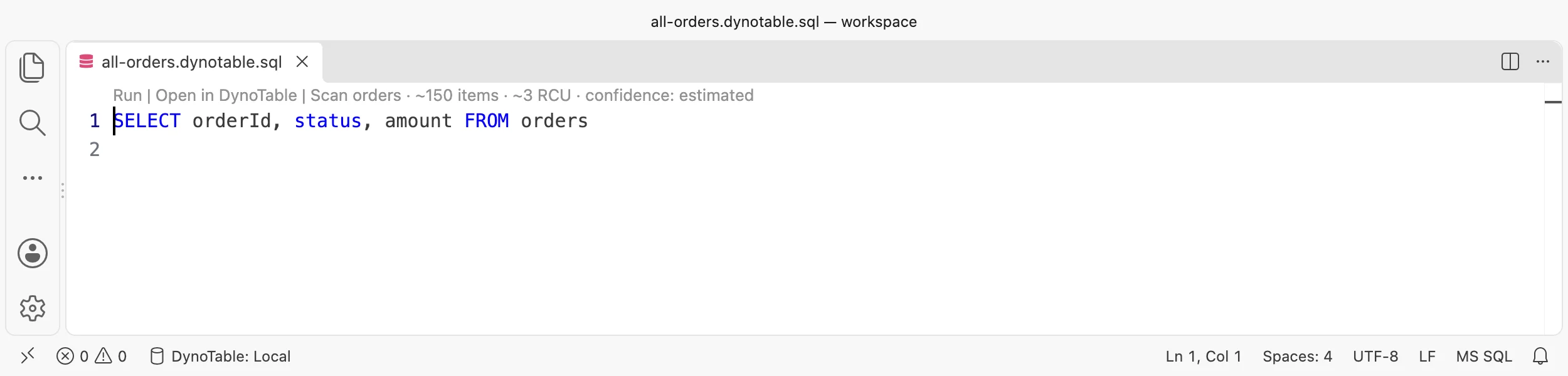
The query plan is in the lens row above the statement, after Run and Open in DynoTable.
It shows how DynoTable reads the table. A statement with a key condition reads by Query. A
statement without one reads by Scan. For a Scan, the plan shows the estimated number of items
and read capacity units (RCU), for example
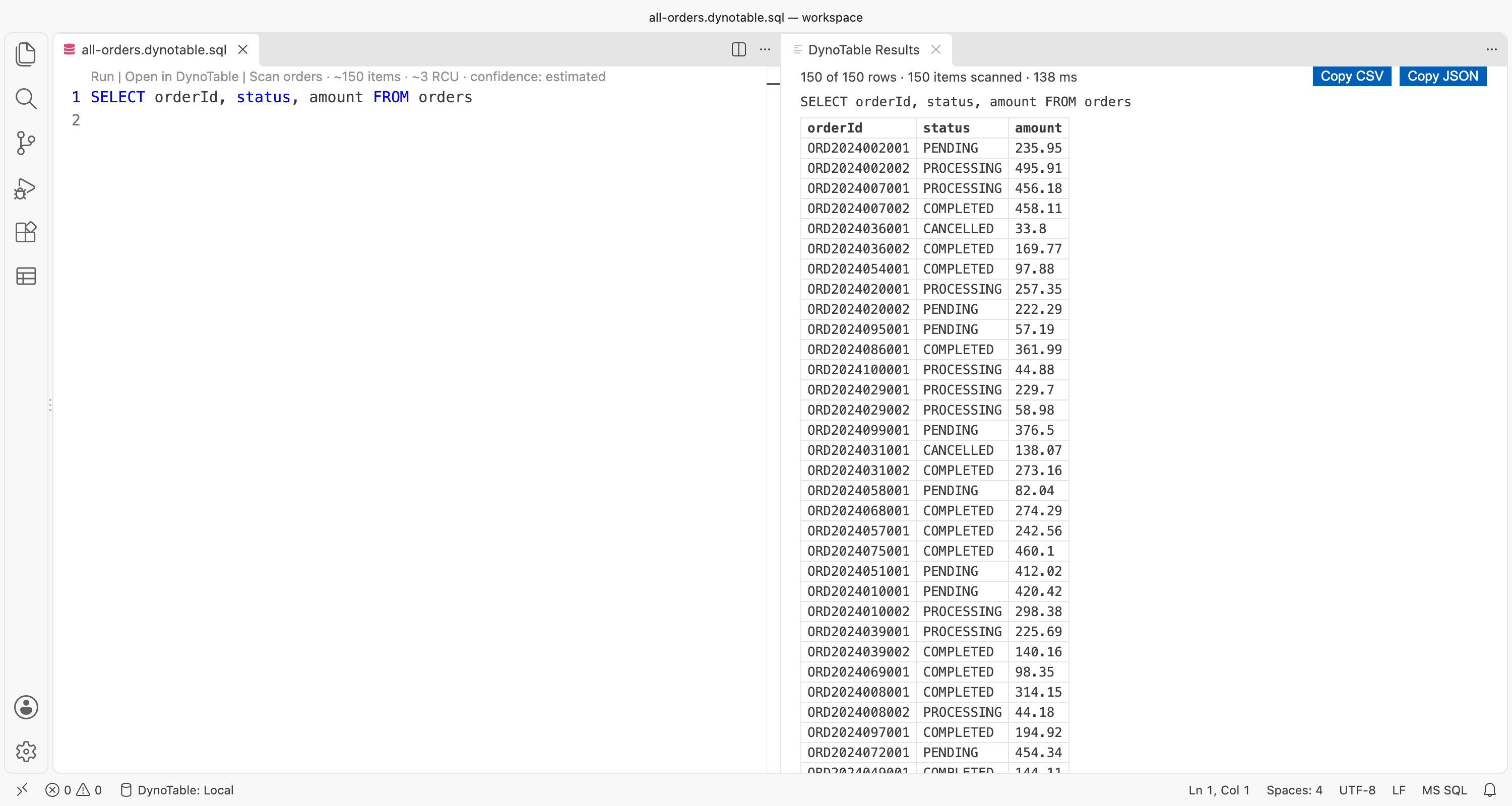
Run | Open in DynoTable | Scan orders · ~150 items · ~3 RCU · confidence: estimated.
The lens row shows a plan only when every table in the statement is a DynamoDB table. A statement that reads an OpenSearch index shows no plan.


Run a query
Click Run above a statement, press ⌘↩ (Ctrl+Enter on Windows and Linux), or run DynoTable: Run. Run uses the selection. With no selection, it runs the statement at the cursor, or else the whole file. An OpenSearch query runs the selection or the whole file.
The rows show in one results panel. A run returns up to 500 rows, and the panel shows the total only when DynoTable knows it.
Copy CSV and Copy JSON copy the rows. Cancel stops the run, and so does closing the panel. You can run one statement at a time.
The summary line of the panel shows the rows, the items that DynoTable scanned and the run time.

Writes go through the app
DynoTable SQL is read-only, as in the SQL Workbench.
A PartiQL write does not run from the editor. Run offers Stage in DynoTable instead. It opens the statement's table in the app, where staging holds the change for review. The statement stays in the editor.
Open in DynoTable opens the app at the statement's table or index. Click the lens, or press ⌘⇧↩ (Ctrl+Shift+Enter) with the cursor in a SQL or PartiQL statement. You can change both shortcuts in VS Code's Keyboard Shortcuts.
Open in DynoTable needs a DynoTable window open on that profile. When there is none, the message offers Open DynoTable.
What runs on your plan
The extension is free. What runs depends on your DynoTable license, as in the app:
- Free or Read-only (signed in): completion, diagnostics, hover, the lens row, formatting
and rename. PartiQL
SELECTstatements, OpenSearch queries (.opensearchfiles) and Validate against the index run. - Trial or paid: running SQL statements, as in the SQL Workbench. This includes SQL over an OpenSearch index and a JOIN of a DynamoDB table to an OpenSearch index.
- Signed out: nothing. Sign in to DynoTable.
See Activation for the license states.
DynoTable runs in the background
When DynoTable is not running, the extension starts it with no window. The app keeps running after you quit VS Code, and the next VS Code window uses it again.
To get a window back, open DynoTable as usual (Dock, Start menu or app launcher), or click Open DynoTable in a DynoTable message in VS Code.
These actions need an app window:
- Signing in to DynoTable.
- An expired AWS sign-in.
- Open in DynoTable and Stage in DynoTable.
On macOS, a permission prompt from DynoTable can name Visual Studio Code, because VS Code started the app.
Settings
| Setting | Default | What it does |
|---|---|---|
dynotable.sqlFiles | ["**/*.dynotable.sql"] | Glob patterns of the .sql files that DynoTable serves. Set per workspace folder. |
dynotable.appPath | empty | The path of the DynoTable app. Set it when the app is not in its standard install location. |
dynotable.userDataDir | empty | The app's user data directory. When set, the extension does not start the app. |
With dynotable.userDataDir set, Open DynoTable does not start the app either. Start DynoTable
with that directory yourself.
Troubleshooting
When the extension is not connected, it shows a message with the likely fix and Reconnect. Click the DynoTable item in the status bar to see the message again. DynoTable: Reconnect connects again.
| The message says | What to do |
|---|---|
| The Editor integration is off in DynoTable. | Turn it on in DynoTable under Settings → Editor integration, then click Reconnect. |
| DynoTable is not installed. | Click Download DynoTable and install it. If the app is installed somewhere else, click Set App Path. |
| DynoTable is signed out. | Click Open DynoTable, sign in, then click Reconnect. |
| This version of DynoTable is too old for the extension. | Update DynoTable, restart it, then click Reconnect. |
| The connection to DynoTable ended. | DynoTable quit, the Editor integration was turned off, or DynoTable signed out. Fix the cause, then click Reconnect. |
| DynoTable refused the connection. | Restart DynoTable, then click Reconnect. |
| DynoTable is running, but the Editor integration is not serving. | Open DynoTable and check Settings → Editor integration. |
| The extension could not start DynoTable. | Click Set App Path and point dynotable.appPath at the app. |
| Select a DynoTable profile to run queries and list tables. | Run DynoTable: Select Profile. See Pick a profile. |
After the app quits, nothing starts it again until you click Reconnect. When DynoTable restarts, the extension connects again by itself.
If you updated DynoTable but did not restart it, the old app can open a window one time. Restart DynoTable.
Platforms
The extension is tested on macOS. Windows and Linux are not verified yet.
On Linux, the extension
cannot read the app version before it starts the app, so an app that is too old opens a window
one time. An AppImage install needs dynotable.appPath. A Flatpak install of VS Code is not
supported.
The extension connects only to the DynoTable app on your computer. Its source is on GitHub under the MIT license.