AI tools
The AI agent doesn't answer from a guess — it acts through a fixed set of capabilities. Each one either reads something, offers you a view to open, or stages a change for you to commit. This page is the trust reference: what the agent can do, and how each capability is gated.
How actions are gated
DynoTable is safe by default. Every capability falls into one of a few access classes:
- Read (silent) — lightweight, read-only lookups, mostly local. No prompt; they just run.
- Read (gated) — reads that hit AWS and cost capacity (a query, a single-item read). The agent asks before the first one, then remembers your choice per your permission mode.
- Propose — the agent emits a chip you click to open a tab. Nothing happens until you click.
- Open (gated) — opens or changes a tab immediately, behind the permission gate.
- Write (via staging) — routes through staging; you review and commit. The agent never writes to DynamoDB directly.
- Export (gated) — pulls results out to a file.
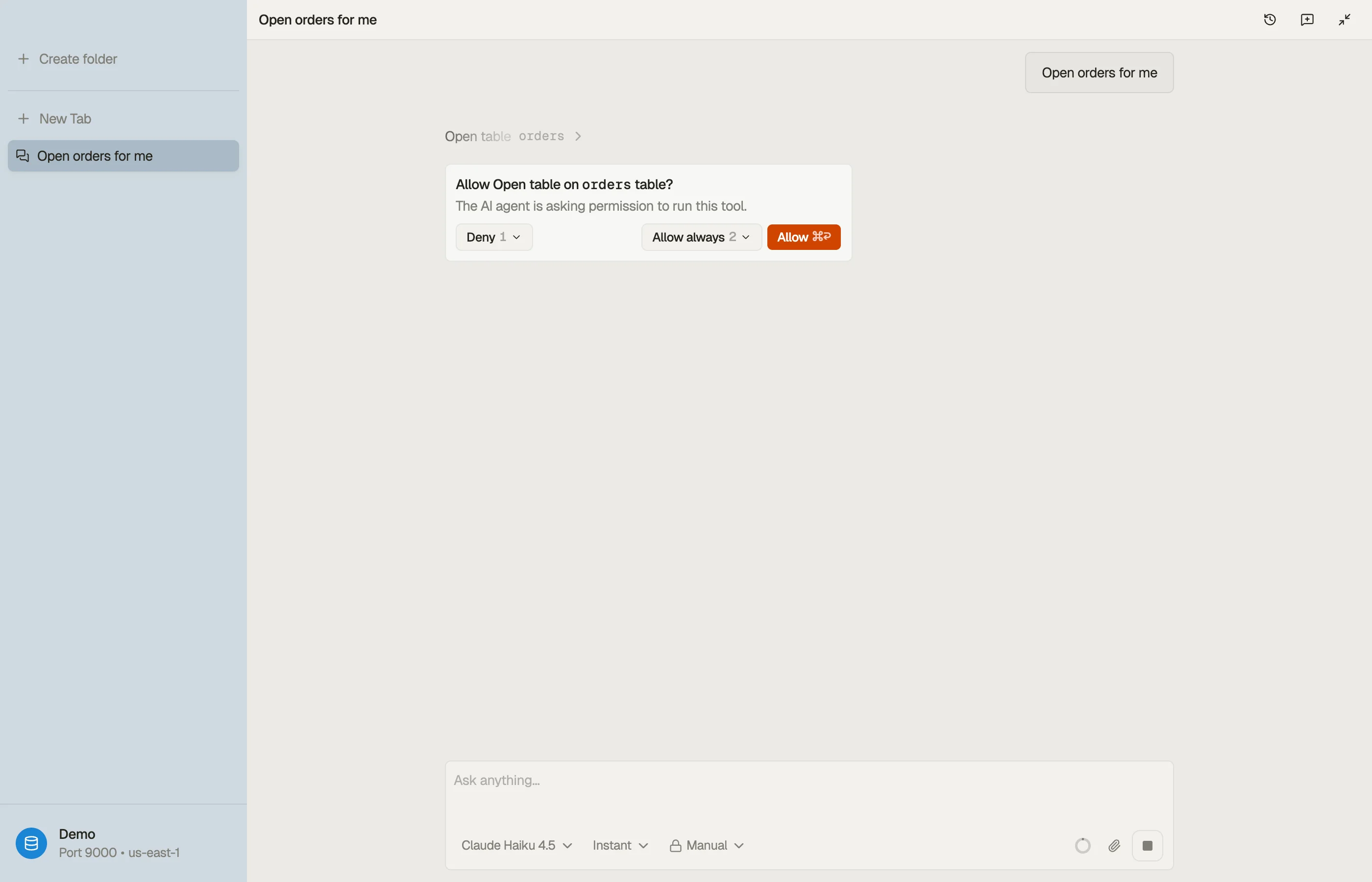
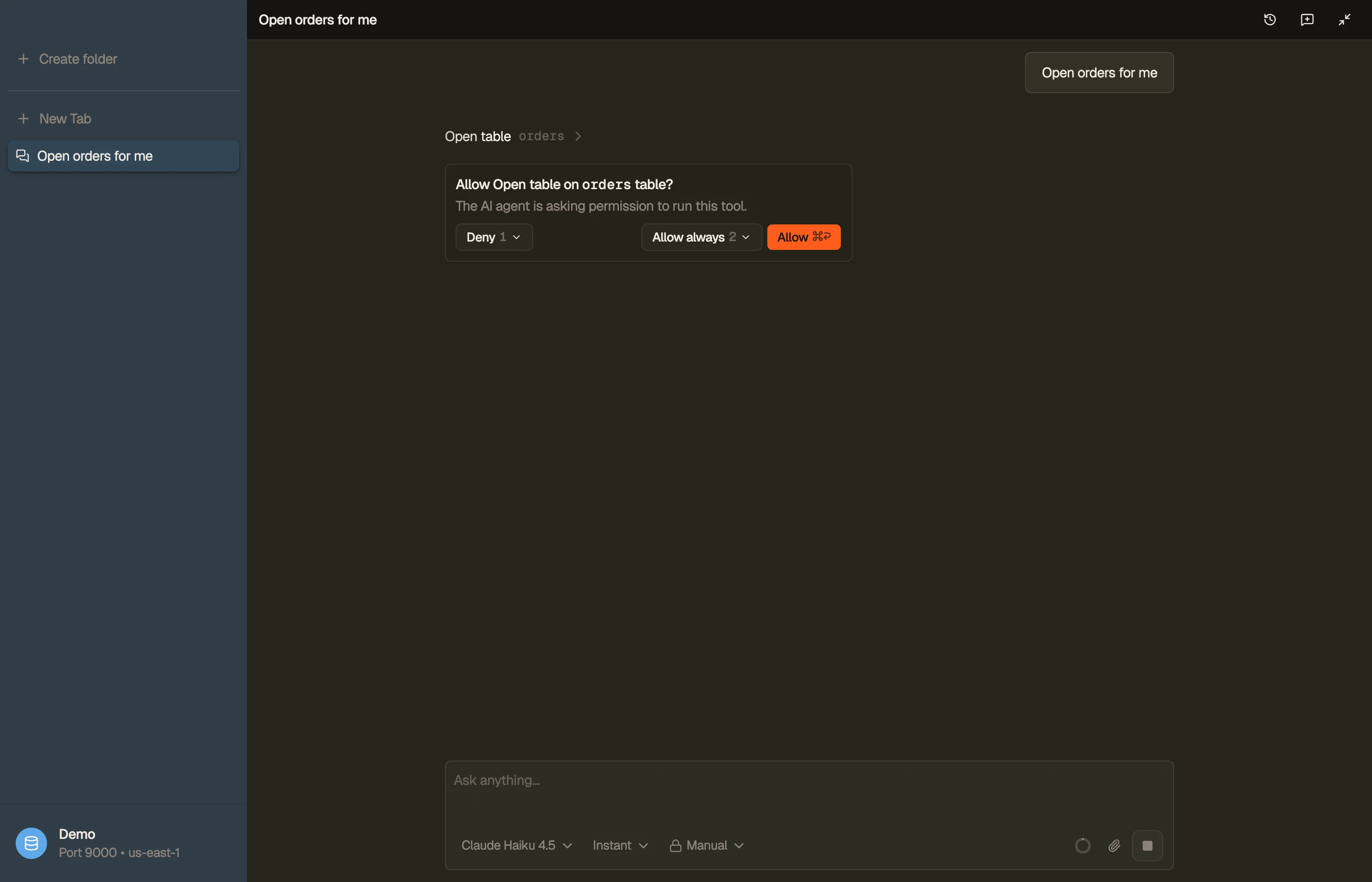
Every gated action is approved according to your permission mode — Manual, Auto, or Full Auto — set per profile (see AI chat → Setting up AI). Every gated decision is recorded in an always-on, local audit log.


What it can do
Understands your tables and saved work
The agent reads your schema to answer questions: the tables under the active profile, their key schema, DynamoDB indexes, billing mode, your saved Smart Table and Workbench specs, declared relationships, and open tabs.
It also uses the local table index as context. All of this is read (silent) — local introspection, no prompt.
Reads your data
When it needs live data it runs read-only PartiQL or
Workbench SQL (SELECT only — including JOIN, GROUP BY, and
aggregates), reads a single item by its key, or counts the items matching a
query. These are read (gated) — they hit DynamoDB and cost capacity, so the
agent asks before the first one. A visual filter query uses the same index and
key condition you'd compose in the query builder.
Computes over a whole table — exactly
Ask for a count, a sum, an average, or a breakdown across an entire table and the agent computes it directly — no need to export the data yourself first. The result is exact over the full table: it reads every matching item rather than sampling a page or two, so a "how many orders last month?" or "total revenue by region" answer reflects the real data, not a partial guess. It can do the same to produce a transformed export — reshape, filter, or aggregate a whole table into a new file in one step. This is gated — a full pass reads the table and costs read capacity, so the agent asks first.
Opens the views you ask for
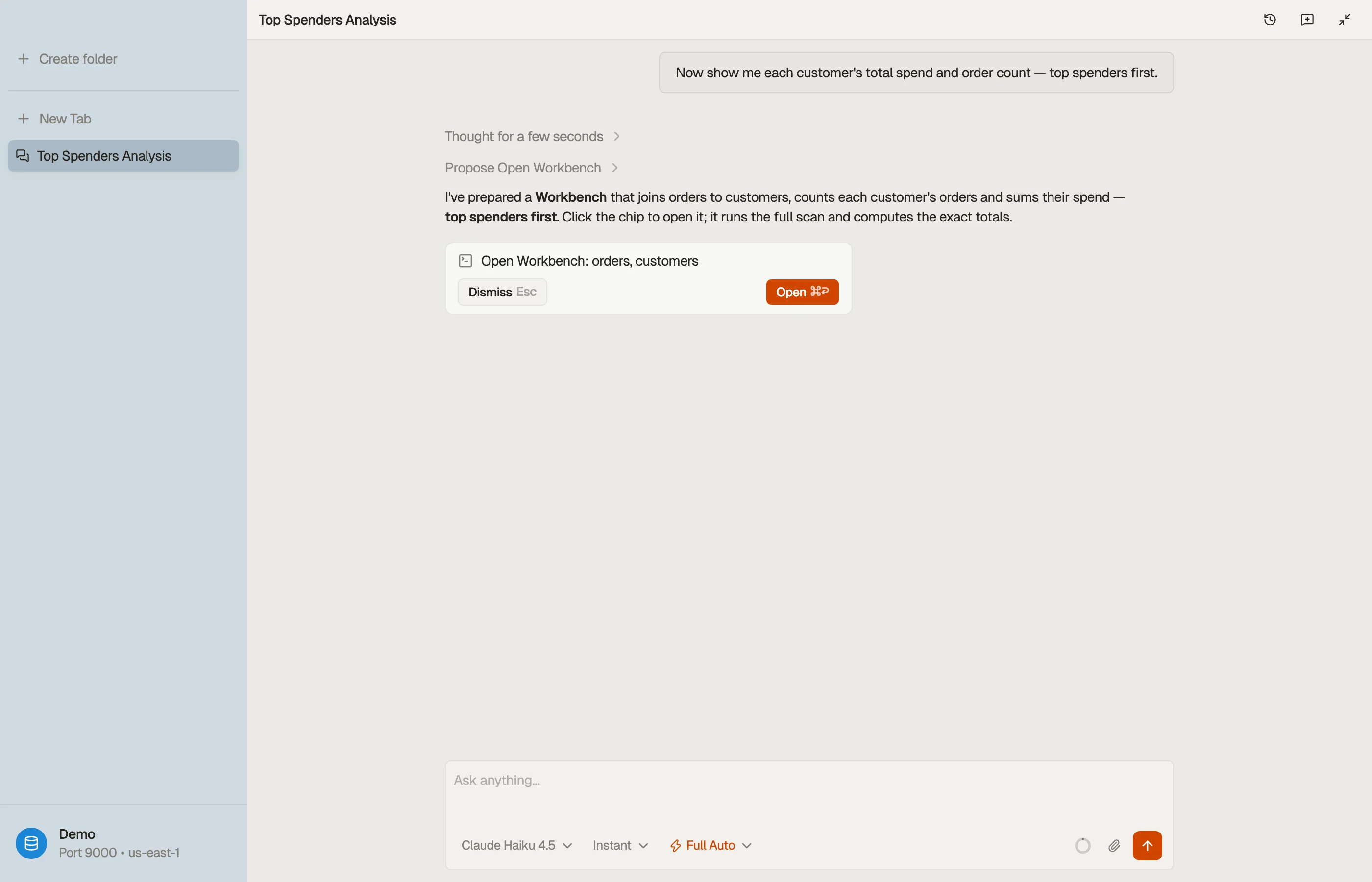
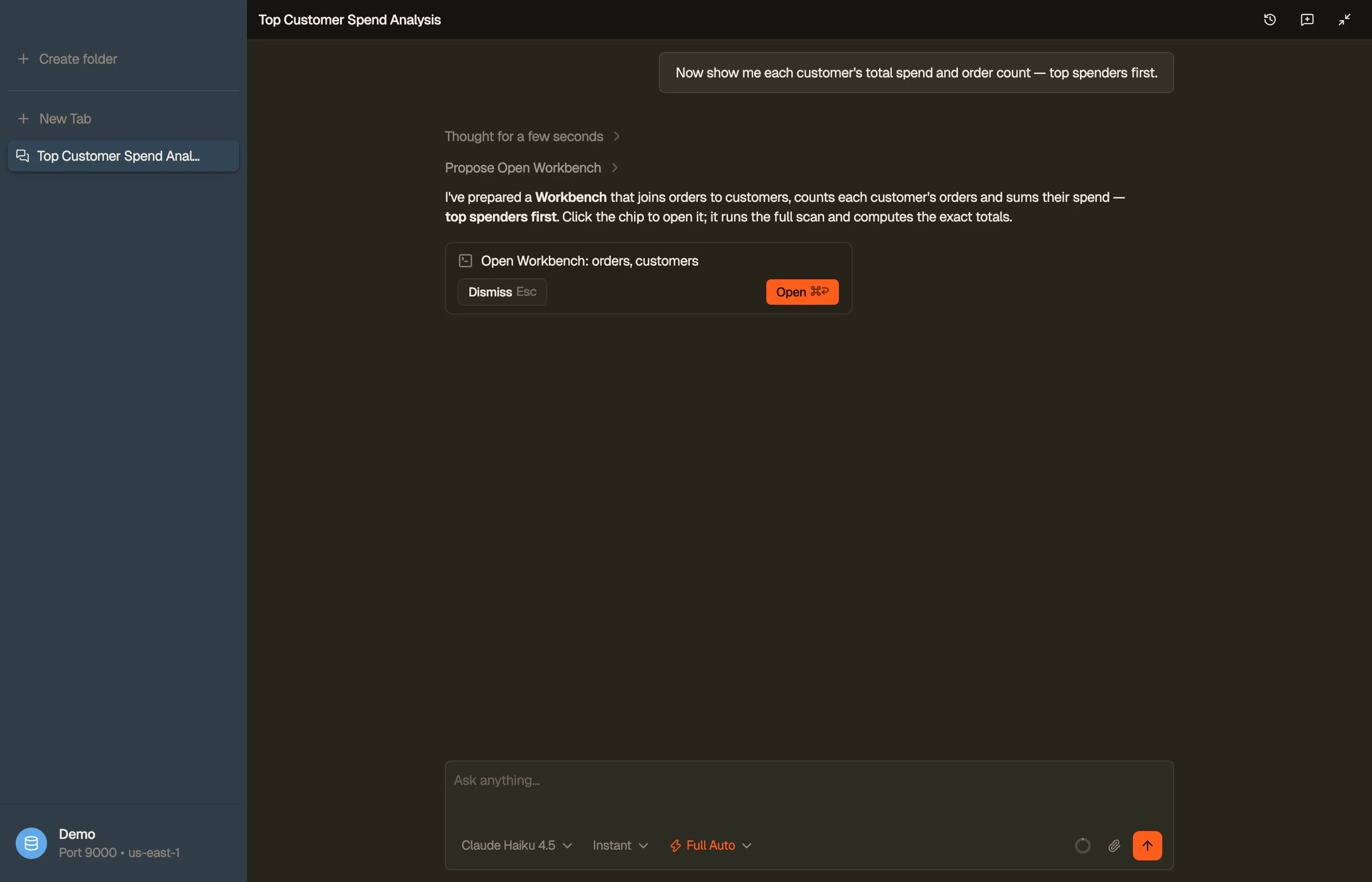
The agent prefers to offer a view rather than take over your workspace. It emits a chip you click to open or focus a table (optionally filtered), the item editor for an existing row or a new one, a Smart Table, or a Workbench tab pre-seeded with SQL — that's propose, and nothing opens until you click. When you've clearly asked for it now, it can open or refine a tab immediately instead; that's open (gated).


Stages writes — never writes directly
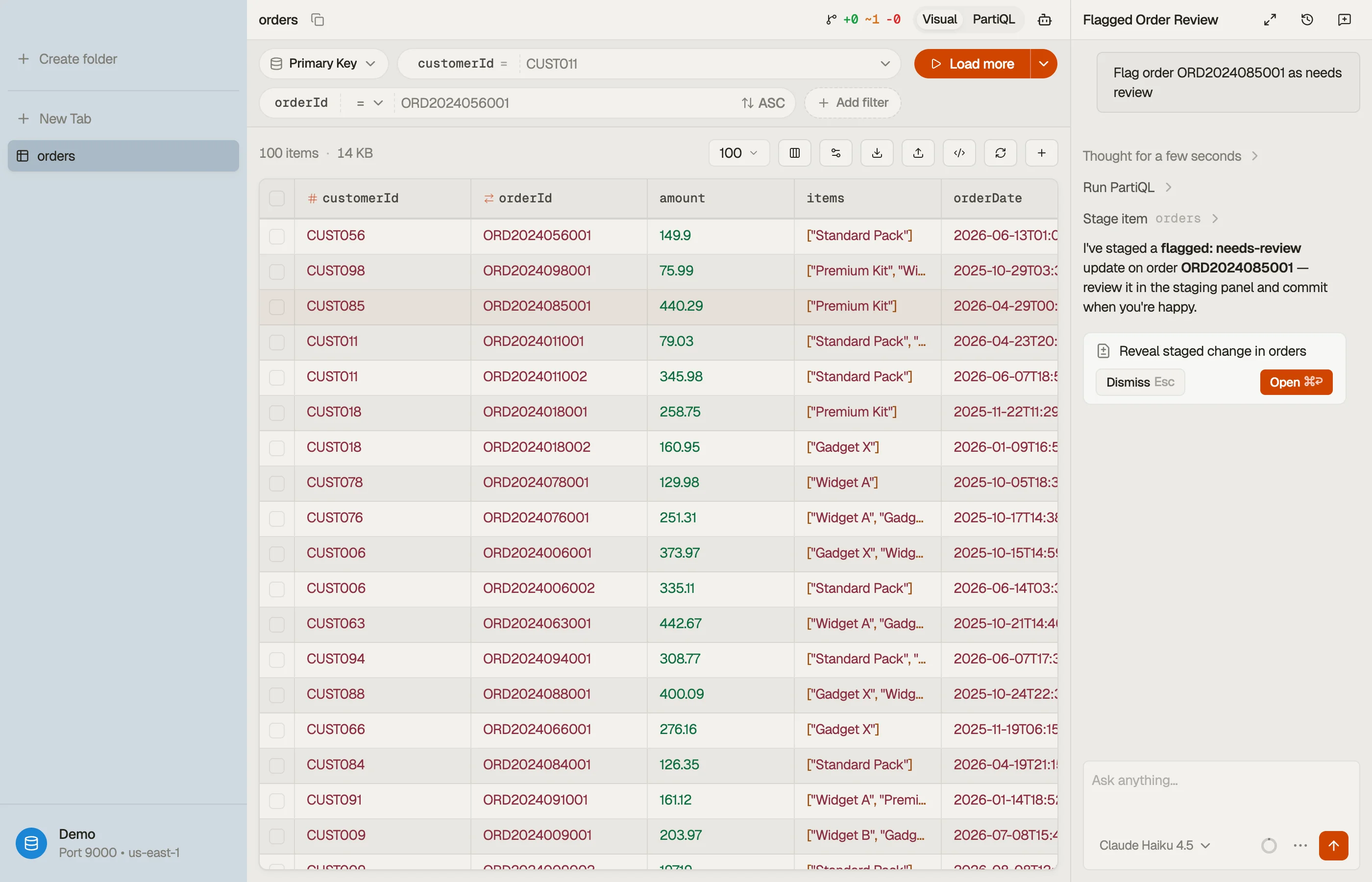
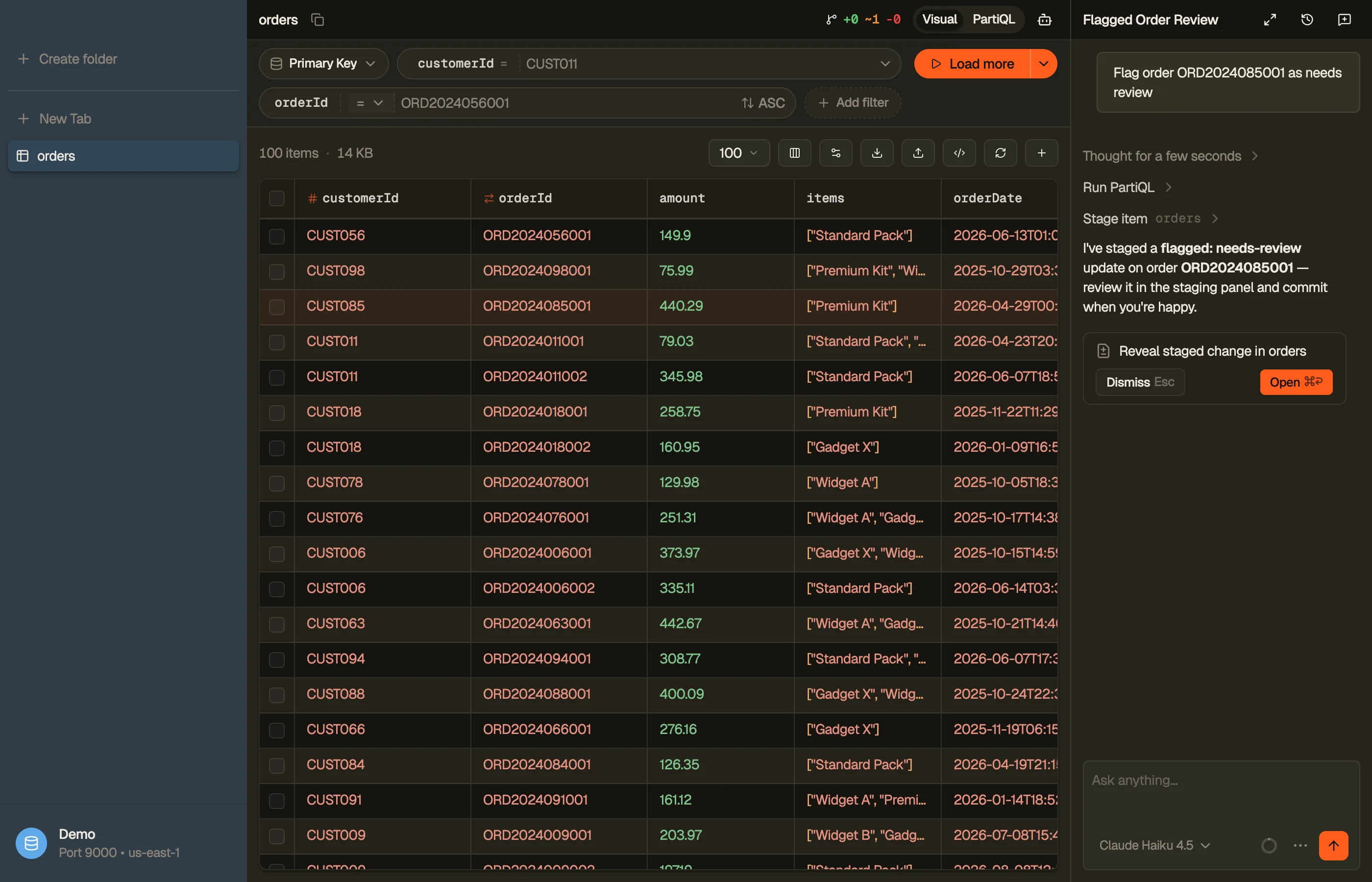
There is exactly one way the agent changes data: it stages a single create, update, or delete on the active table's staging area for you to review and commit. That's write (via staging).


Exports and works with files
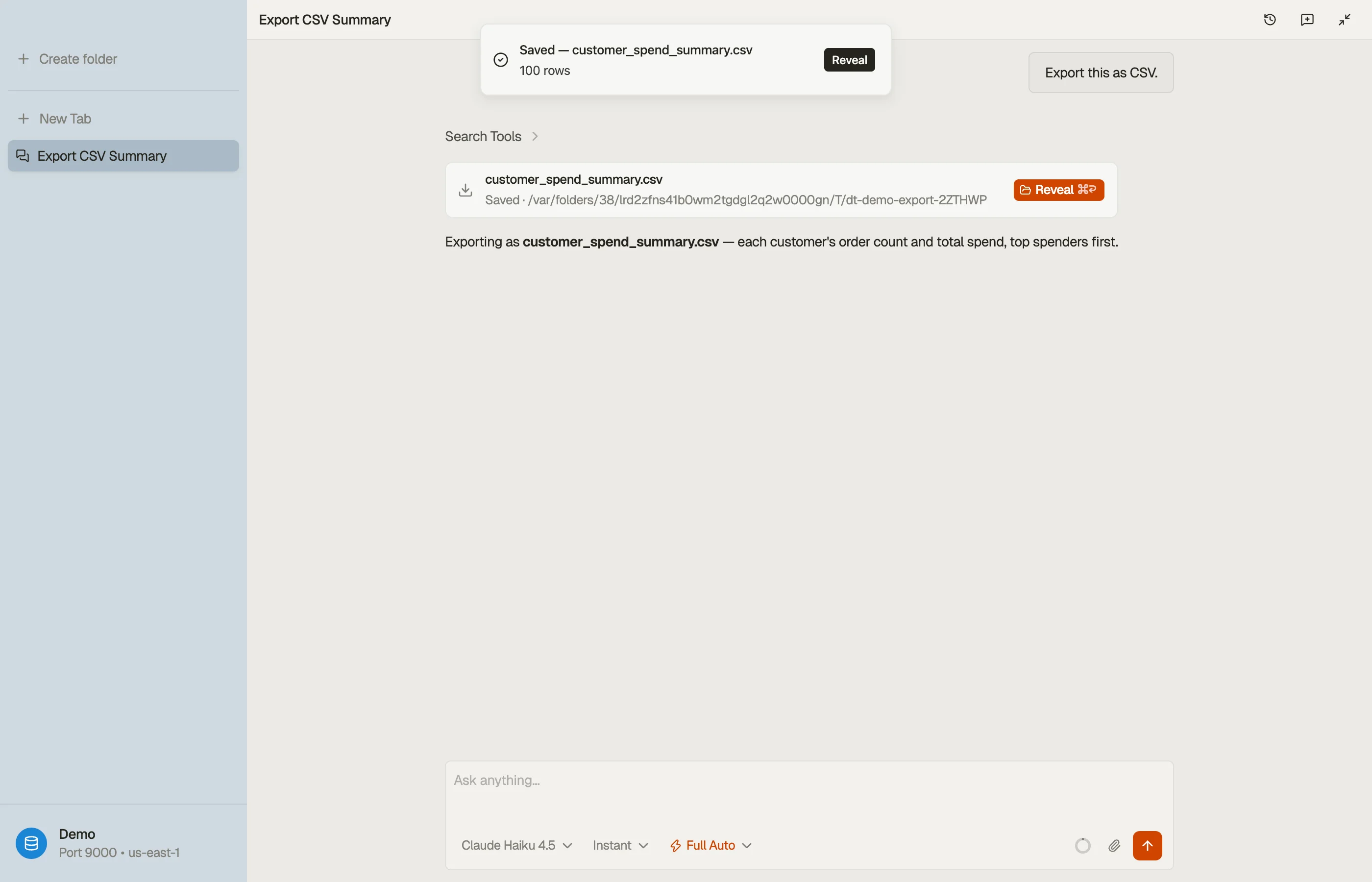
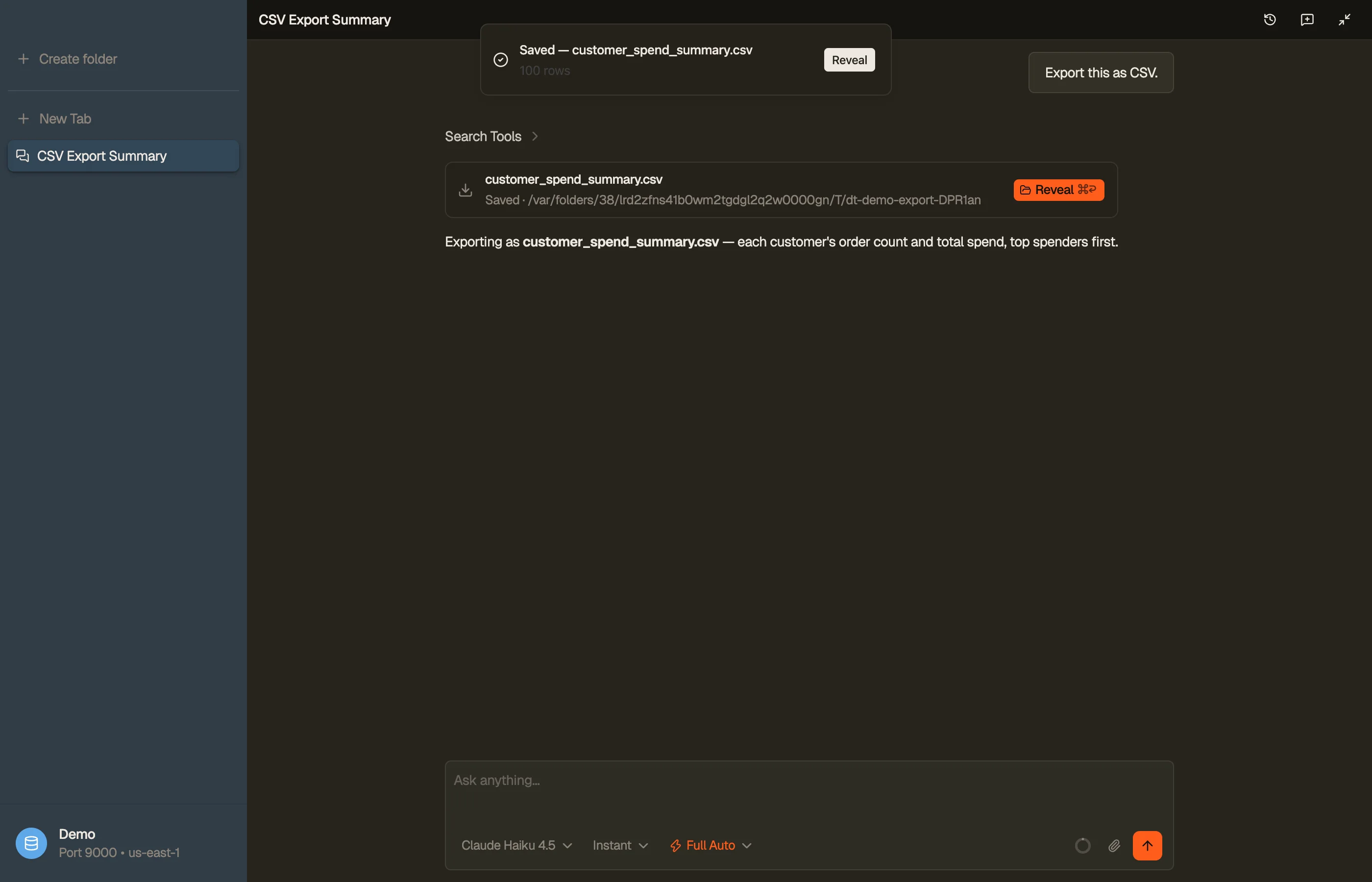
The agent can export an open tab or a one-shot SELECT to
CSV, JSON, or NDJSON, and track an export in flight. It can also inspect, read,
or run a SQL transform over a file you've already exported (or attached to the
chat) — useful when the data you want to work on is a local file rather than a
live table. Exporting and transforming are gated; checking on an export or
reading a file is silent.


Asks when a request is ambiguous
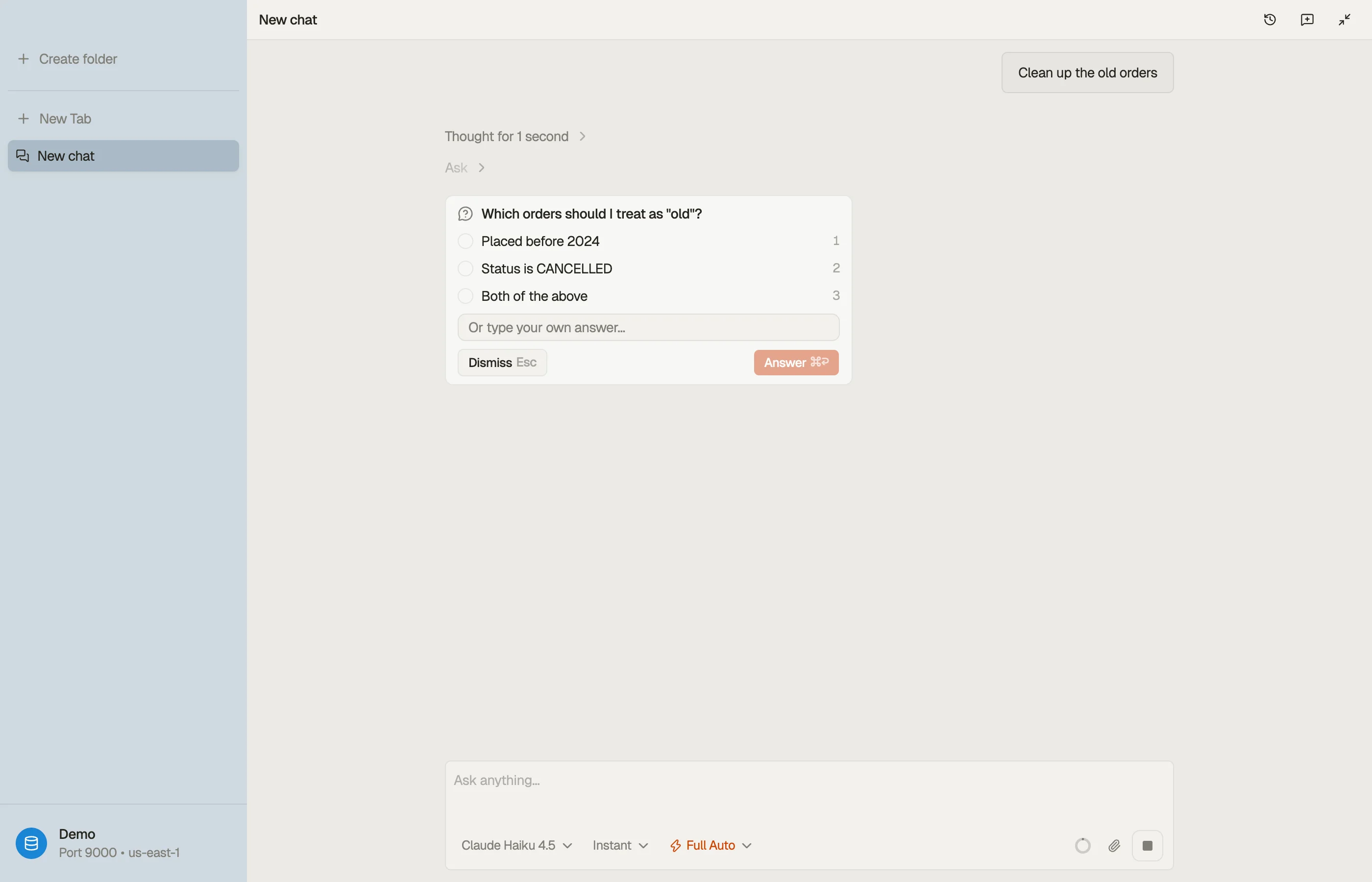
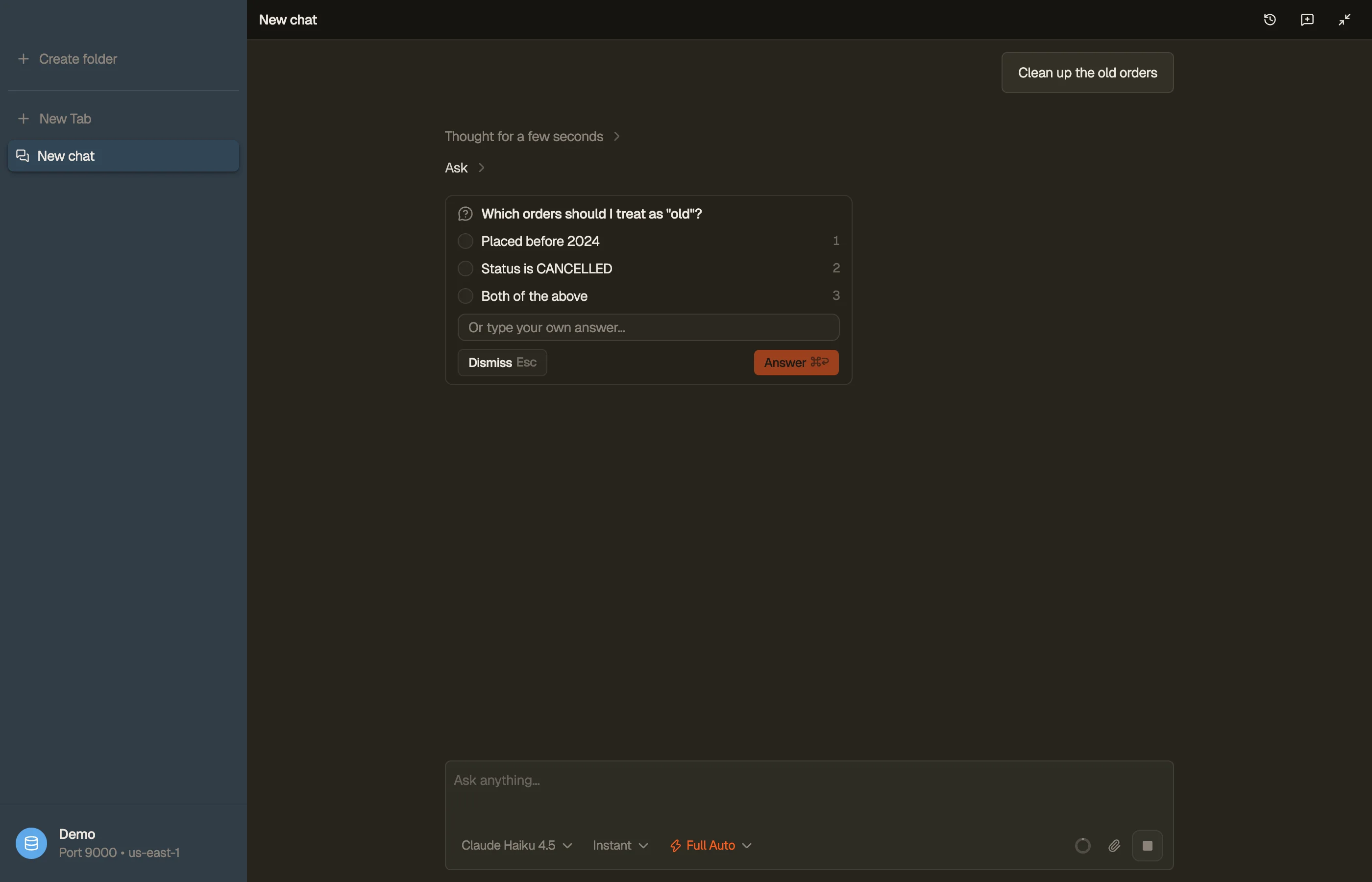
When it isn't sure what you mean, the agent asks a clarifying question with a small set of named choices and pauses the turn until you answer.