Filters & query patterns
Every table tab carries a filter: the predicate state DynoTable turns into a
DynamoDB request. Learning how the pieces map to query vs scan is most of
what makes the app fast and your bill small.
This page covers the Visual tab mode. To write SQL-style queries directly, switch to PartiQL; for joins and aggregates, open a Workbench.
The filter row
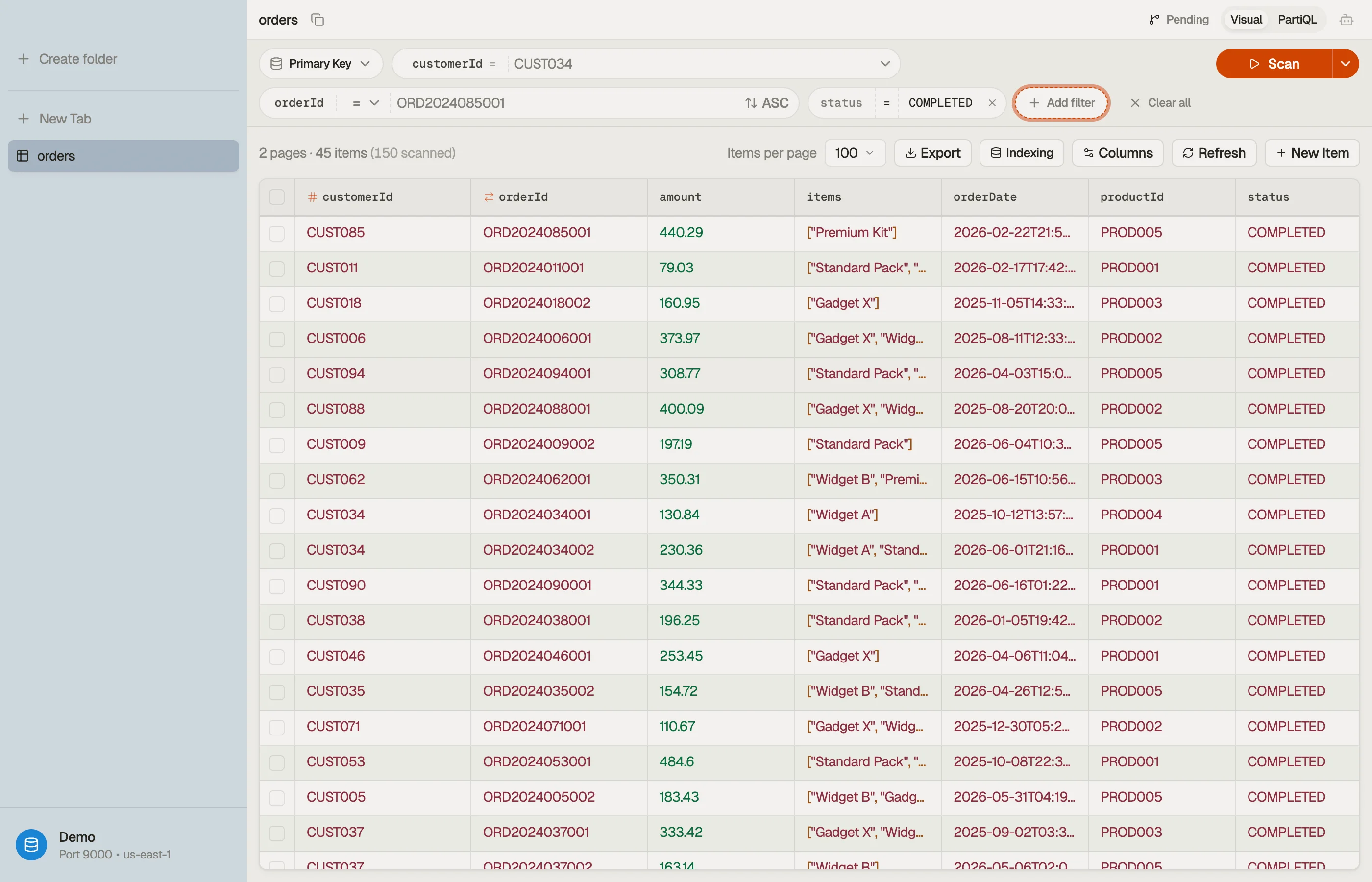
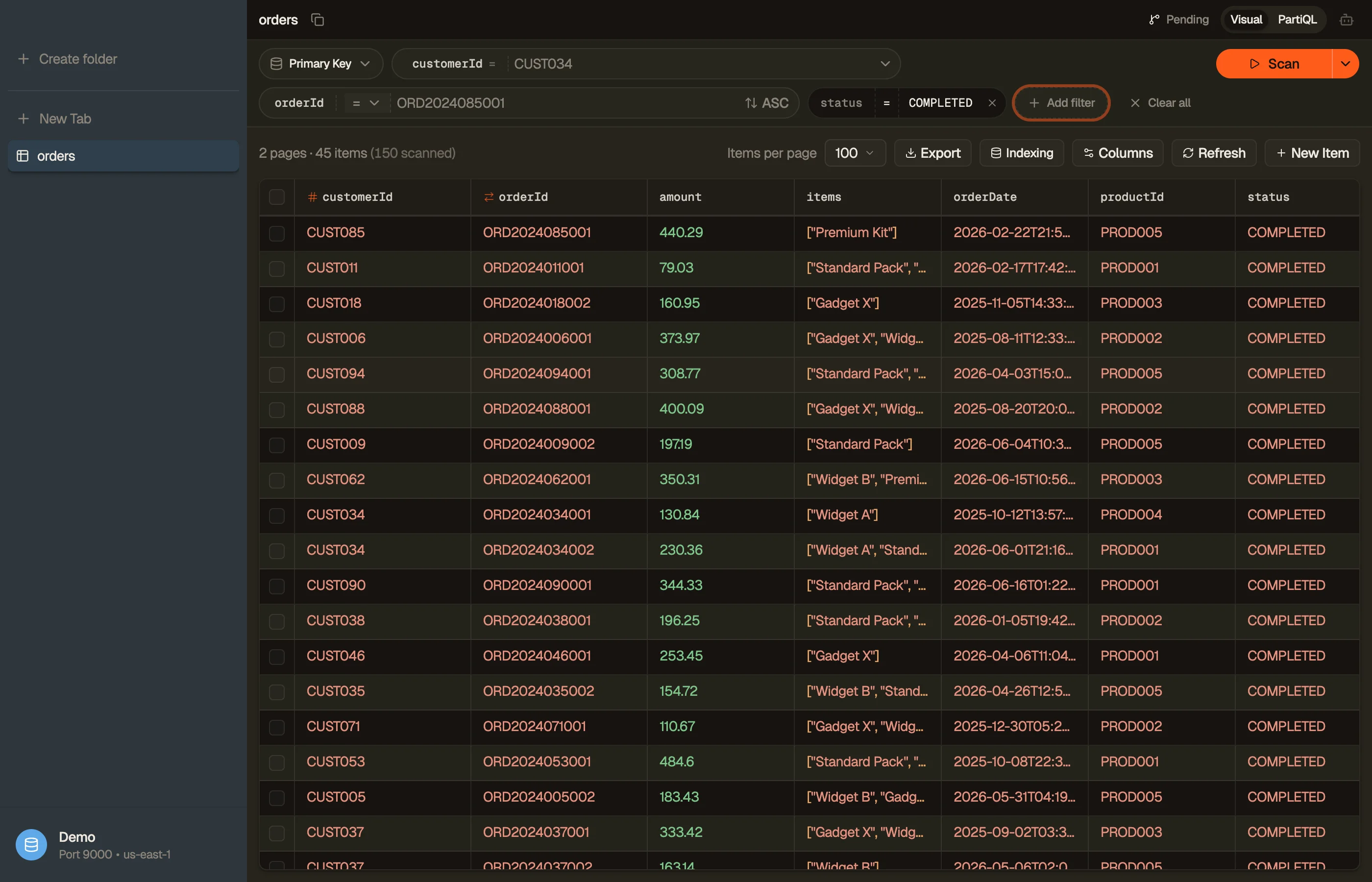
Visual mode shows a single horizontal row of pills:
[Index] [hashKey = value] [rangeKey op value] [+ filter] | [Clear] [Query/Scan]- Index pill — the query pattern you read through.
- Key pills — the partition (hash) key and, where present, the sort (range) key of that pattern.
- Filter pills — additional non-key conditions (scan filters).
- The action button reads Query or Scan depending on what you've set, and turns into Load more once results are streaming.
Set a value and DynoTable executes automatically; clearing or editing a pill re-runs as soon as the filter is valid again.


Query patterns
A query pattern is the index you read through:
PRIMARY— the table's own / .- A named or — its own key schema.
The chosen pattern decides which keys you can filter on. Switch patterns from the index pill; the key pills update to that pattern's partition and sort key.
Query vs scan
This is the distinction that matters for cost and speed:
- Set a filter and DynoTable issues a targeted — it reads only the matching partition. Cheap and fast.
- Without one it falls back to a , which reads the whole table (or index) page by page. The action button reads Scan to make this explicit.
Key filters
The partition-key pill takes a value; the action becomes Query the moment it's set. The sort-key pill adds a comparison on top:
=,<,<=,>,>=— ordered comparisons (numbers, and lexicographic on strings).begins_with— prefix match on strings or binary.between— an inclusive range; the pill grows a second value field.
String-typed keys offer autocomplete: as DynoTable indexes a table in the background, it suggests real values you've already seen. Keys with no useful suggestions (random UUIDs, say) fall back to a plain input.
Scan filters
The + filter pill adds a non-key condition — any attribute, not just keys. Each filter is a column, an operator, and a value:
- Comparisons:
=,≠,<,<=,>,>=,between. - Membership:
in— matches any value in a list (strings or numbers). - String / binary:
begins_with,contains. - Existence:
exists,not exists. - Type:
type equals/type not equals(against the DynamoDB type code —S,N,BOOL, …), plus asizefamily for collection types.
The operators offered adapt to the attribute's type — ordering comparisons show
up for numbers, begins_with for strings. Scan filters apply after the
query or scan reads items, so they narrow the result but don't make a scan
cheaper. Use a key filter to cut the read; use scan filters to refine what comes
back.
Single-table design: composite keys
Single-table designs pack several entity types into one table behind a key
prefix — USER#123, ORDER#456, TENANT#acme. DynoTable recognises these on
its own, with nothing to set up:
- Keys decode in place. A composite value — an uppercase prefix joined to the
rest by
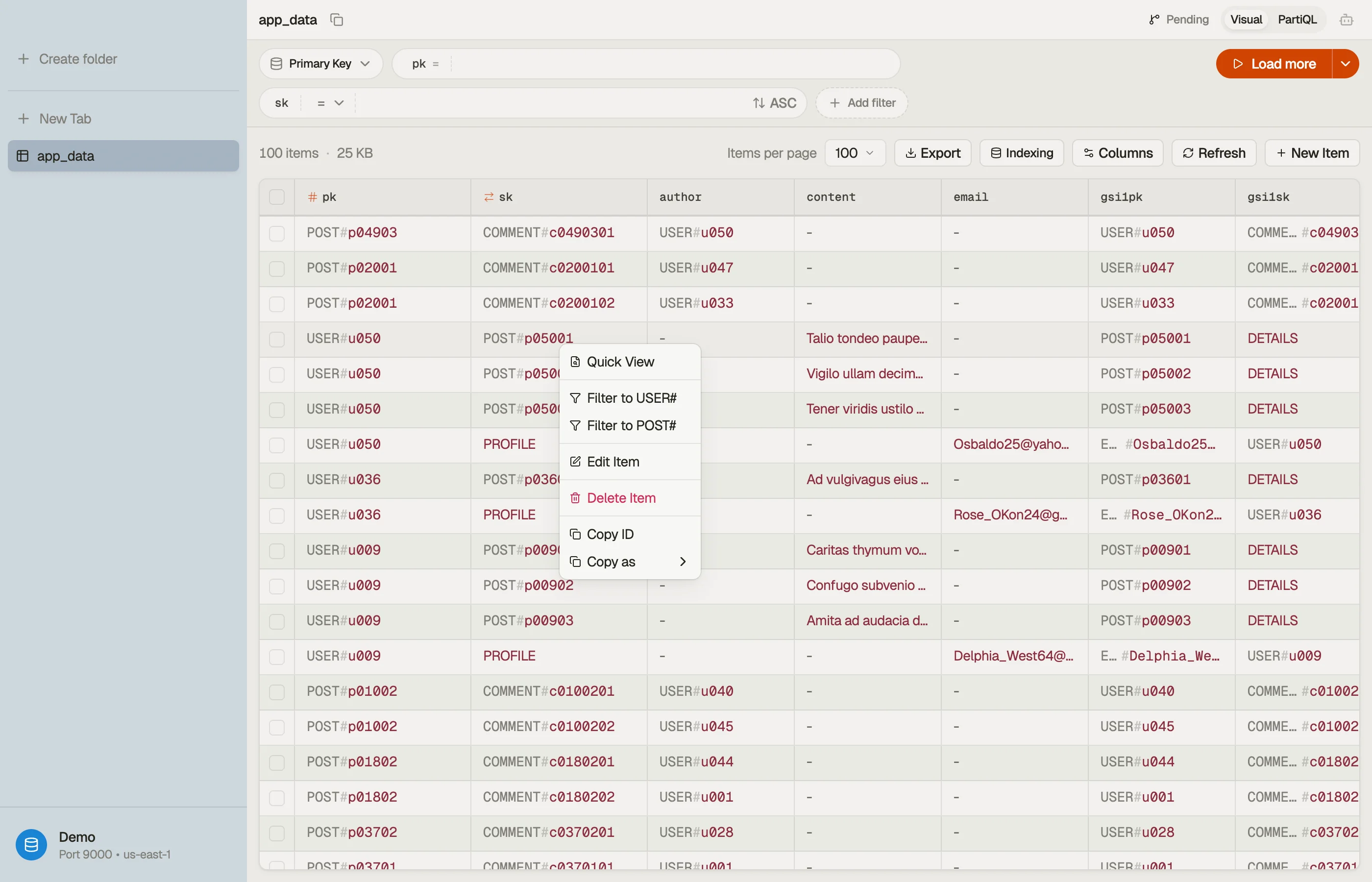
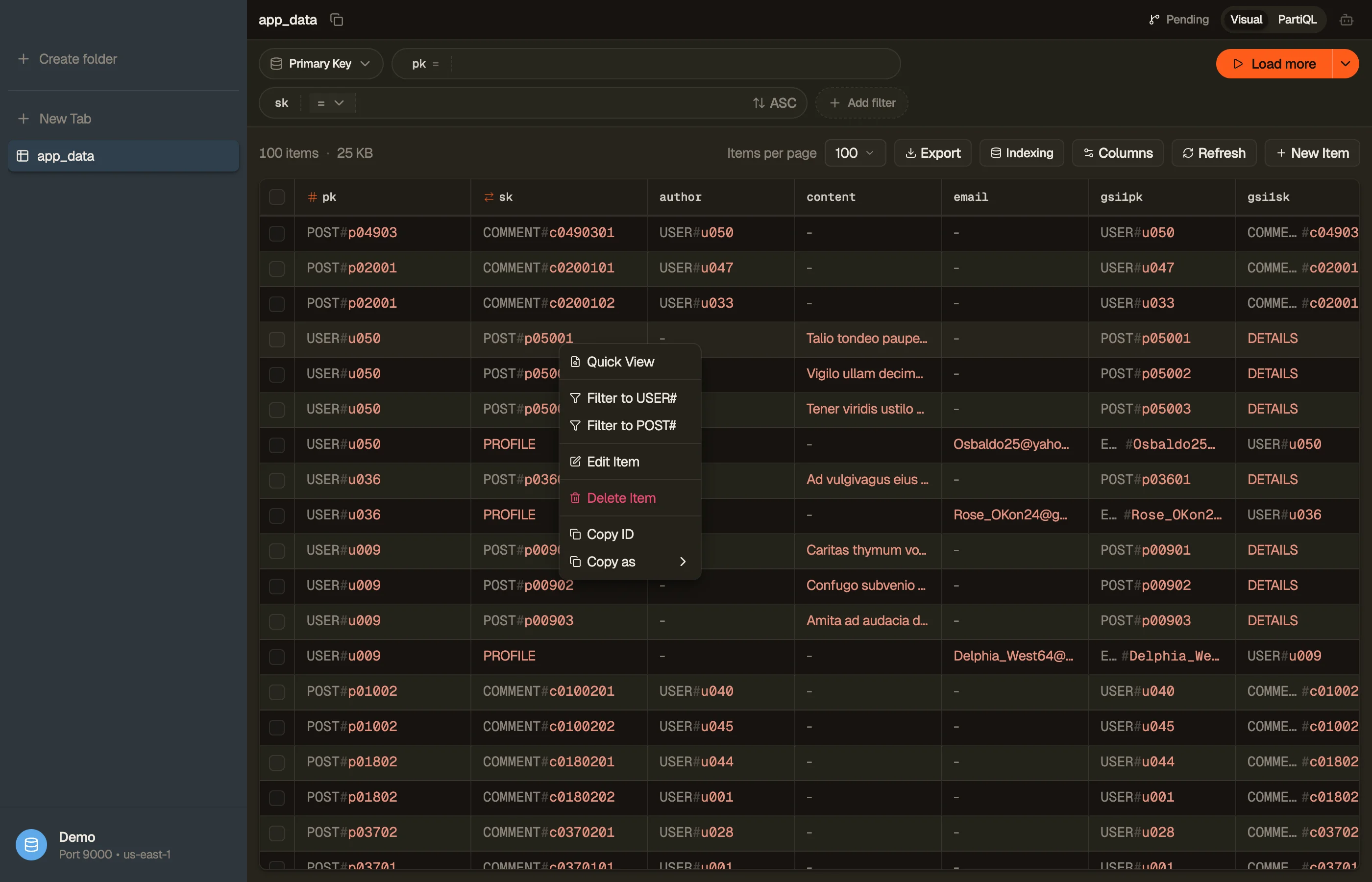
#,|, or~— renders as its labelled parts in every grid: the table, PartiQL results, and the Workbench. Ordinary values that merely contain one of those characters (a hex colour like#FF5733, a pipe-separated list) are left exactly as they are. - Filter to an entity in one click. Right-click a row and choose Filter to
USER#— the prefix is read straight from that row's key. DynoTable applies a realbegins_withon the key as an ordinary filter pill, which you clear the usual way (its ✕, or Clear). When a row's partition and sort keys are both prefixed, you get one choice for each.
There's no dialog, no configuration, and nothing saved — it's derived live from the keys in front of you.


Sorting and paging
The sort-key pill carries a sort-order toggle (ascending / descending) that
maps to DynamoDB's ScanIndexForward. Results stream a page at a time —
Load more fetches the next page, and changing the page
size reloads from the first page.
Run to end
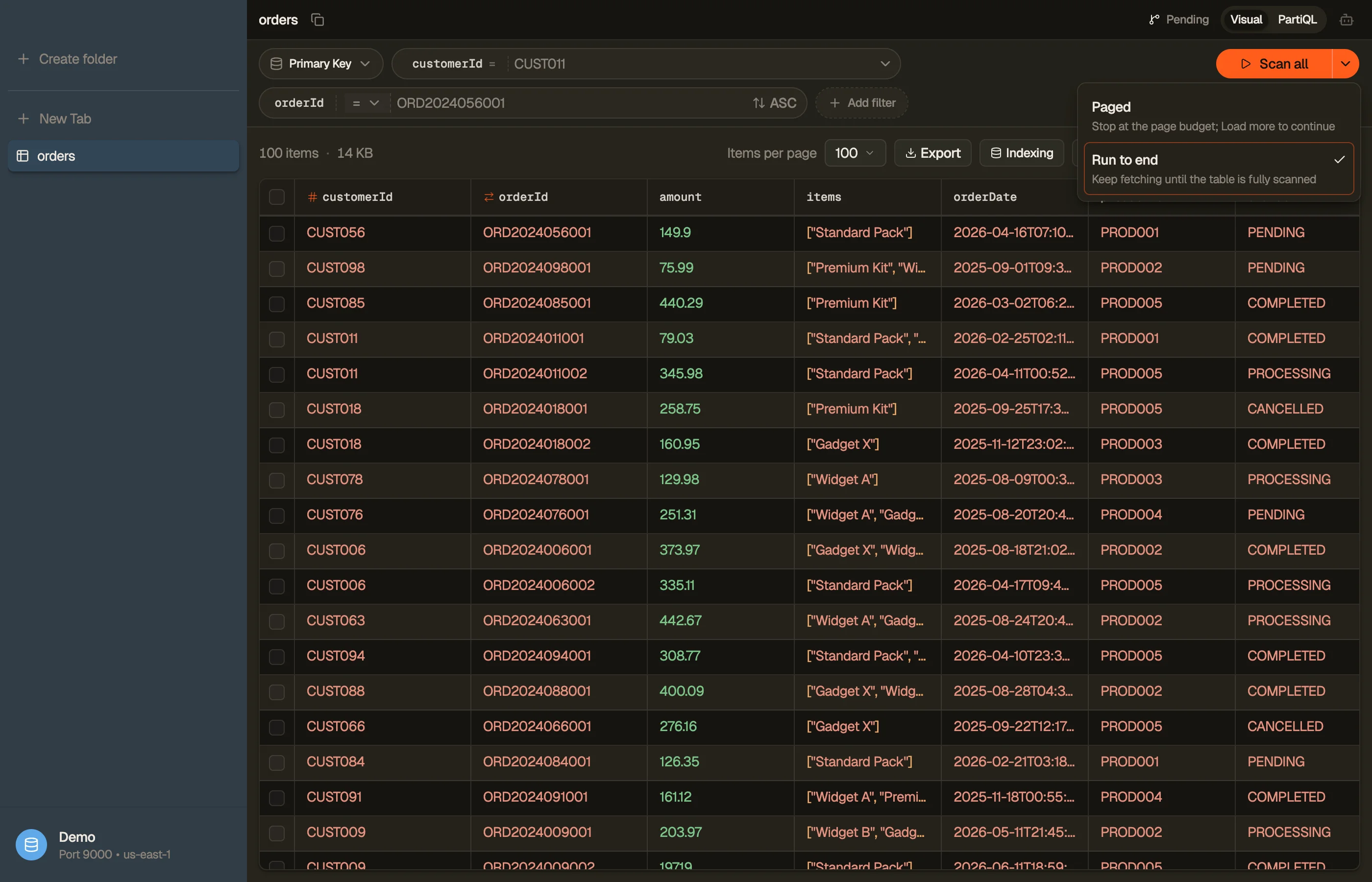
By default a query or scan pauses after a few pages so a large table doesn't load all at once — the action button shows Load more to fetch the next page. When you'd rather pull everything in one pass, switch the run mode:
- Click the chevron next to the action button and choose Run to end. The primary relabels to Scan all / Query all / Run all — including when you're paused at the page budget, where clicking it drains to the end.
- Click that relabeled button and DynoTable keeps fetching pages until the whole table (or index) is read. The choice is remembered per tab for the session; pick Paged to switch back. Picking a mode never starts a run on its own — it only relabels the button, so you decide when to fire.
On a large table, arming Run to end first shows a confirmation prompt with the table's approximate size and item count, so a full scan is always a deliberate choice rather than an accident. Confirm to proceed, or cancel to stay paged.


From the keyboard:
- ⌘↩ runs the current query — and when results are paused at the page budget it continues to the next page instead of starting over.
- ⌘⇧↩ always runs to the end in a single shot.
- ⌘. or Esc stops an in-flight run at any time.