PartiQL
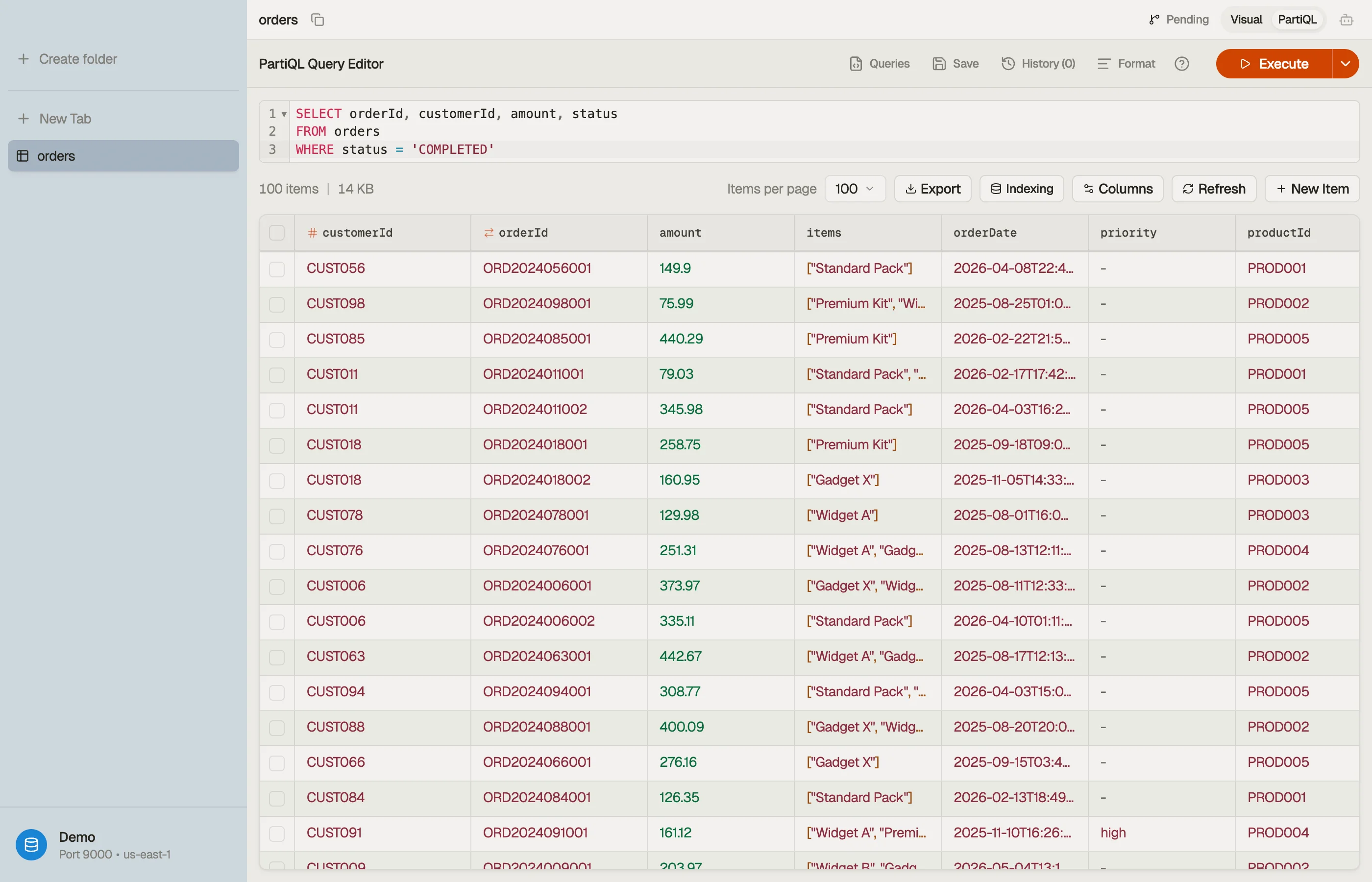
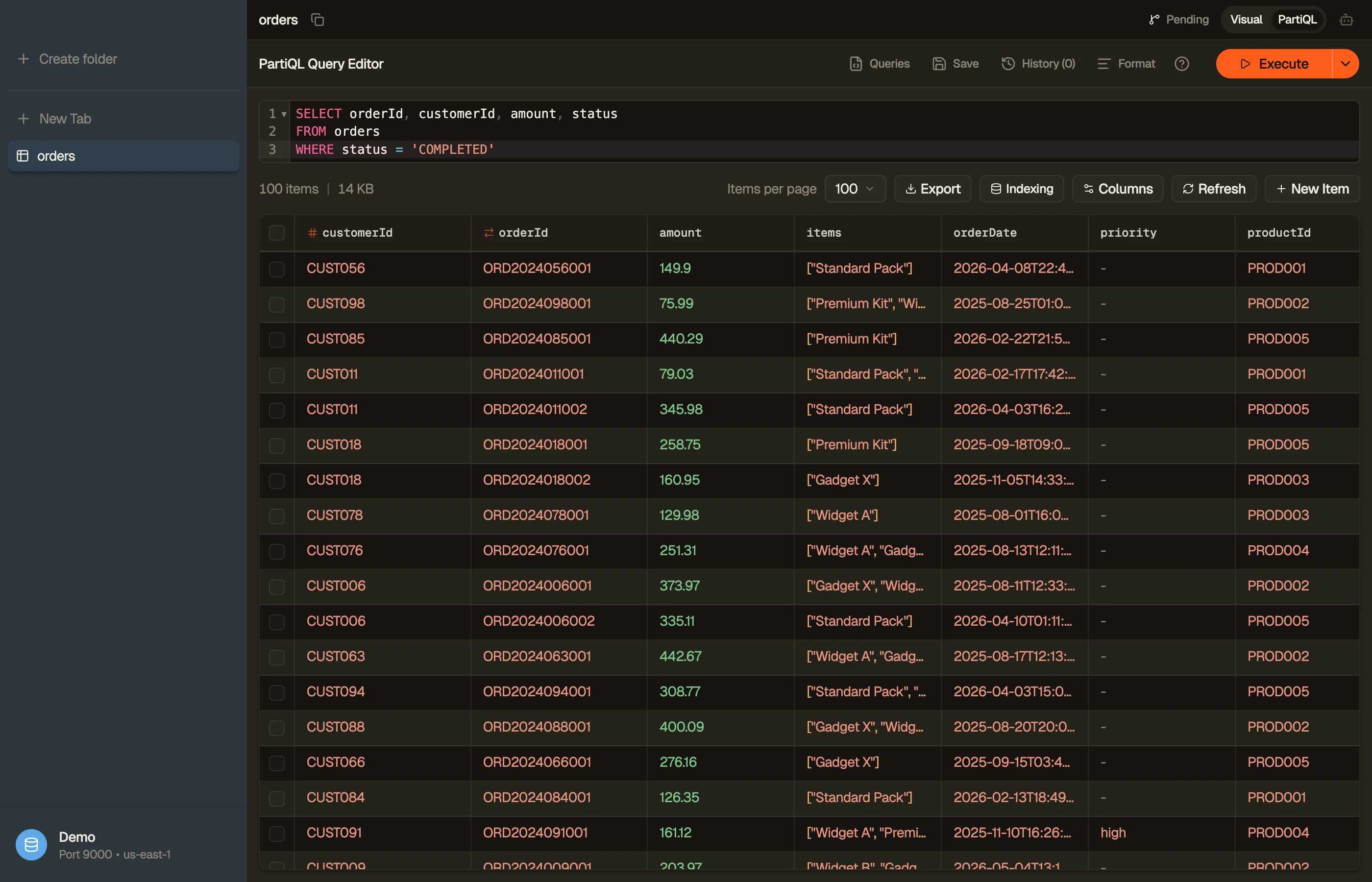
PartiQL is DynamoDB's SQL-compatible query language. Switch any table tab to
PartiQL mode (⌘⇧M) to write SELECT, INSERT, UPDATE, and
DELETE statements directly instead of clicking filter
pills.
Switching a tab into PartiQL mode auto-runs the default SELECT * FROM "table"
— the direct equivalent of opening the table in the visual
view. Once you edit the statement, running it is up to you:
press ⌘↩ to execute. Results stream in, and Load more fetches the
next pages.
SELECT * FROM "my-table" WHERE pk = 'USER#42' AND begins_with(sk, 'ORDER#')

PartiQL is not SQL
DynamoDB's PartiQL is a deliberate subset. The editor lints your query as you type and flags constructs DynamoDB won't run — usually with a one-click quick-fix. The common gotchas:
INuses brackets, not parentheses —WHERE id IN ['a', 'b'], not('a', 'b'). Quick-fix rewrites it. The linter also warns when the list runs past DynamoDB's caps (50 values on a partition-key column, 100 on a non-key column) before the server would reject it.- No
LIMITclause — page size is a tab control, not SQL. Use Load more. - No
JOIN,GROUP BY,HAVING, aggregates, subqueries,UNION, or CTEs. For those, open a Workbench tab — the linter points you there. LIKE→ function —LIKE '%foo%'becomescontains(col, 'foo'),'foo%'becomesbegins_with(col, 'foo'). Quick-fix offered.IS NULL/IS NOT NULL→attribute_not_exists(col)/attribute_exists(col). Quick-fix offered (note the inverse mapping).- Single-quote string literals —
'value', not"value". Double quotes mean an identifier.
The format-help popover next to the Run button lists these inline whenever you need a reminder.
Templates & saved queries
The Queries menu drops ready-made statements into the editor, resolved
against the active table's real keys and a sampled value — so a SELECT template
arrives already referencing your partition key, not a placeholder. Tab through
the highlighted holes to fill in the rest.
Keep a statement you'll reuse with the Save button — your saved queries live in the same menu alongside the templates, ready to run on any table. Workbench and PartiQL keep separate libraries, since they speak different query languages.
Write templates
INSERT / UPDATE / DELETE templates use synthetic DEMO-* keys on purpose,
so running one straight away can't accidentally mutate a real row. They're
designed to run in order — insert, then update, then delete the same demo item —
and you edit the keys to target real data.
History
Every executed query is saved to per-mode history (separate from the Workbench's). Reopen the history menu to restore a previous statement into the editor — including failed runs, so you can fix and retry.