Connect an AWS account
DynoTable reads your existing ~/.aws configuration — the same profiles your
aws CLI uses. Nothing is copied or re-keyed: DynoTable derives how to
authenticate from your config every time, so re-running aws configure sso or
rotating keys is reflected automatically. All credential resolution and any
interactive sign-in happen locally, in the desktop app — never on our servers.
Profiles
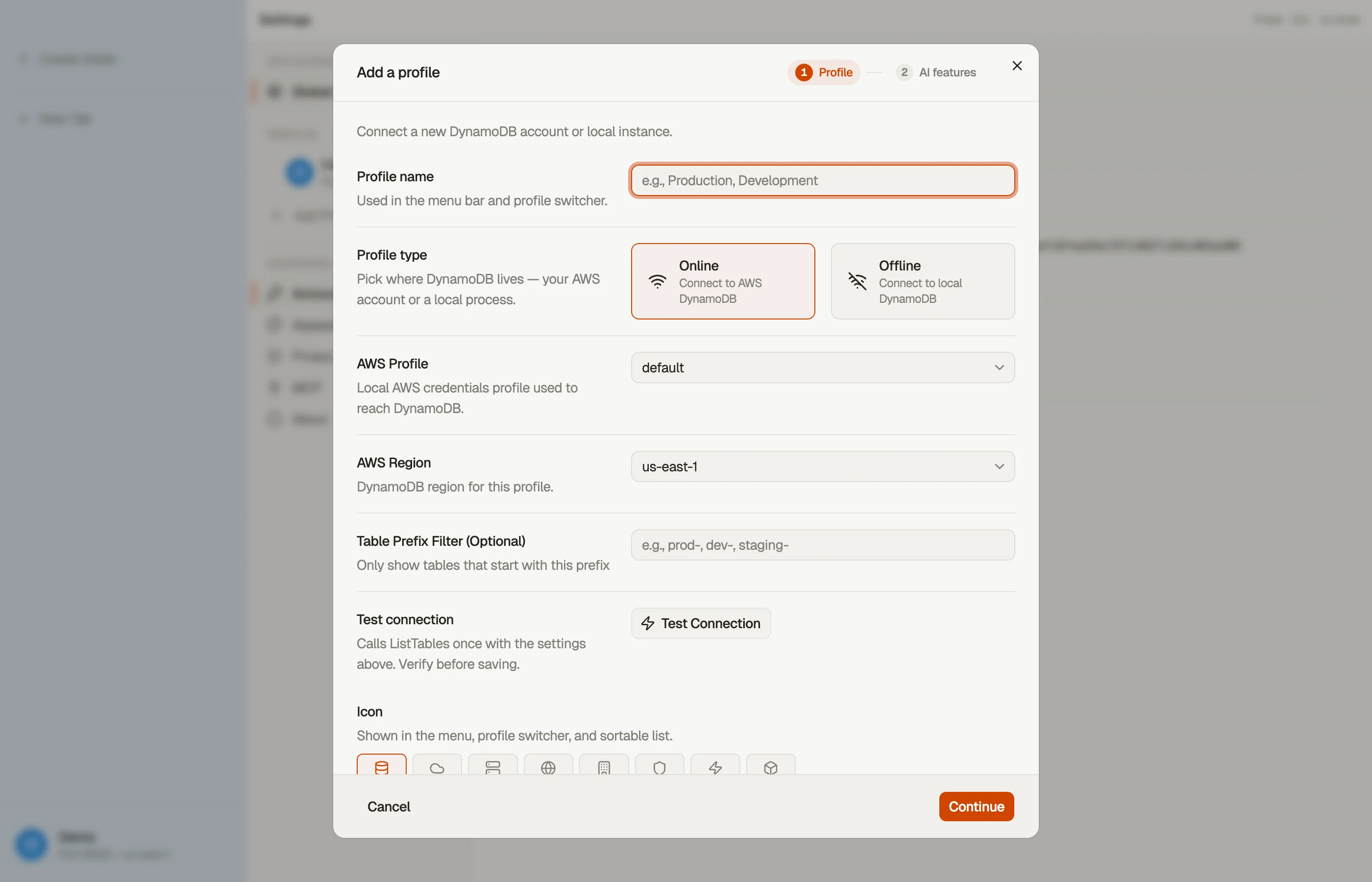
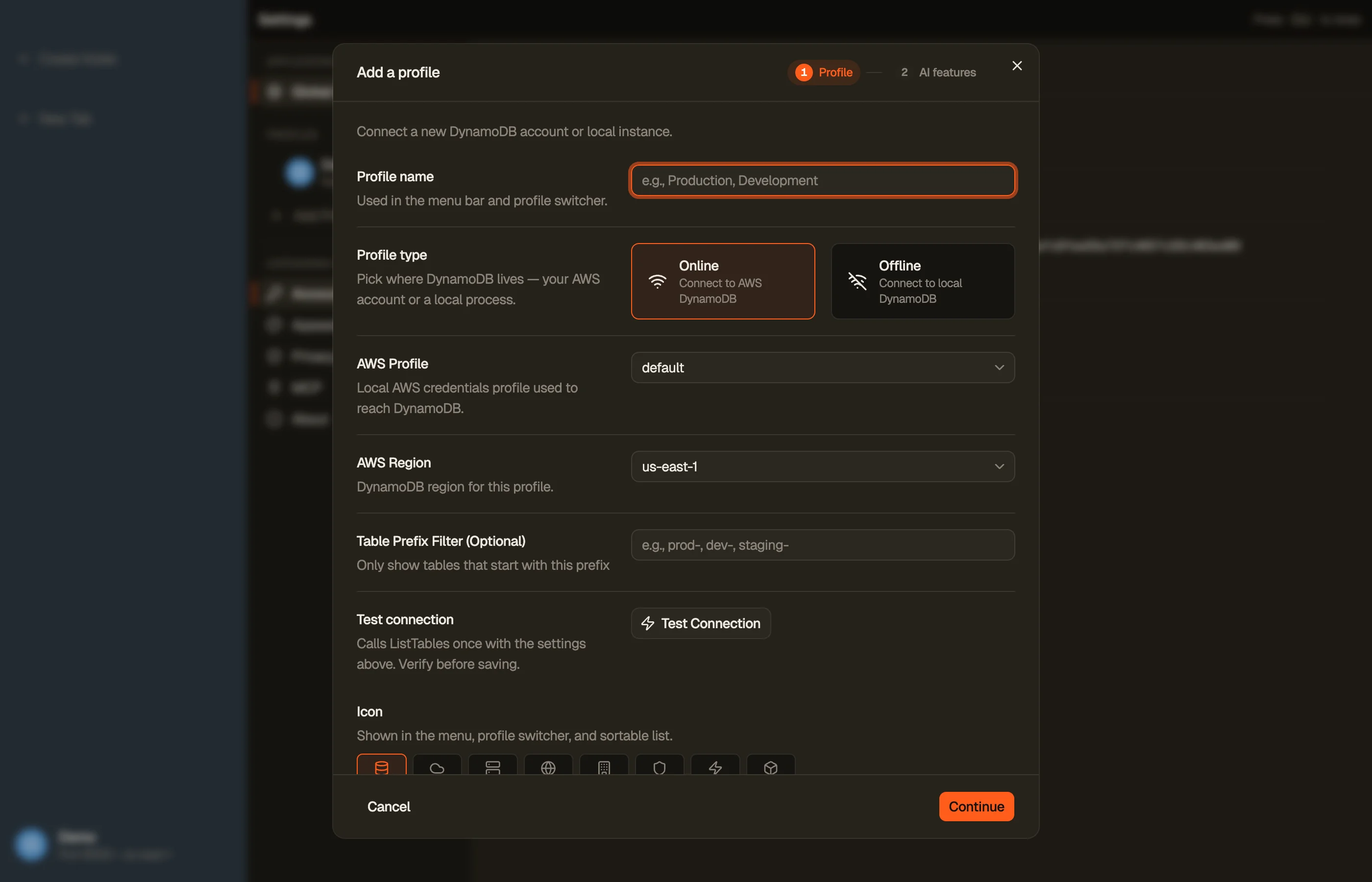
A Profile in DynoTable is a named credential set bound to one AWS profile and one default region. A profile can browse many tables, but region is per profile, not per tab — to browse a different region, switch to (or create) a profile set to that region.
Create a profile in Settings → Profiles (each profile is a section, plus an Add Profile dialogue), or during onboarding. Give it a name, colour and icon, pick the underlying AWS profile, and choose a default region. The profile chip at the bottom of the sidebar lists your profiles and links to Settings.


How credentials resolve
DynoTable inspects your ~/.aws config and picks the right authentication path —
walking the full source_profile chain to the terminal requirement:
| Config | What DynoTable does |
|---|---|
| Long-term keys / default chain / web-identity | Uses them directly |
In-process device login (no aws CLI needed) | |
| Assume-role | Assumes the role for you |
| Assume-role needing | Prompts for a TOTP code, then refreshes silently |
credential_process | Runs your external helper |
IAM Identity Center (SSO)
For an SSO profile, DynoTable runs the standard OAuth device flow in-process and
opens your browser to confirm. The resulting token is written to the standard
~/.aws/sso/cache, so it interops both ways with your own aws sso login.
MFA-protected roles
If a role's chain requires MFA, DynoTable prompts for your 6-digit TOTP code once, mints a session, and refreshes role credentials silently from it until the session lapses.
Re-authenticating
DynoTable never pops a browser or modal during background work. When a token expires, the status dot on the profile chip turns amber and offers an inline action — Sign in for SSO or Enter MFA for a TOTP role. Click it (or just run the query again) to re-authenticate.
The profile switcher
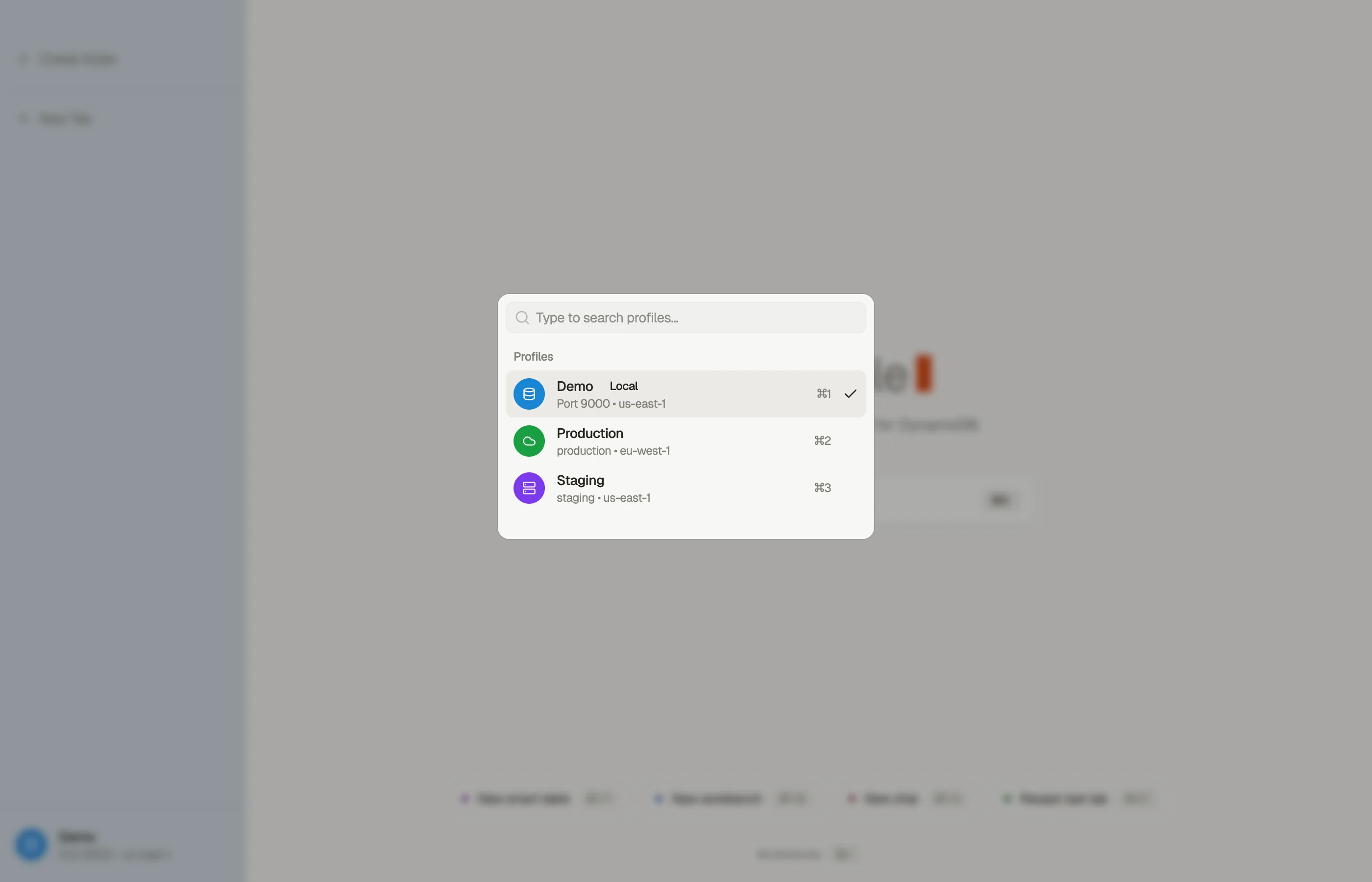
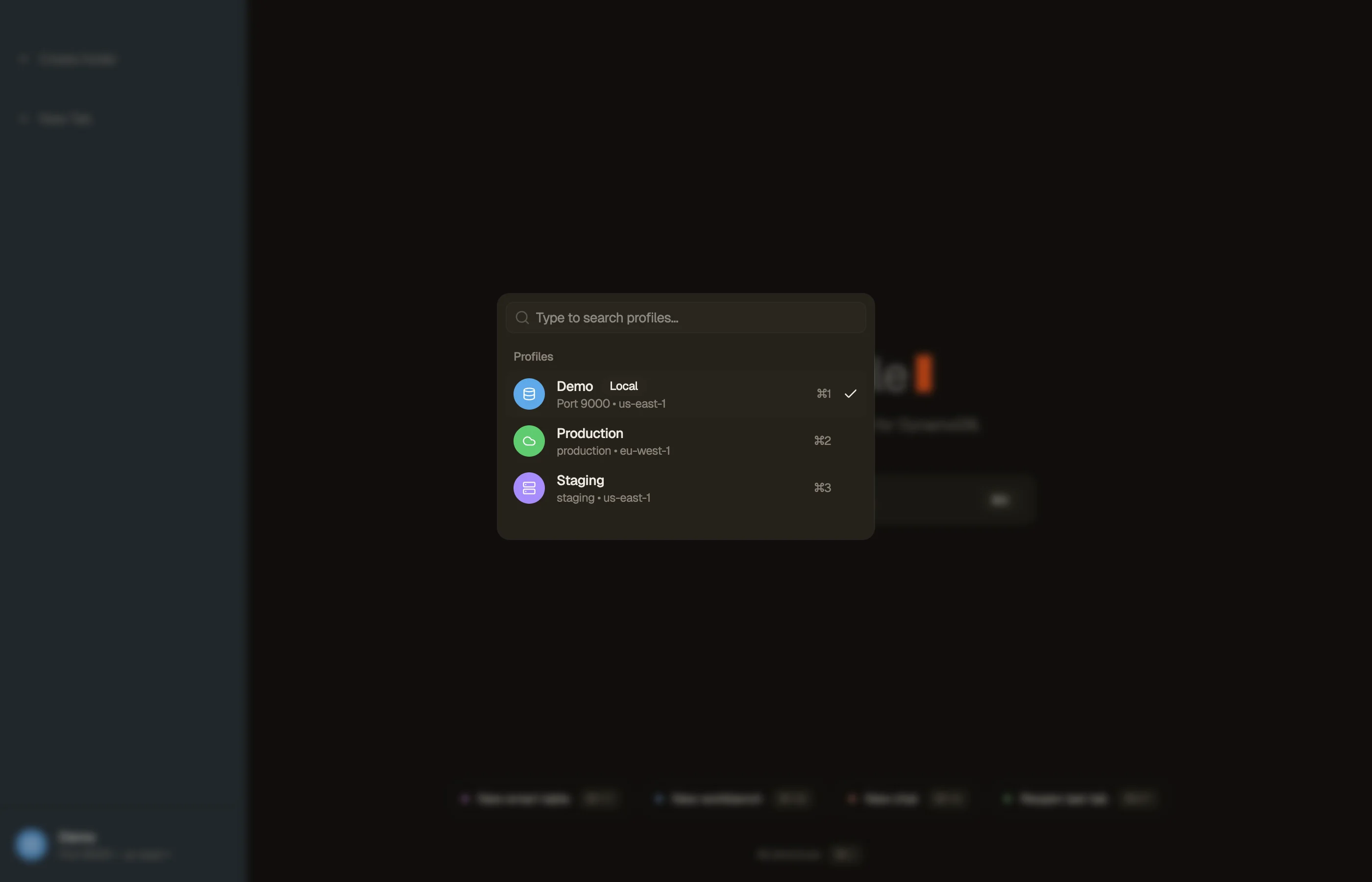
- Press ⌘P to open the profile switcher and jump between profiles.
- Press ⌘1–⌘9 to switch directly to a profile by position.