Export
DynoTable exports query results to CSV, JSON, and NDJSON — from a single selected row up to an entire filtered result set. Large exports run in the background and keep going even if you switch tabs, change profiles, or reload the app.
Open the export dialogue with ⌘⇧E, or the Export button in the tab toolbar.

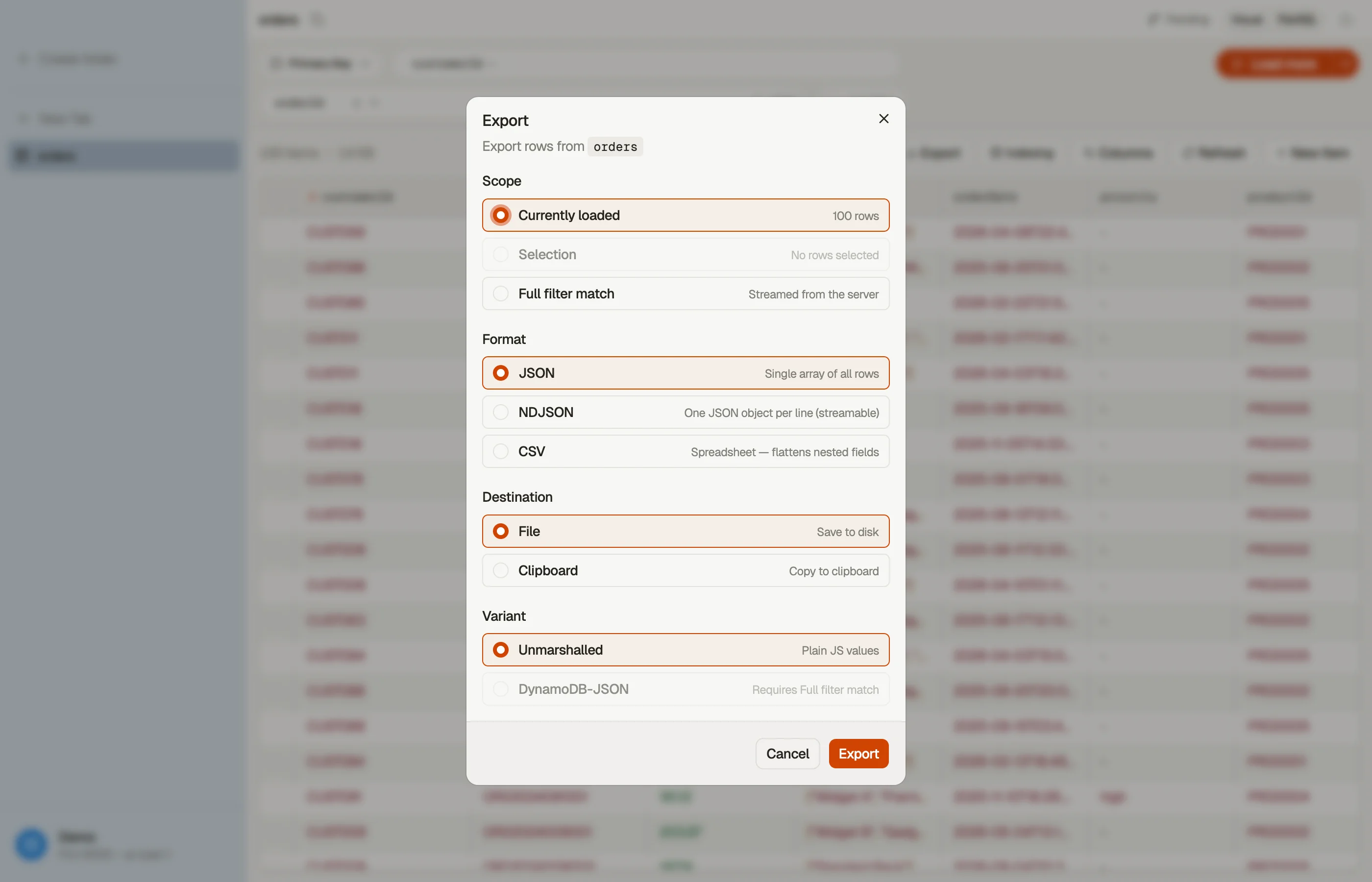


Formats
- CSV — one row per item, with headers. Sets serialise as JSON arrays inside a cell (lossy for set semantics, but readable in spreadsheets).
- JSON — a JSON array of items.
- NDJSON — newline-delimited JSON, one item per line; ideal for streaming into other tools.
JSON and NDJSON come in two variants:
- Unmarshalled — plain, readable JSON (
"count": 3). - Marshalled (DynamoDB-JSON) — the type-wrapped wire form. Use this when you need a lossless round-trip — it preserves large numbers (> 2⁵³) that the plain variants corrupt. Only available for the full-match scope.
Scopes
- Current — the rows currently loaded in the grid.
- Selection — only the rows you've selected.
- Full match — every item your filter / query matches, streamed straight from DynamoDB (not just what's loaded).
Send the result to the clipboard or save it to a file.
Renamed columns
If you've renamed columns in a tab — or you're exporting a Smart Table with relationship labels — the renamed names flow through to the export. CSV headers and JSON / NDJSON keys use your labels; the underlying data lookup is unaffected. (The marshalled DynamoDB-JSON variant keeps original attribute names for round-trip integrity.)
Background exports
A full-match export of a large table can take a while. Once bytes start flowing, the dialogue closes and the export detaches — it shows up in the export dock at the bottom of the sidebar with live progress, and it survives closing the tab, switching profiles, and reloading the app (⌘R).
- Watch progress and cancel from the dock popover.
- A finished export raises a toast; click it to reveal the file.
- Cancelled exports are silent; failed ones stick around with the error so you can retry.
Quick copy
For one-off grabs, right-click a row (or selection) and use Copy as… to put CSV, JSON, NDJSON, or DynamoDB-JSON straight on the clipboard, no dialogue.
The AI chat can also start an export for you — ask it to export a table or a query and it produces a downloadable file via the same engine.