Table stats
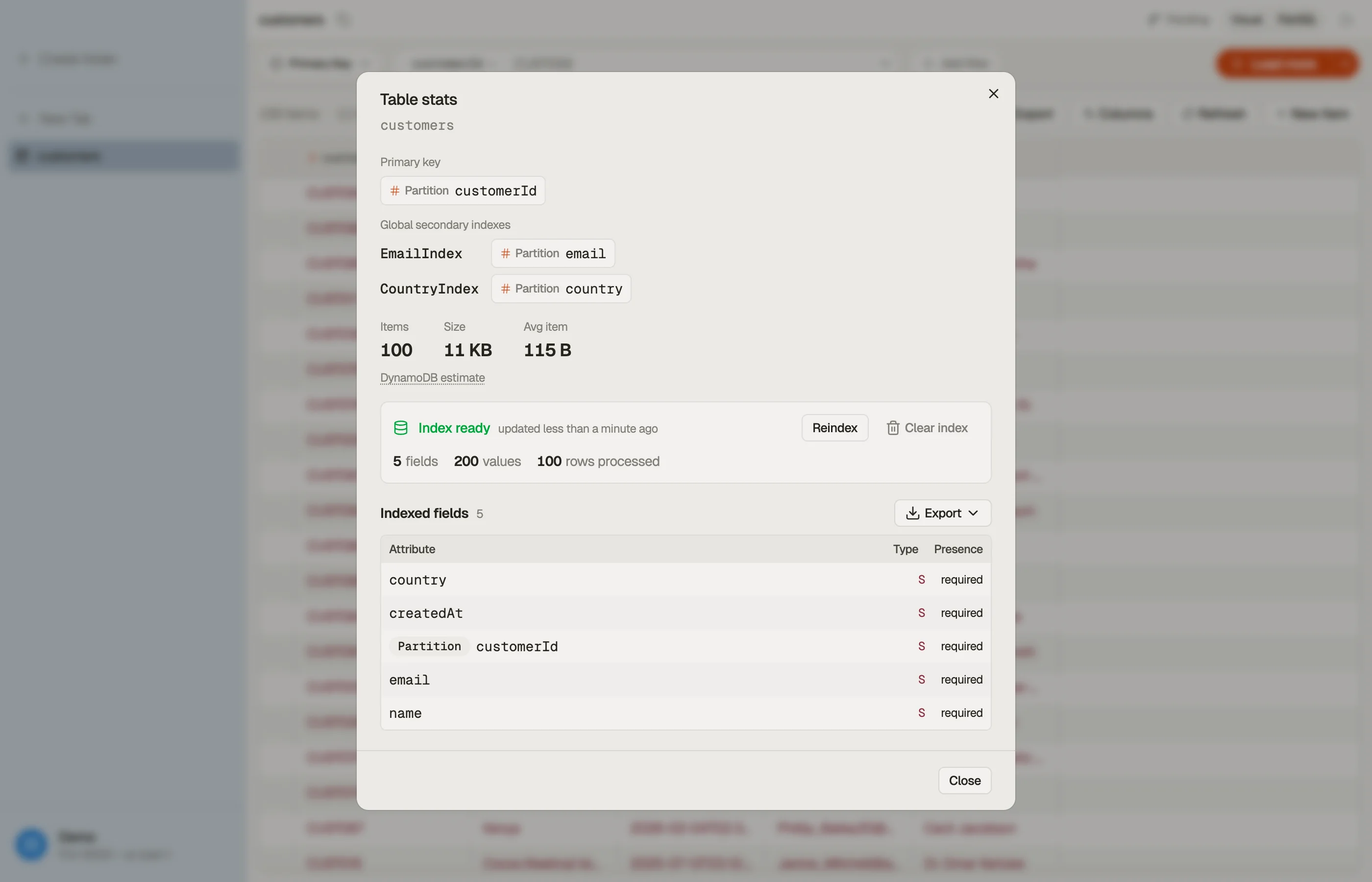
Every open table has a Stats button — the bar-chart icon — in the tab toolbar, in both Visual and PartiQL modes. It opens a per-table panel that shows the table's shape at a glance, lets you index the table so autocomplete knows your fields, and exports an inferred schema as TypeScript, Zod, or JSON Schema.


Overview
The top of the panel lays out the table's structure:
- Primary key — the partition key, and the sort key if the table has one.
- Secondary indexes — each global or local secondary index and its keys. A table with many indexes stays compact — the list scrolls in place.
- Items · Size · Avg item — DynamoDB's own estimates. They refresh roughly every six hours, so treat them as ballpark figures, not exact counts. Hover DynamoDB estimate for the caveat.
Indexing your table
Without indexed fields, the Workbench and PartiQL query editors show no field or value suggestions. Keyword, function, and operator completion still works.
The index supplies data to:
- Query editors: Workbench and PartiQL field and value suggestions, plus the Workbench check for unknown columns.
- Item editor: indexed data supplies every non-key field-name suggestion and
all value suggestions.
PK,SK,GSI, andLSIkey names come from the table definition and need no index. - Visual table tools: the column selector, visual query and scan filters, Smart Table nodes, and the relationship attribute picker.
- AI:
@columnsuggestions for the active table, schema tools, schema hints for ghost text and inline edits in both query editors, and normalisation of joined Smart Table columns. - Stats and sharing: the Indexed fields list, inferred-schema export, and publishing indexes to Team Workspace.
Index-driven completion and AI ghost text are separate. Workbench and PartiQL index suggestions are ungated; AI ghost text is off by default and requires an active licence.
In the item editor, DynamoDB JSON mode suppresses indexed value completion. Field-name completion still works there.
An index can appear or grow in five ways:
- Manual scan: Index table scans up to 10,000 items by default. Reindex clears the current index first, then scans to the same cap. On wide or long-tail tables, attributes first seen past the cap remain absent.
- Fetched pages: as you fetch table pages, DynoTable adds those items to the index without clearing it.
- Smart Tables: the first fetched page bootstraps the index.
- Team Workspace: a teammate's published index can be imported without a local scan. See Team Workspace for what an import replaces.
- AI bootstrap: on a schema miss, AI makes a best-effort index of about 100 items before answering. It adds to any existing index.
The manual scan shows live progress and uses DynamoDB reads. After indexing,
Indexed fields lists the attributes found, including nested dotted paths
such as commonData.status.
Each field shows its observed type and whether it was required or optional across the sampled items. Past a handful of fields, a filter box appears so you can find one quickly. Clear index removes the local index.
Export a schema
From an indexed table, open Export and pick a format to turn your items into a typed schema:
- TypeScript — an
interface. - Zod — a
z.object(...)schema (Standard-Schema compatible). - JSON Schema — draft 2020-12.
Copy it to the clipboard or save it to a file. Every export opens with a note that it was inferred from the sampled items — a strong starting point, not an authoritative contract. Optionality reflects how often each attribute appeared while indexing; primary-key attributes are always marked required.
This is a schema of your data's shape — distinct from an Export of the data itself.